CoCube Map Builder
CoCube Map Builder is an online tool for creating maps to use with the transparent positioning mat. Teachers, families, and children can click tiles to design mazes, routes, and themed missions. No installation is needed.
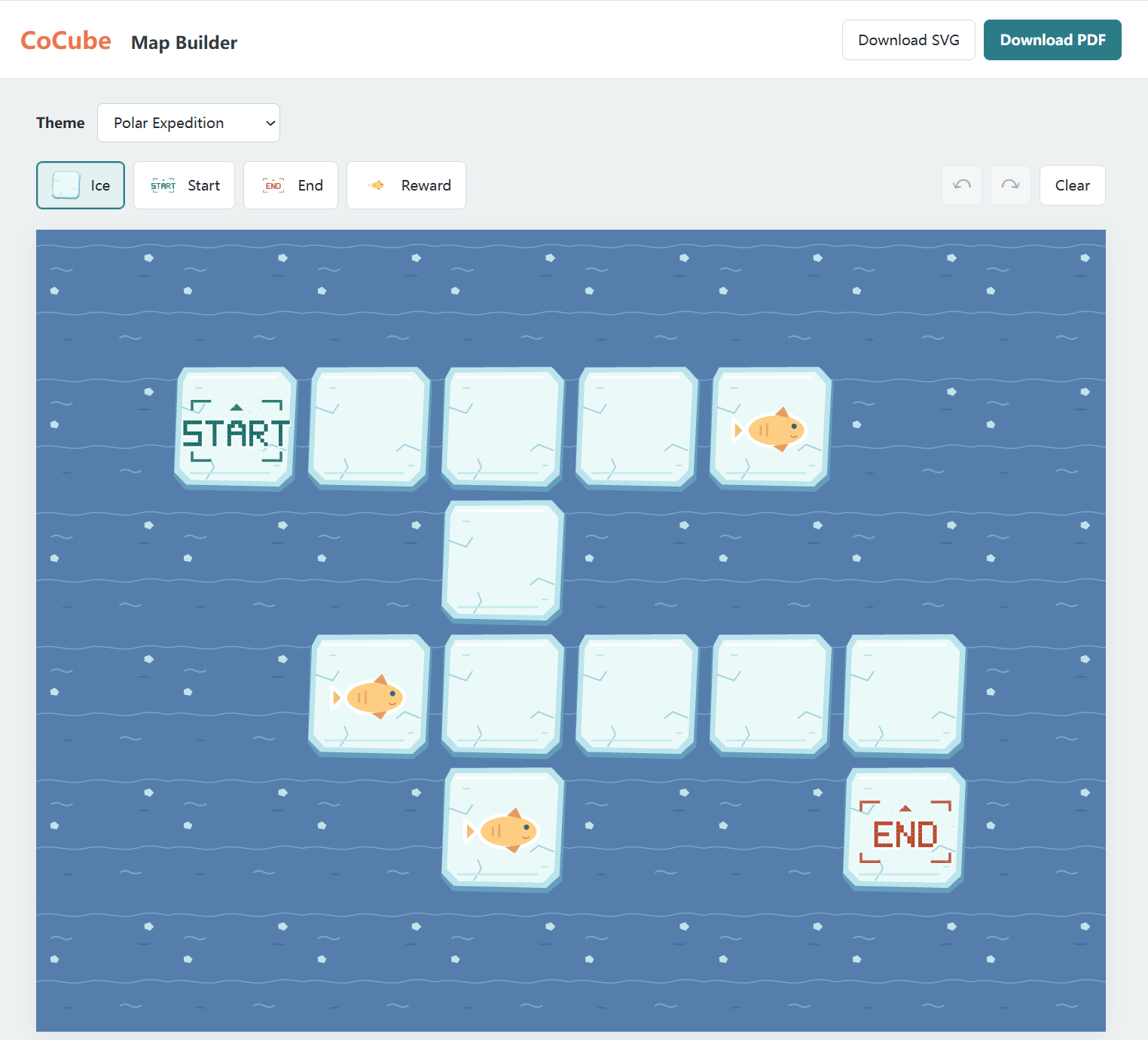
1. Choose a theme
Choose a scene in Theme, such as Moon Base, Forest River, Funfair, Pirate Treasure, Lava Adventure, Polar Expedition, or City Delivery. The theme changes the appearance of tiles and rewards.
2. Draw a route
Choose a tool, then click a cell:
- Base tile: build a path the robot can follow. Its name changes with the theme; in Polar Expedition it is Ice.
- Start: place the starting point.
- End: place the destination.
- Reward: add a reward point.
The map has 6 rows × 8 columns. The outer ring matches the positioning mat's border and cannot be edited. The inner 4 rows × 6 columns are editable.
Each map has one start and one end. Placing either again moves the marker to its new cell. You can add several rewards. Connect Start to End before adding detours and rewards.
3. Edit the map
- Click the left-curving arrow to undo.
- Click the right-curving arrow to redo.
- Click Clear to empty the map and start again.
4. Export and print
- Download PDF: download an A3 PDF for printing.
- Download SVG: download a vector file for further editing.
Print on A3 at actual size or 100% scale. Do not use “Fit to page,” which changes the cell size.
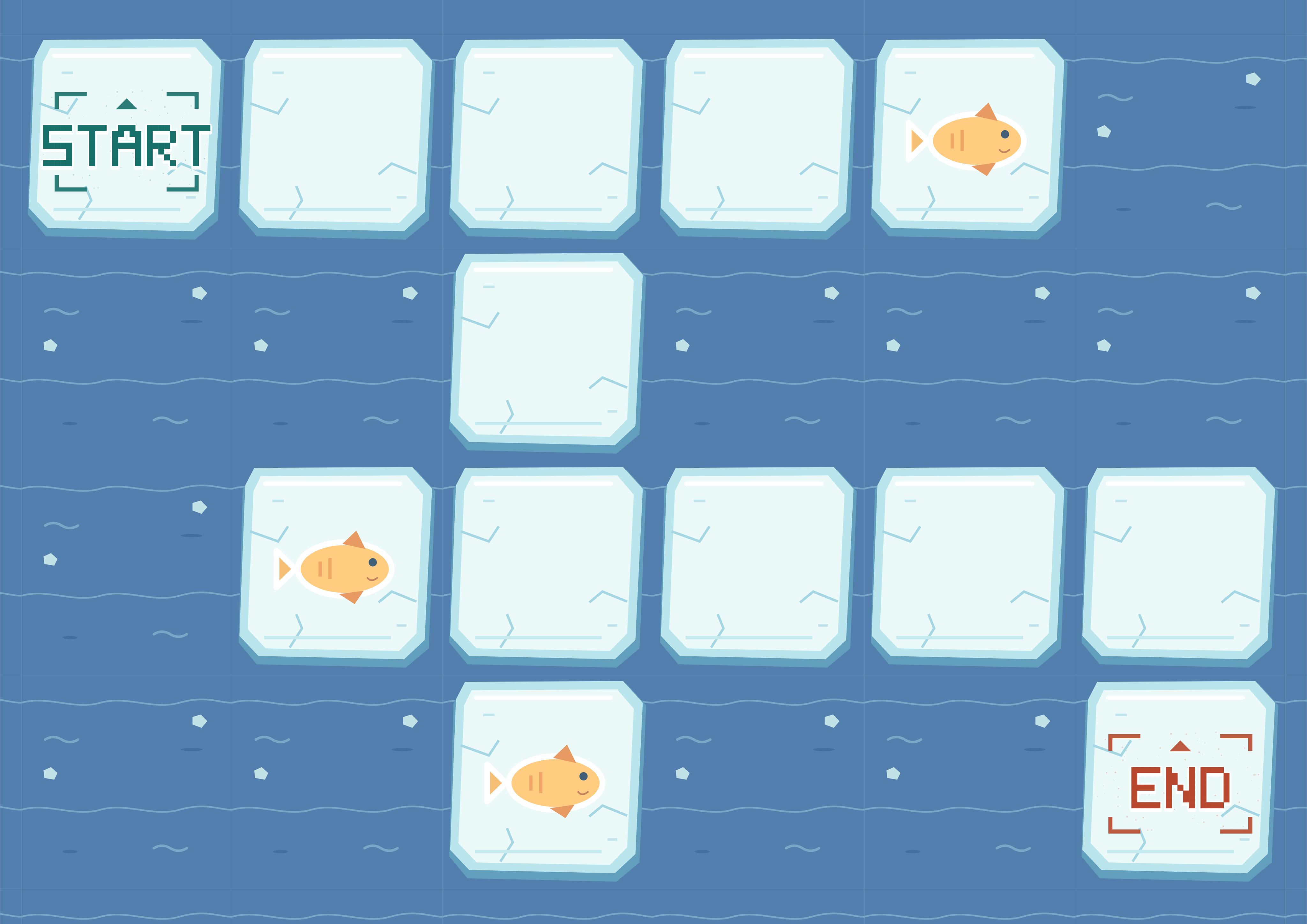
Download the example A3 polar map as SVG
5. Use the transparent positioning mat
Map Builder creates the illustrated background. The robot gets its position from the transparent positioning mat, not from the printed scene.
- Insert the printed map flat inside the transparent positioning mat.
- Align the grid edges of the print and the mat.
- Put CoCube at the center of the Start cell.
- Build a program in ICON or MicroBlocks to reach End or visit every Reward.
Read Getting Started with ICON to learn movement, turns, running, and debugging.
For MicroBlocks, see Using the CoMap.
6. Classroom challenges
Begin with a simple route from Start to End, then try:
- Collect every reward before reaching End.
- Complete the same route using fewer blocks.
- Compare routes to find a shorter path.
- Design a map for a partner to solve.
A teacher or adult should check that the route is connected and try it before children begin.