In the previous section, we already had CoCube and MQTTX send messages to each other. This time, instead of just displaying the message on the screen, we have CoCube perform actions based on the message it receives.
This tutorial contains two experiments:
- Send
forward,backward,left,rightto control CoCube movement. - Send the function name and parameters to call the existing blocks in CoCube.
If you have not completed the MQTT connection experiment, read Getting Started with CoCube MQTT first. For a detailed explanation of function calls, see Advanced Program Calls.
1. Connect MQTT
This project reuses the connection program from the previous lesson. Enter the Wi-Fi name and password, then press buttons A and B on CoCube at the same time.
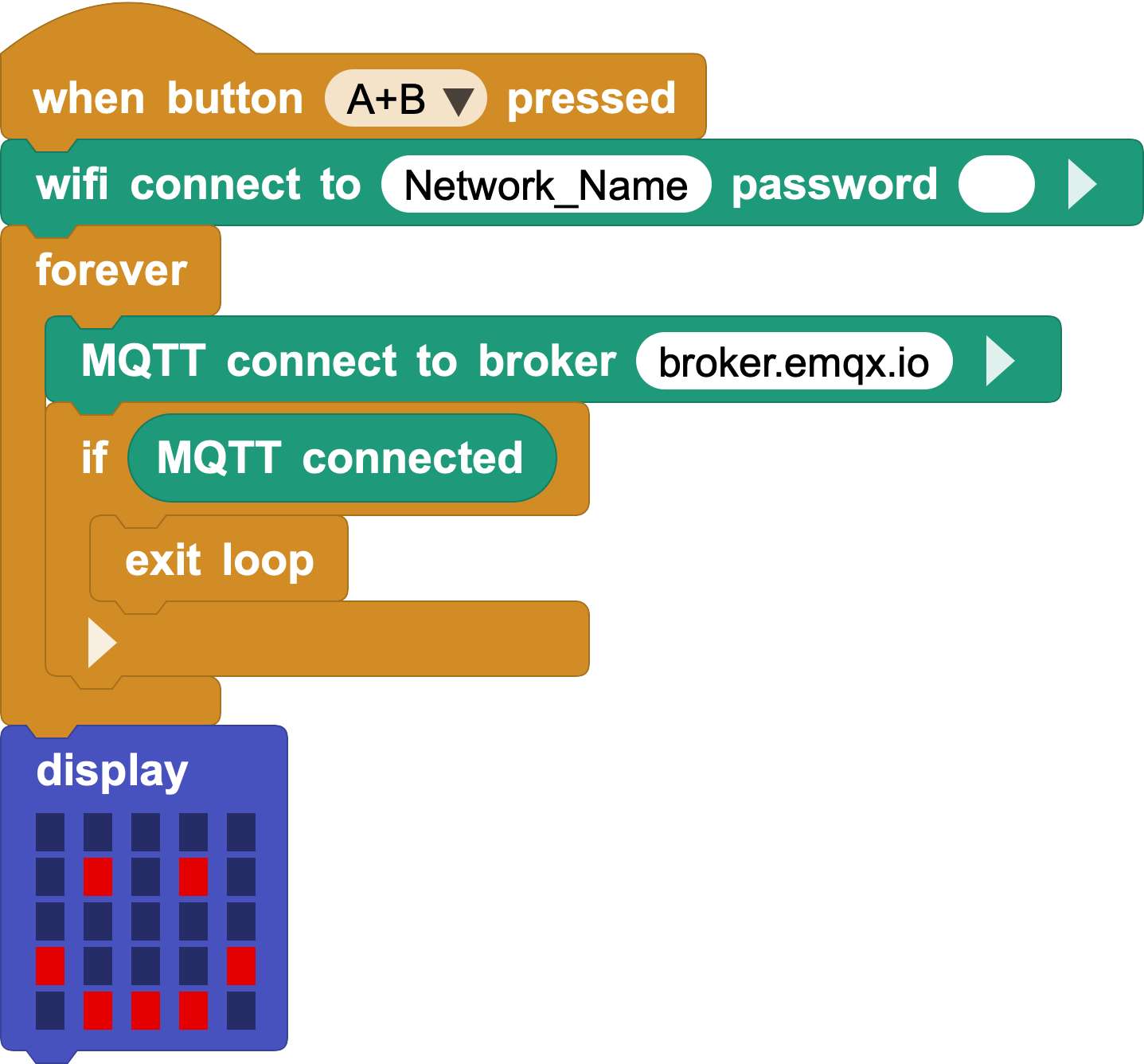
When CoCube displays a smiley face, it means it is connected to the MQTT server.
The following block libraries are also required in the program:
MQTTCoCubeFunction Calls
You can find the Function Calls block library under Add Library → Other → Function Calls.
2. Control CoCube with simple messages
Let’s start with the most intuitive method: let each message correspond to an action.
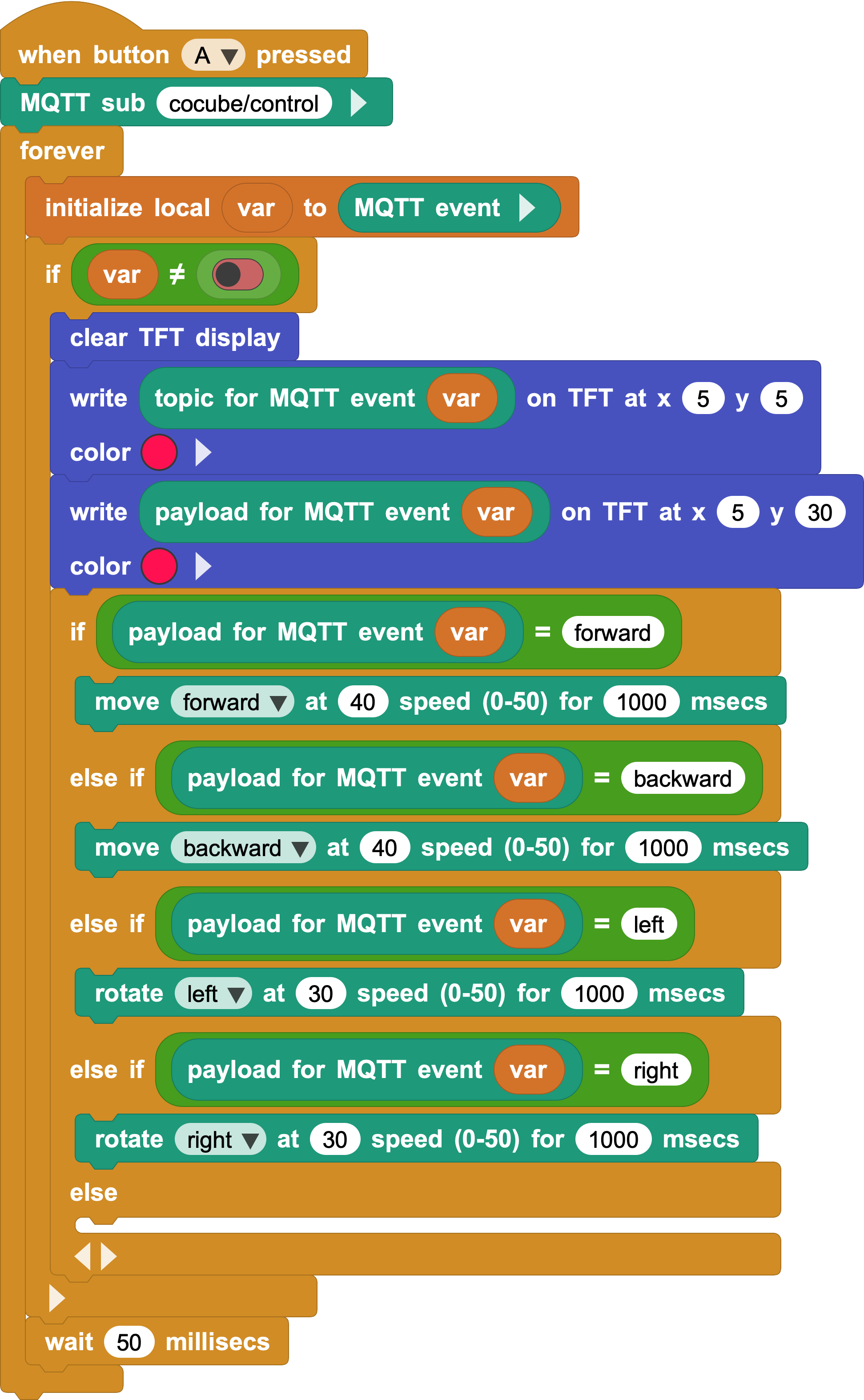
After pressing the A key, CoCube will subscribe to:
cocube/control
After receiving a message, the program reads the MQTT event payload, then uses if / else if to determine which action to perform:
| Messages received | CoCube actions |
|---|---|
forward |
Move forward |
backward |
Move backward |
left |
Rotate left |
right |
Rotate right |
In MQTTX, set the topic to cocube/control, send these four messages in sequence, and observe the actions of CoCube.
This approach is simple and intuitive, but each new command requires another condition. The program becomes longer as more blocks are made available for remote control.
3. Use a message to describe the function call
We can put the functions and parameters to be executed into the MQTT message in the format:
call,function_name,parameter1,parameter2...
For example, the following message means: Move the CoCube forward at a speed of 40 for 1000 milliseconds.
call,CoCube move for msecs,cocube;forward,40,1000
Separate each part of the message with commas:
| Content | Meaning |
|---|---|
call |
Indicates that this is a function call message |
CoCube move for msecs |
Function name |
cocube;forward |
Direction parameters |
40 |
Speed parameter |
1000 |
Time parameter in milliseconds |
4. Parse and call functions
Replace the fixed-command program in the previous section with the following general program:
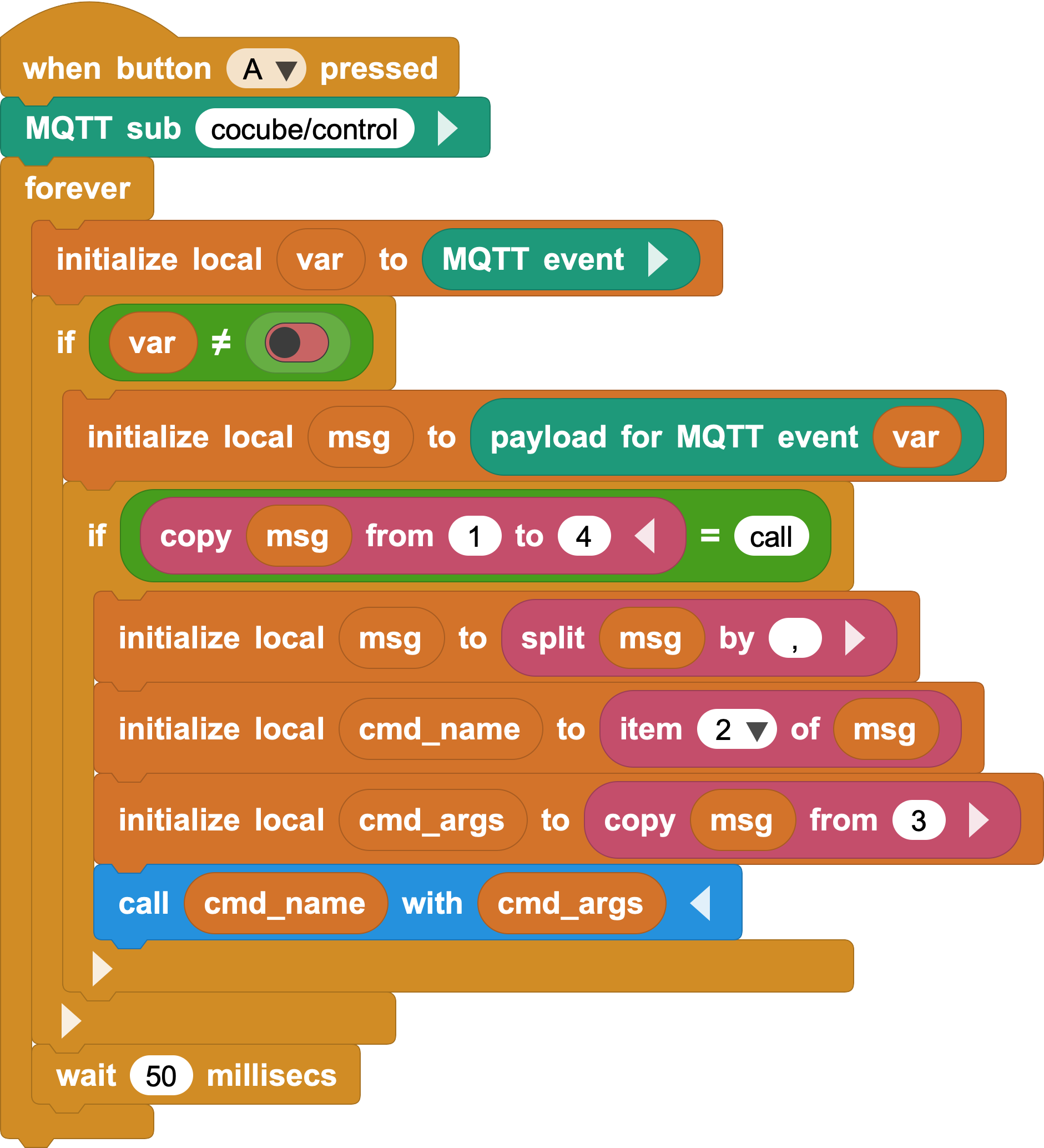
After the program receives the MQTT message, it will be processed in the following order:
- Read the message payload and save it to
msg. - Check whether the first four characters of the message are
call. - Separate the message with commas.
- Use the second item as the function name
cmd_name. - Take out item 3 and the following contents as parameter list
cmd_args. - Use the call block to execute the function.
This removes the need to write a separate condition for every action. As long as the message contains the correct function name and parameters, the same program can perform different tasks.
Code_2.pngandCode_3.pngare two different stages of receiving procedures. After completing Section 2, replace it with the program from Section 4. Do not run both versions at the same time.
5. Test in MQTTX
Keep the topic in MQTTX as:
cocube/control
Turn Retain off, then send:
call,CoCube move for msecs,cocube;forward,40,1000
call,CoCube move for msecs,cocube;backward,40,1000
call,CoCube rotate for msecs,cocube;left,30,1000
call,CoCube rotate for msecs,cocube;right,30,1000
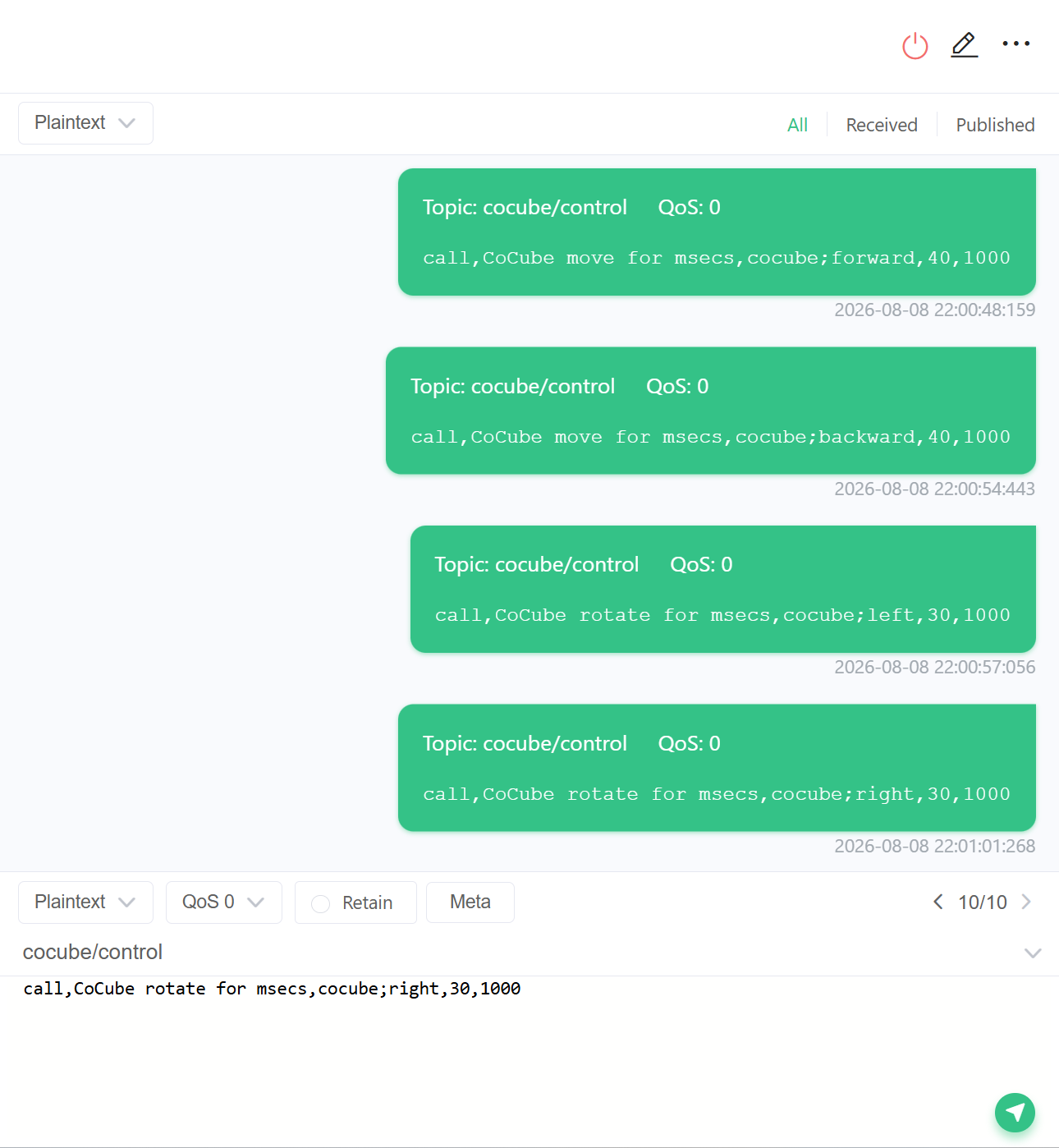
These four messages will cause CoCube to move forward, backward, rotate left, and rotate right respectively.
6. Find a block's function name
The function name in the message must be exactly the same as the real function name of the block.
Right-click the block in MicroBlocks, select Copy to clipboard, and then paste the content into a comment to view its GP Script.
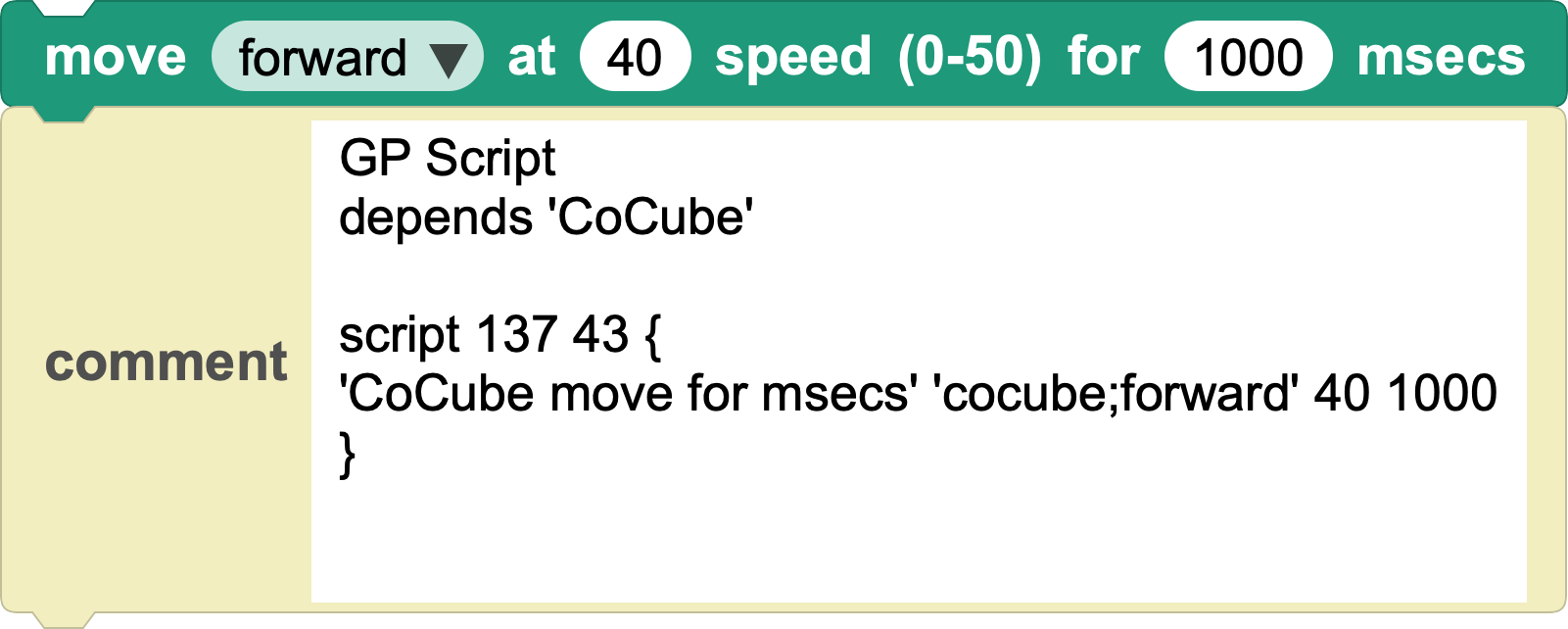
The blocks in the picture will get:
'CoCube move for msecs' 'cocube;forward' 40 1000
therefore:
- The function name is
CoCube move for msecs. - The parameters are
cocube;forward,40and1000.
Combining them in the format call,function_name,parameter_list gives you a complete command that can be sent through MQTT.
7. Try more functions
Select a CoCube block you want to execute remotely, view its function name and parameters, and compose a new call message in MQTTX.
You can also assign different topics to different robots, for example:
cocube/eow/control
cocube/eop/control
In this way, multiple CoCubes can be controlled separately from the same MQTTX interface.
This tutorial uses a public MQTT broker. Choose topics that are unlikely to conflict with other users, do not send personal information, and do not leave robots connected to public topics running unattended.