Code Snapshot
If you want to keep a program on the CoCube robot for a long time and open it quickly next time, you can use MicroBlocks' Code Snapshot feature.
A code snapshot saves the current program into CoCube's file system. After it is saved, even if CoCube is disconnected from the MicroBlocks IDE, you can still run the program directly from the robot's menu system.
1. Preparation: update the CoCube firmware
Before using code snapshots, first check whether your CoCube already supports this feature.
When CoCube is not connected to the MicroBlocks IDE, hold down the B button and press the A button 4 times in a row. If the CoCube screen changes and you can use the A/B buttons to switch through a menu, the current firmware already supports code snapshots and does not need to be upgraded.
If the menu does not appear, connect CoCube to the computer with a USB cable. In the MicroBlocks IDE, click Settings -> Update board firmware, choose CoCube, and then choose the correct port.
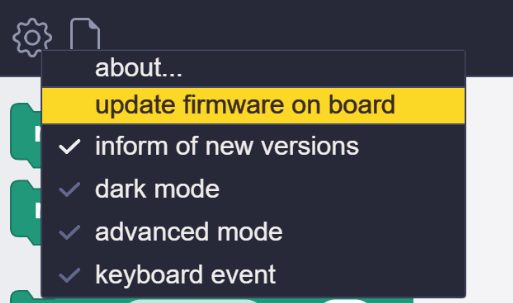
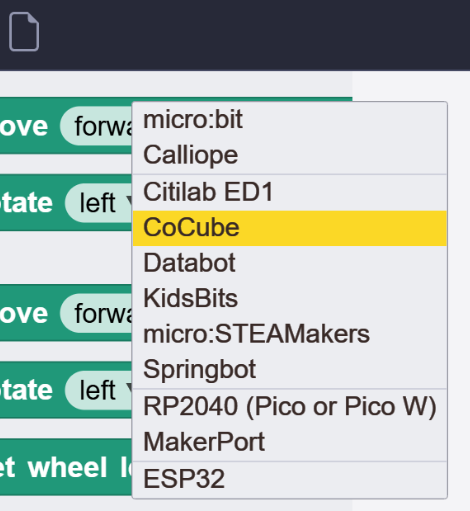
The firmware update takes about 1 minute. During the update, keep the MicroBlocks IDE page in the foreground of the browser and do not do other operations. Otherwise, the update may fail. If it fails, update the firmware again.
2. Open the menu system
After the update, the CoCube firmware includes nearly 10 built-in code snapshots. You can try these built-in programs from the menu system first.
When CoCube is not connected to the MicroBlocks IDE, hold down the B button and press the A button 4 times in a row. After the home screen appears, press A or B to enter the code snapshot menu. In the menu, press A or B to move the cursor. Press A and B at the same time to run the selected code snapshot.
guide: Shows the BLE ID of the current CoCube robot and introduces the main parts of the CoCube system.
bird: A Hoppy Bunny version of the Flappy Bird game. Use the buttons to help the bunny pass through pipes and see how many points you can get.
buzzer: A program that plays music with the buzzer. Put CoCube on different keys of the music map, and the robot will play the corresponding tones through the buzzer.
camera: A test program used with the Sengo2 camera. CoCube can recognize traffic cards and perform the corresponding actions.
face: A program that uses the screen to simulate facial expressions. Press A/B to switch expression colors.
football: A robot soccer program. Take out the soccer field map and place several 3D-printed soccer balls on it. After installing the gripper module on CoCube, place CoCube close to a soccer ball and facing the center of the right goal, then press A to record the current position. Repeat this for every ball. After all positions are recorded, press B, and the robot will automatically find the balls and shoot them into the goal.
maze: A robot maze program. The operation is similar to the football program. Take out the maze map or racing map, place the robot on the map, and press A at each turning point to record it. Then place the robot at the start of the path and press B. The robot will move along the recorded route by itself.
midi: A program for playing MIDI music. It requires the MIDI music module. Similar to the buzzer program, put CoCube on different keys of the music map, and the MIDI module will play the corresponding tones. Put CoCube on the instrument area in the first row to switch instruments. Put it on the percussion area in the second row to trigger percussion sounds with the A/B buttons.
To exit the current program, hold down B and press A 4 times again to reopen the menu system.
3. Add your own code snapshot
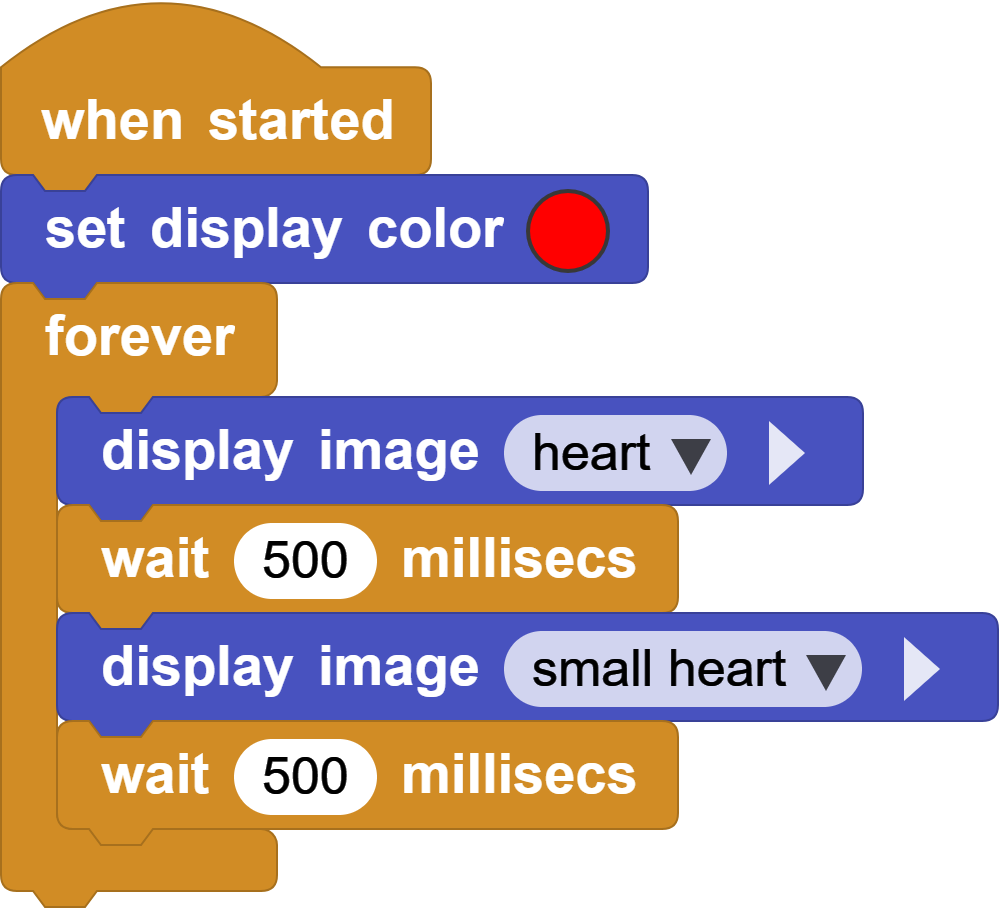
The following simple program demonstrates how to save your own code snapshot.
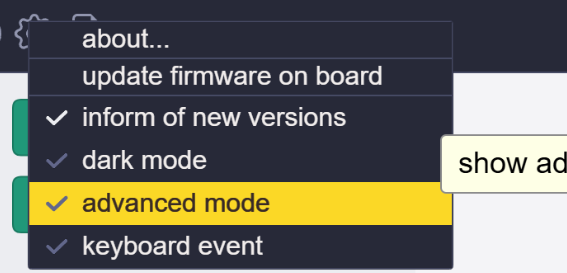
First, turn on Advanced Mode in the MicroBlocks IDE settings. After Advanced Mode is enabled, MicroBlocks will show features related to code snapshots, and some libraries will provide additional blocks.
Then use the show image block from the LED Display library and the set display color block available in Advanced Mode to create a beating heart animation.
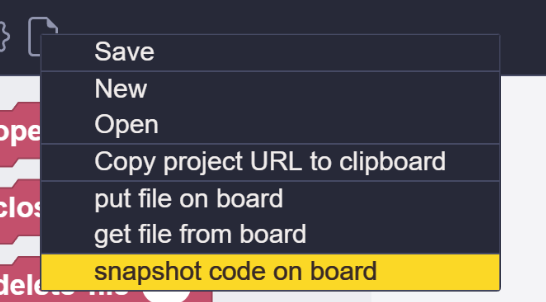
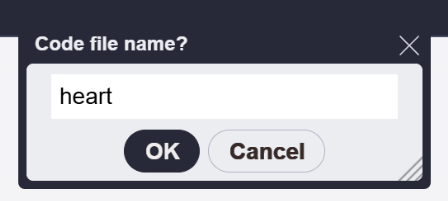
Next, click snapshot code on board in the File menu. Name the snapshot heart, then click OK. The current program will be saved into the file system on the CoCube chip.
Finally, make sure to disconnect CoCube from the MicroBlocks IDE before opening the menu system. You will now see the heart program in the menu and can run it from the robot at any time.
4. Delete your code snapshot
Usually, you do not need to delete saved code snapshots. If you do need to delete one, follow these steps:
Add the library: Other -> Files.
Use the file name block to view the contents saved in the file system. You should be able to see
heart.ucode.
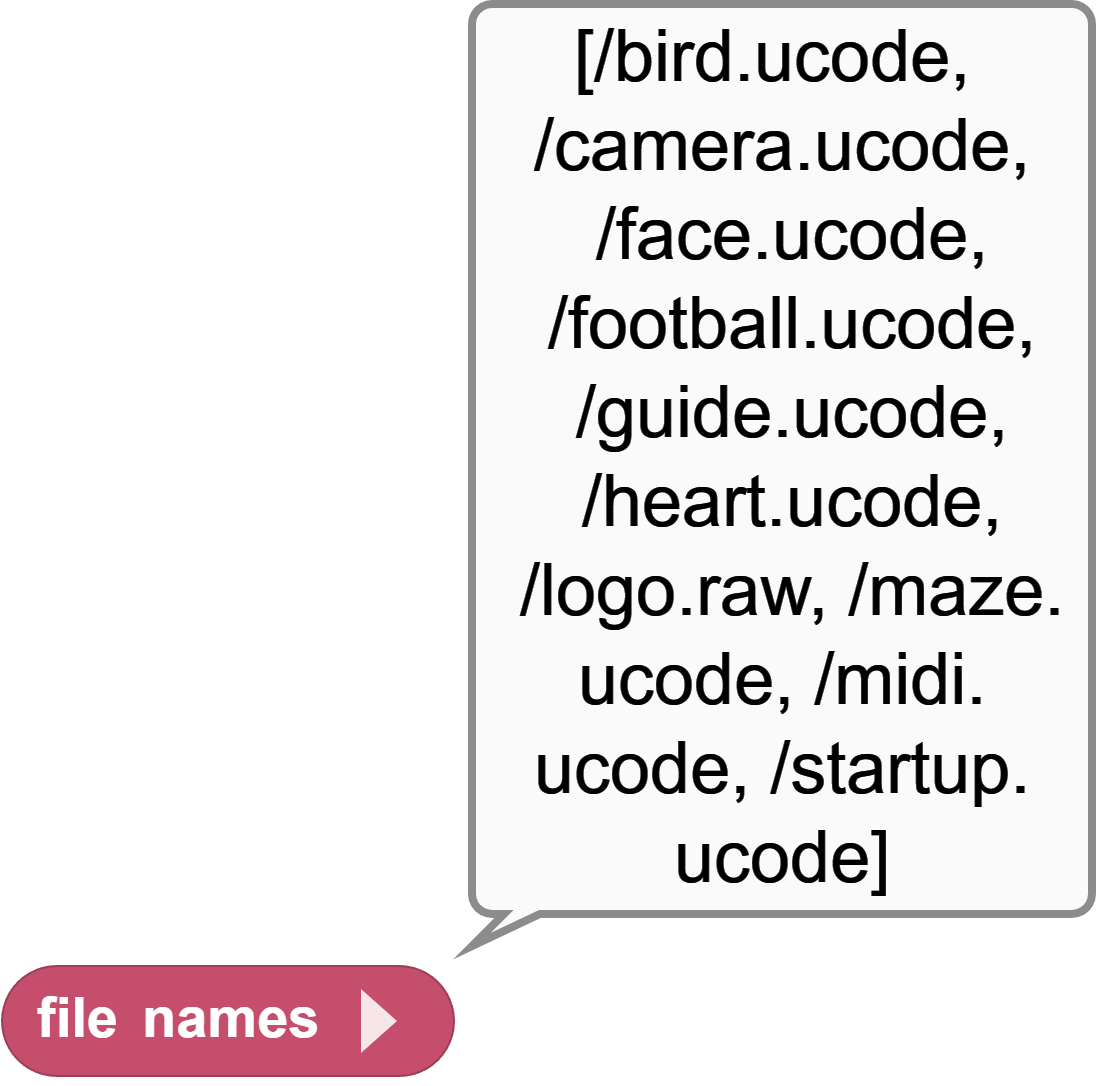
- Use the delete file block to delete
heart.ucode.

- Use the file name block again to check the file list and confirm that
heart.ucodehas been deleted. After disconnecting CoCube from the MicroBlocks IDE and opening the menu system again, theheartprogram will no longer appear.
5. Notes
When you update the firmware in the MicroBlocks IDE, the file system will be restored to the factory built-in code snapshots. Any snapshots you saved yourself will be lost, so back them up first if needed.
Open the menu system only after CoCube is disconnected from the MicroBlocks IDE. Triggering the menu system while connected may cause unexpected behavior.