Advanced Program Calls in MicroBlocks: Controlling CoCube with Broadcast Messages
In MicroBlocks, a broadcast is more than "sending a message." It can wake up scripts, pass commands, call custom blocks, and even work like a remote function call, allowing a web page or a Python host program to control CoCube tasks.
This tutorial starts from the basic broadcast mechanism and gradually moves toward:
- Sending broadcast messages to CoCube through BLE from a web page.
- Reading broadcast content with last message.
- Calling custom blocks without parameters through broadcasts.
- Calling custom blocks with parameters using the format
call,function name,parameter list. - Finding the function name and parameter list of existing blocks, then calling them through broadcasts.
- Extending the same message mechanism to Python host programs, and later to MQTT, UDP, and other communication methods.
1. Broadcast mechanism: remote control CoCube from a web page
First open the web remote controller:
https://microblocks.fun/rfp/remote.html
This web page can connect to a CoCube running MicroBlocks through BLE and send broadcast messages. After the connection succeeds, type a message in an input box and click Send. The matching when I receive script on CoCube will be woken up.
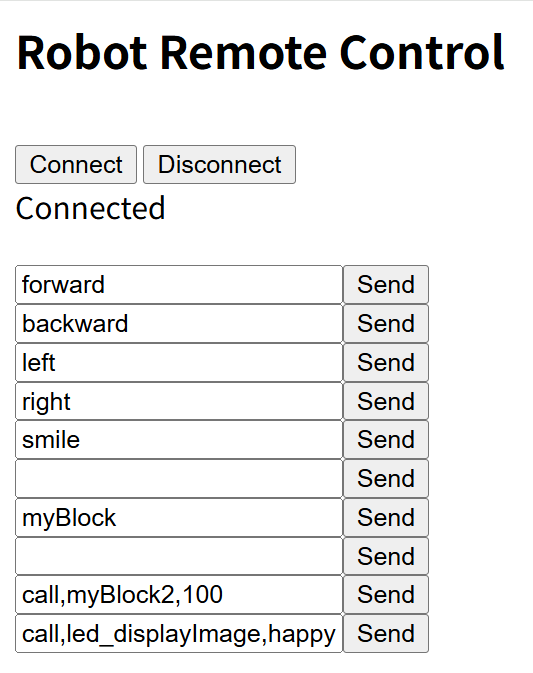
The simplest method is to let different broadcast messages represent different tasks.
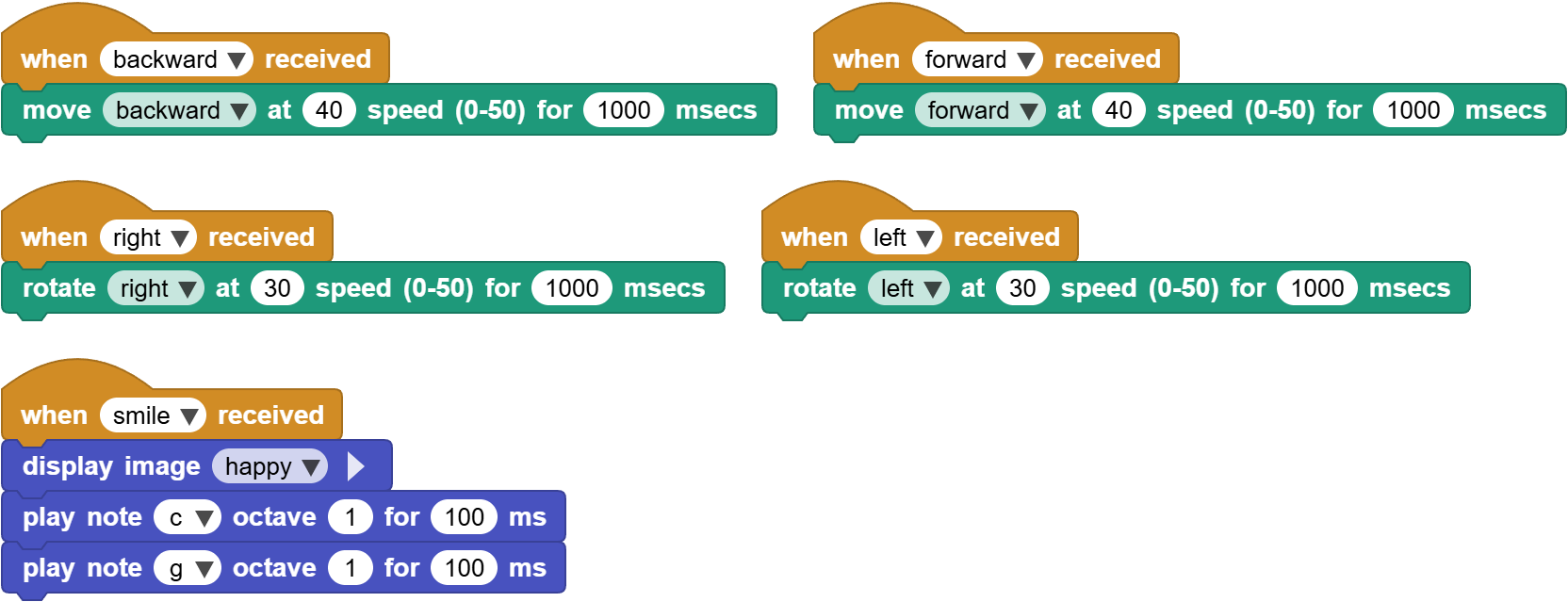
For example:
| Received message | Task |
|---|---|
forward |
Move forward |
backward |
Move backward |
left |
Turn left |
right |
Turn right |
smile |
Show a smile and play tones |
This is a good way to understand broadcasts at the beginning. The web page is not sending complex data; it is sending task names. The CoCube program prepares scripts for those task names ahead of time. When a broadcast arrives, the matching task runs.
Try sending these messages from the web page:
forwardbackwardleftrightsmile
Check whether CoCube performs the corresponding actions.
One detail matters: the text of the broadcast message must match the text in the when I receive block. If the web page sends forward, the program must have a when I receive forward script.
2. Last message: reading broadcast content
In the previous section, every message had its own when I receive script. If there are many messages, the program can become scattered.
MicroBlocks has an important block called last message. It reads the content of the most recently received broadcast.
We can write one unified receiver script: first read last message, then put the message into if / else if checks to decide which task the robot should run.
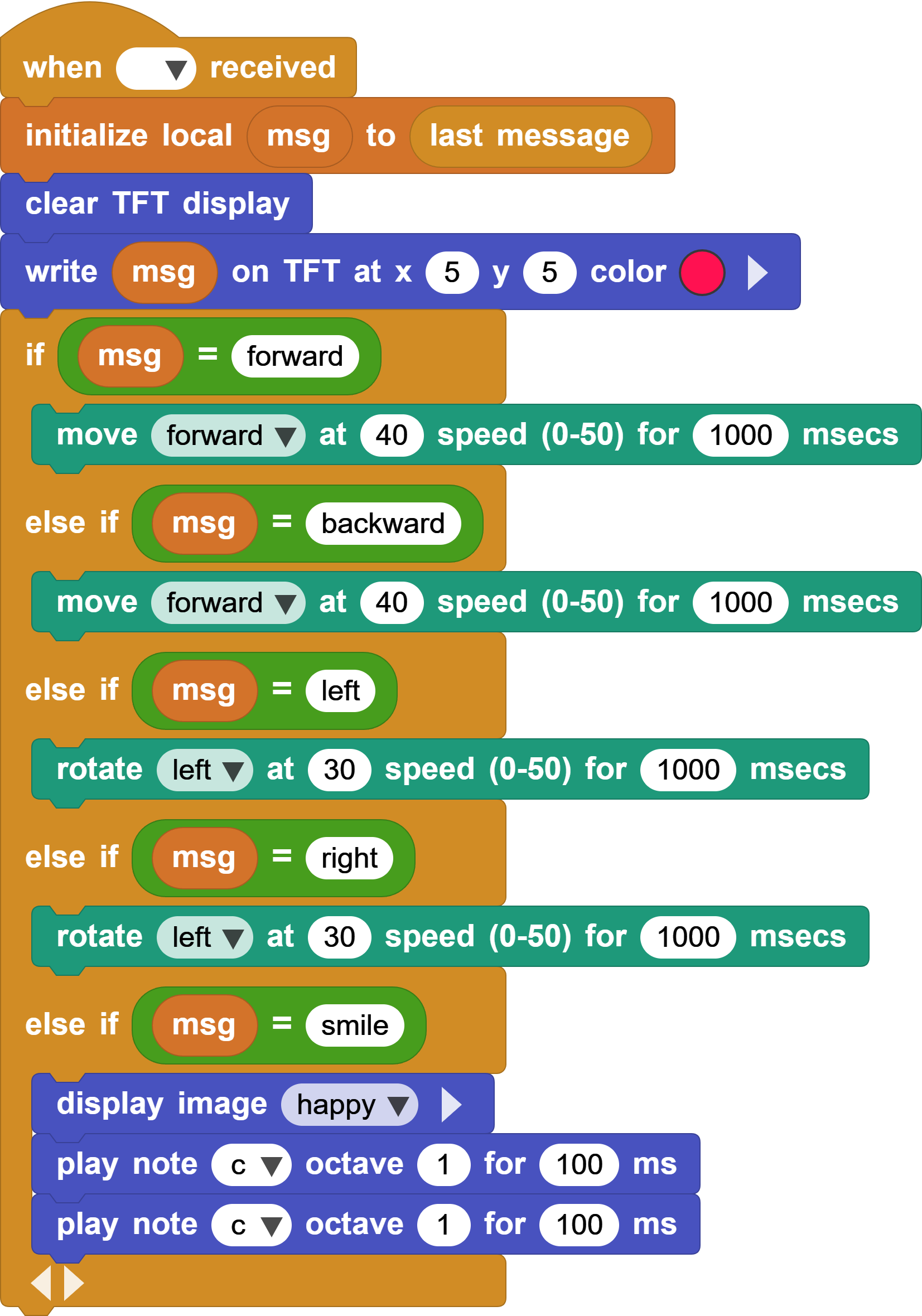
This program means:
- When any broadcast is received, save last message in the variable
msg. - Clear the TFT screen and display
msg. - If
msg = forward, move forward. - Otherwise, if
msg = backward, move backward. - Otherwise, if
msg = left, turn left. - Otherwise, if
msg = right, turn right. - Otherwise, if
msg = smile, show a smile and play tones.
Now send these messages from the web page:
forwardbackwardleftrightsmile
CoCube will first display the received message on the screen, then execute the matching action according to msg.
The key idea in this section is:
The broadcast message itself can be read and used by the program.
With last message, the program does not need a separate when I receive xxx script for every message. All messages can enter one receiver, then an if structure can dispatch them to different tasks:
| Condition | Task |
|---|---|
msg = forward |
Move forward |
msg = backward |
Move backward |
msg = left |
Turn left |
msg = right |
Turn right |
This makes the program structure clearer.
3. Calling a custom function without parameters through a broadcast
In MicroBlocks, we can define our own blocks. For example, define myBlock:
The myBlock process is:
- Show a heart.
- Wait
500milliseconds. - Show a small heart.
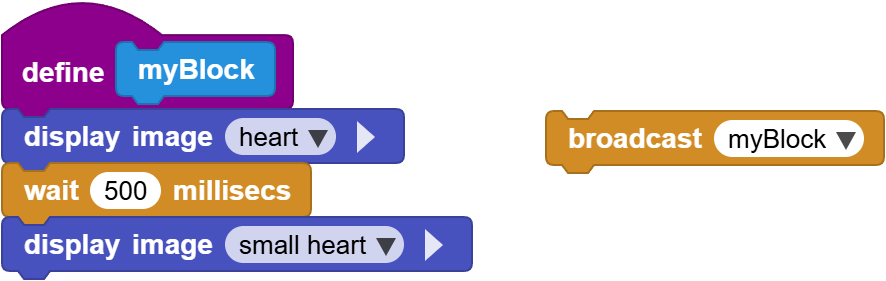
Normally, to call this custom block, we can simply drag out the myBlock block and run it.
Another way is to add the function-calling library (Add Library - Other - Call Function), and call the function by its name.
What may be less obvious is that a direct broadcast message can also act like calling a function with the same name.
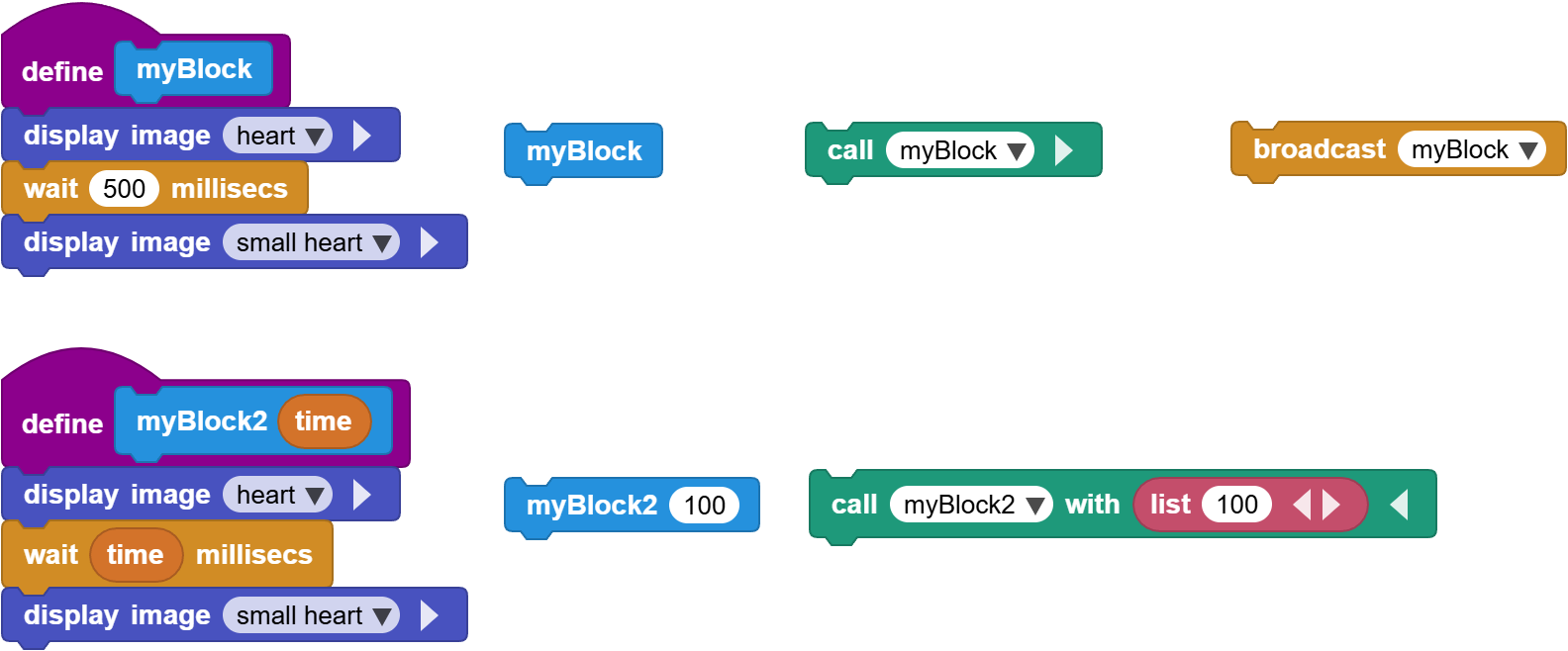
At this point, the myBlock button in the web remote controller works like a remote button. The web page sends myBlock, and CoCube receives it and runs the task with the same name.
This method is suitable for tasks without parameters, such as:
smileblinkbeepdancereset
Using broadcast messages to "call functions" is very direct and lightweight.
4. Calling a custom function with parameters through a broadcast
If a function needs parameters, simply broadcasting myBlock is not enough.
For example, suppose we define a custom block with one parameter:
myBlock2 time
It can use the parameter time to decide how long to wait.
To call it through a broadcast, we can agree on a message format:
call,function name,parameter
For example:
call,myBlock2,100
This message means:
This means: call myBlock2 with the parameter 100.
After the program receives the broadcast, it needs to parse last message first:
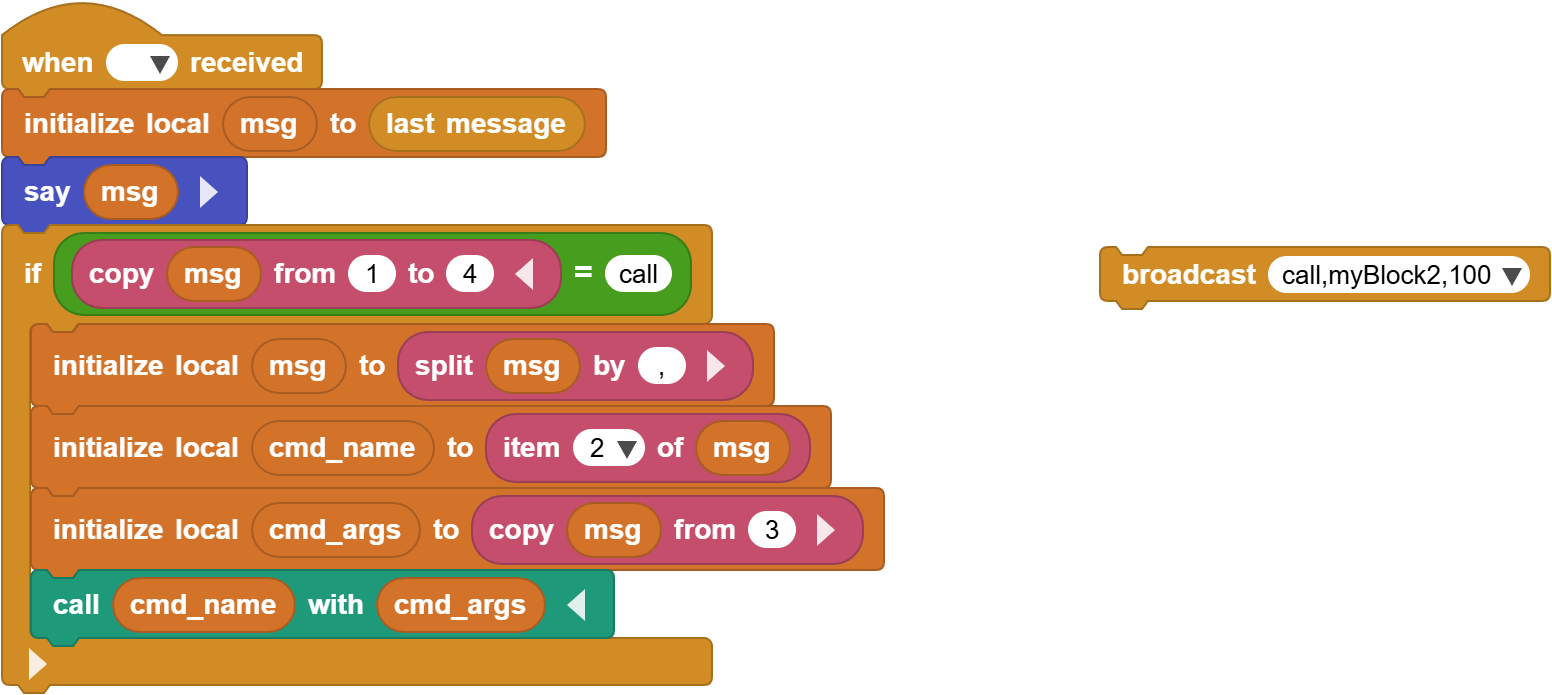
The parsing idea is:
- Receive any broadcast and save last message in
msg. - Check whether the first four characters of
msgarecall. - Split
msgat each comma. - Use item 2 as the function name.
- Use item 3 and the following items as the parameter list.
- Call the function with that parameter list.
For call,myBlock2,100:
- Item 1:
call - Item 2:
myBlock2 - Item 3:
100
So the program will execute:
The program then calls myBlock2 with the parameter 100.
The advantage of this format is that the web page only needs to send different strings to call different functions and pass different parameters.
Try:
call,myBlock2,100
call,myBlock2,500
call,myBlock2,1000
Observe whether the waiting time changes.
If a function has multiple parameters, continue putting them after the function name:
call,function name,parameter1,parameter2,parameter3
For example:
call,setColor,255,0,0
call,moveTo,100,80,40
call,playTone,c,1,200
This is already close to a small command system.
5. Calling existing functions
Custom blocks are not the only things that can be called this way. Many existing MicroBlocks blocks can also be called by function name.
The key question is: how do we know the real function name and parameter list of a block?
In MicroBlocks, right-click a block and choose copy to clipboard.
Then paste it into a comment block or somewhere else to inspect the corresponding GP Script.
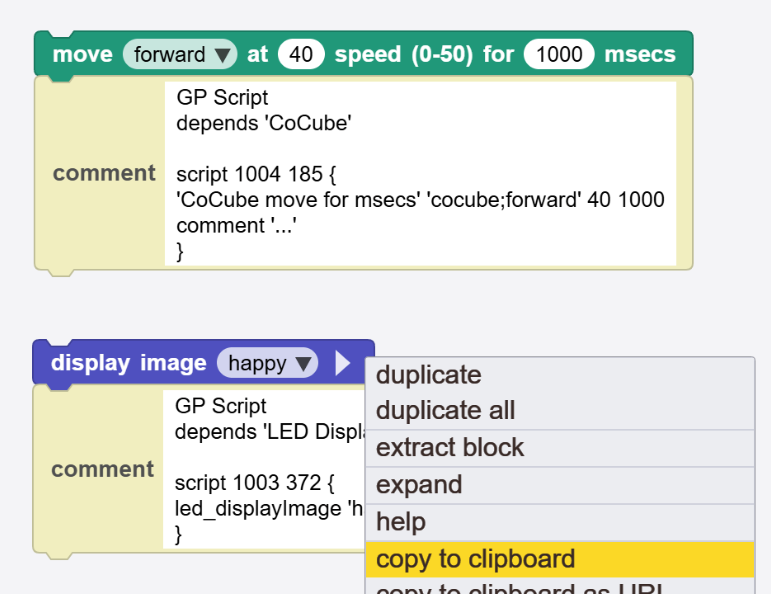
For example, after copying the CoCube "move forward for 1000 milliseconds" block, you may see something like:
'CoCube move for msecs' 'cocube;forward' 40 1000
This tells us the real function name:
CoCube move for msecs
The parameters are:
cocube;forward
40
1000
So we can send this broadcast:
call,CoCube move for msecs,cocube;forward,40,1000
For another example, the block that displays a smile image may reveal a function name like:
led_displayImage
If the parameter is happy, we can send:
call,led_displayImage,happy
You can also prepare these commands in the web remote controller and try sending them:
call,myBlock2,100
call,led_displayImage,happy
Suggestions for checking function names
- First build the action you want using normal blocks.
- Right-click the block and choose copy or inspect the script.
- Find the real function name.
- Record the parameter order.
- Test the call using the format
call,function name,parameter list.
For CoCube, this is especially useful for remote control, for example:
call,CoCube move for msecs,cocube;forward,40,1000
call,CoCube move for msecs,cocube;backward,40,1000
call,CoCube rotate for msecs,cocube;left,30,1000
call,CoCube rotate for msecs,cocube;right,30,1000
call,CoCube wheels stop
If a function call fails, first check three things:
- Is the function name exactly correct?
- Is the number of parameters correct?
- Is the parameter order correct?
6. Not only web pages: Python host programs can also send messages
The examples above use a web page to send broadcast messages because it is direct and easy to demonstrate.
But this mechanism is not limited to the web page. As long as something can send the same broadcast strings to MicroBlocks, it can control CoCube.
For example, we can use a Python host program:
MicroBlocks Messaging Library project page
This library allows Python programs to communicate with devices running MicroBlocks through messages. In other words, anything sent by clicking Send on the web page can also be sent by a Python program.
Commands from the web page can be moved to Python:
forwardbackwardleftrightsmilemyBlockcall,myBlock2,100call,CoCube move for msecs,cocube;forward,40,1000call,CoCube wheels stop
This makes it possible to build more advanced host-control systems, such as:
- Control CoCube with keyboard arrow keys.
- Let Python automatically send a sequence of action commands.
- Use a camera to recognize results, then send control commands.
- Coordinate multiple CoCube robots.
- Send
call,function name,parameter listcommands from a computer interface.
The web page is good for classroom demos, while Python is better for complete projects. The core idea behind both is the same:
- Write tasks as broadcast messages.
- Let the MicroBlocks program parse the messages.
- Call the corresponding functions.
7. Not only BLE: the same idea also works with other message systems
In this tutorial, we mainly use BLE broadcast messages to call tasks. The web remote controller and the Python host program both send strings like these:
forwardsmilecall,myBlock2,100call,CoCube move for msecs,cocube;forward,40,1000
But the more important part is not BLE itself. It is the design idea of "messages driving tasks":
- An external system sends a message.
- The MicroBlocks program receives the message.
- It reads the message content.
- It parses the command and parameters.
- It calls the matching task or function.
So even if the message does not come from BLE in the future, we can use a similar structure. For example:
- MQTT messages: a computer, web page, or server publishes a control message, and CoCube executes the task after receiving it.
- UDP messages: devices on the local network send short messages directly, and the robot parses and executes them.
- WiFi web control: web buttons send commands, and the MicroBlocks program calls functions according to the commands.
- ESP-NOW messages: multiple robots send commands to each other for cooperative control.
In other words, BLE is only the communication entry point used in this lesson. What can really be reused is:
- Describe tasks with strings.
- Read tasks with last message.
- Dispatch tasks with the
callmechanism. - Extend tasks with function names and parameter lists.
The concrete implementations of MQTT, UDP, and other methods will be introduced in later tutorials.