1. Goal
Learn how to use the ASR speech recognition module so CoCube can listen for your voice and respond to commands.
You will also try custom voice commands and build a simple voice-navigation program.
2. Materials
3. Software Platform
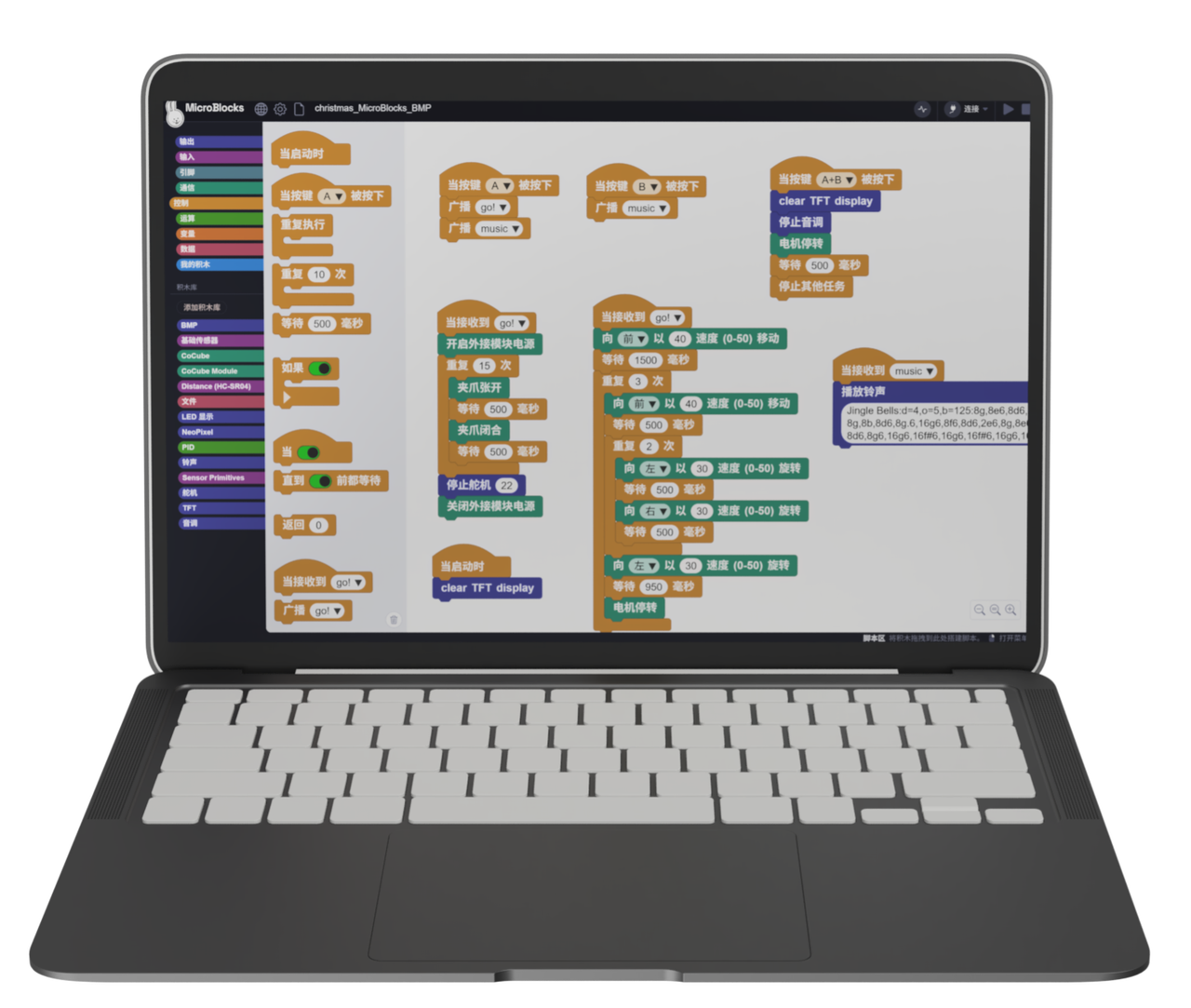
MicroBlocks - CoCube & CoCube Module
4. Quick Start
- Connect the hardware
- Connect the MicroBlocks IDE to CoCube by USB or BLE.
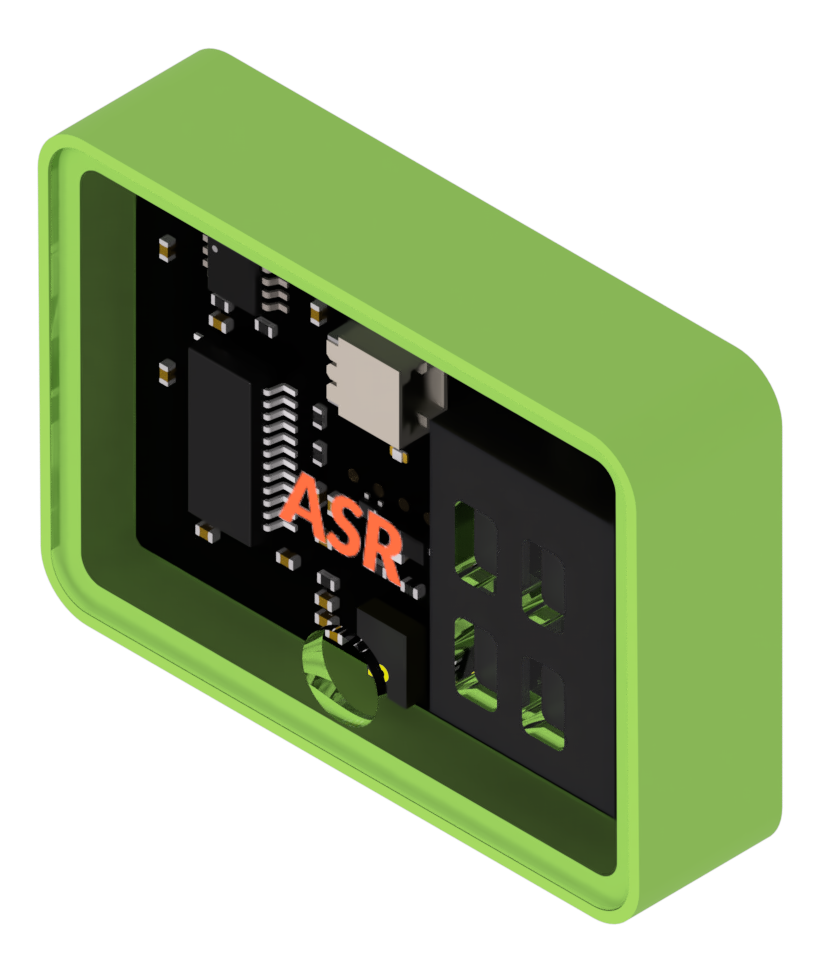
- Plug the ASR module firmly into CoCube.
- Work in a fairly quiet place. Speak clearly and not too fast.
- Add the library
Open Add Library and add CoCube Module. In this activity, we will use:
ASR get command, which reports the recognized command ID.ASR play command _, which asks the ASR module to speak the reply for a command ID.



- Try recognition and voice replies
- Keep reading
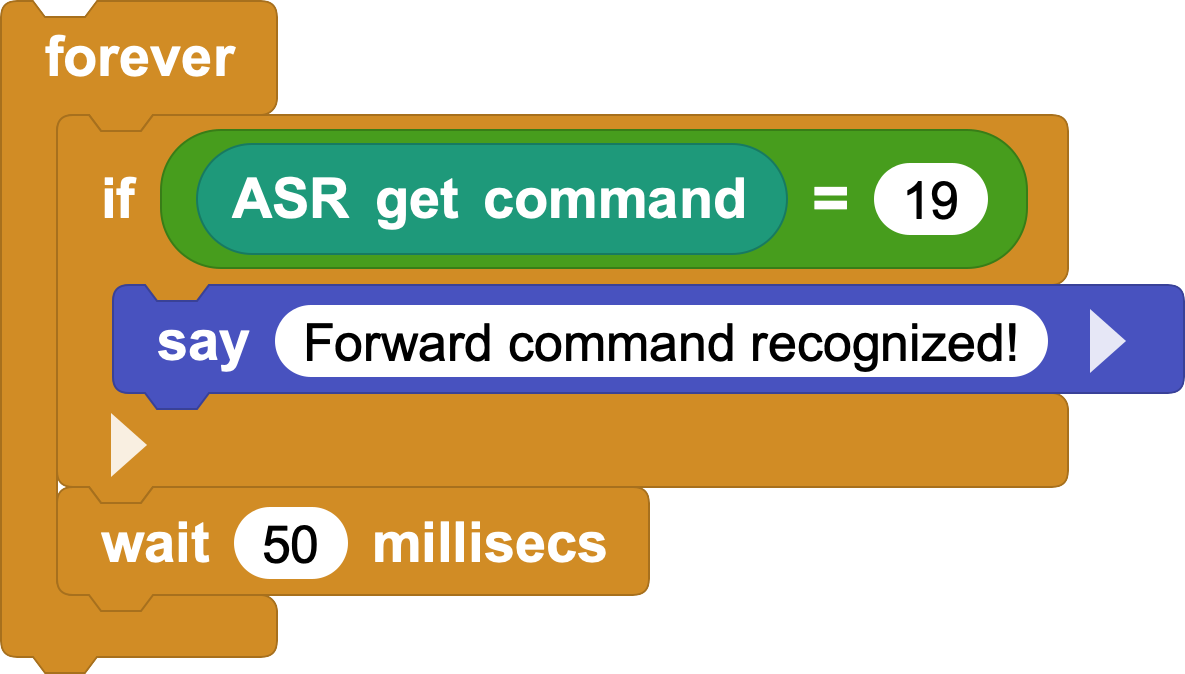
ASR get commandin a loop. - Use the returned ID to make CoCube move, stop, or do another action.
- Start with a wake word, such as Hey CoCube or Hey robot. When the module wakes up, its wake indicator lights up.
- Say a command word. The ASR module replies, and your MicroBlocks program receives the command ID.
Tips
After power-up, wait a moment before speaking.
If the sound is too loud, say Decrease volume or Minimum volume.
Command-ID table
Show or hide the full command list
| ID | Say this | Type | ASR reply |
|---|---|---|---|
| 1 | Learned wake word | Wake word | I'm here |
| 2 | Hey CoCube | Wake word | I'm here |
| 3 | Hey robot | Wake word | I'm here |
| 4 | Custom 1 | Command word | OK |
| 5 | Custom 2 | Command word | OK |
| 6 | Custom 3 | Command word | OK |
| 7 | Custom 4 | Command word | OK |
| 8 | Custom 5 | Command word | OK |
| 9 | Custom 6 | Command word | OK |
| 10 | Custom 7 | Command word | OK |
| 11 | Custom 8 | Command word | OK |
| 12 | Custom 9 | Command word | OK |
| 13 | Custom 10 | Command word | OK |
| 14 | Custom 11 | Command word | OK |
| 15 | Custom 12 | Command word | OK |
| 16 | Custom 13 | Command word | OK |
| 17 | Custom 14 | Command word | OK |
| 18 | Custom 15 | Command word | OK |
| 19 | Move forward | Command word | Moving forward |
| 20 | Move backward | Command word | Moving backward |
| 21 | Stop | Command word | Stopped |
| 22 | Turn left ninety degrees | Command word | Turning left ninety |
| 23 | Turn left forty-five degrees | Command word | Turning left forty-five |
| 24 | Turn left thirty degrees | Command word | Turning left thirty |
| 25 | Turn right ninety degrees | Command word | Turning right ninety |
| 26 | Turn right forty-five degrees | Command word | Turning right forty-five |
| 27 | Turn right thirty degrees | Command word | Turning right thirty |
| 28 | Speed up one level | Command word | Speed increased |
| 29 | Slow down one level | Command word | Speed decreased |
| 30 | Turn on headlights | Command word | Headlights on |
| 31 | Turn off headlights | Command word | Headlights off |
| 32 | Line-following mode | Command word | Line-following mode on |
| 33 | Light-tracking mode | Command word | Light-tracking mode on |
| 34 | Bluetooth control mode | Command word | Bluetooth control on |
| 35 | Obstacle avoidance mode | Command word | Obstacle avoidance on |
| 36 | Face recognition | Command word | Face recognition on |
| 37 | Object tracking | Command word | Object tracking on |
| 38 | Object detection | Command word | Object detection on |
| 39 | Line tracking | Command word | Line tracking on |
| 40 | Color recognition | Command word | Color recognition on |
| 41 | Tag recognition | Command word | Tag recognition on |
| 42 | Object classification | Command word | Object classification on |
| 43 | QR code recognition | Command word | QR code recognition on |
| 44 | Clear screen | Command word | Screen cleared |
| 45 | Start learning | Command word | Learning started |
| 46 | Forget | Command word | Forgotten |
| 47 | Load model | Command word | Loading model |
| 48 | Save model | Command word | Model saved |
| 49 | Take a photo | Command word | Photo saved |
| 50 | Save and return | Command word | Saved |
| 51 | Show number zero | Command word | OK |
| 52 | Show number one | Command word | OK |
| 53 | Show number two | Command word | OK |
| 54 | Show number three | Command word | OK |
| 55 | Show number four | Command word | OK |
| 56 | Show number five | Command word | OK |
| 57 | Show number six | Command word | OK |
| 58 | Show number seven | Command word | OK |
| 59 | Show number eight | Command word | OK |
| 60 | Show number nine | Command word | OK |
| 61 | Show smiley face | Command word | OK |
| 62 | Show sad face | Command word | OK |
| 63 | Show heart | Command word | OK |
| 64 | Read current position | Command word | Reading |
| 65 | Read ambient light | Command word | Reading |
| 66 | Read compass | Command word | Reading |
| 67 | Read temperature | Command word | Reading |
| 68 | Read acceleration | Command word | Reading |
| 69 | Read sound level | Command word | Reading |
| 70 | Read button A | Command word | Reading |
| 71 | Read button B | Command word | Reading |
| 72 | Turn on camera | Command word | Camera on |
| 73 | Turn off camera | Command word | Camera off |
| 74 | Turn on fan | Command word | Fan on |
| 75 | Turn off fan | Command word | Fan off |
| 76 | Fan speed one | Command word | Level one on |
| 77 | Fan speed two | Command word | Level two on |
| 78 | Fan speed three | Command word | Level three on |
| 79 | Start oscillation | Command word | Oscillating |
| 80 | Stop oscillation | Command word | Stopped oscillation |
| 81 | Return to home | Command word | Returning |
| 82 | Open gripper | Command word | Gripper opened |
| 83 | Close gripper | Command word | Gripper closed |
| 84 | Turn on buzzer | Command word | Buzzer on |
| 85 | Turn off buzzer | Command word | Buzzer off |
| 86 | Turn on speaker | Command word | Speaker on |
| 87 | Turn off speaker | Command word | Speaker off |
| 88 | Play music | Command word | Playing music |
| 89 | Stop music | Command word | Music stopped |
| 90 | Previous song | Command word | Previous track |
| 91 | Next song | Command word | Next track |
| 92 | Repeat one | Command word | Repeat one |
| 93 | Repeat all | Command word | Repeat all |
| 94 | Shuffle play | Command word | Shuffle mode |
| 95 | Increase volume | Command word | Volume up |
| 96 | Decrease volume | Command word | Volume down |
| 97 | Maximum volume | Command word | Max volume |
| 98 | Minimum volume | Command word | Min volume |
| 99 | Medium volume | Command word | Medium volume |
| 100 | Turn on voice broadcast | Command word | Broadcast on |
| 101 | Turn off voice broadcast | Command word | Broadcast off |
| 102 | Turn on lights | Command word | Lights on |
| 103 | Turn off lights | Command word | Lights off |
| 104 | Increase brightness | Command word | Brighter |
| 105 | Decrease brightness | Command word | Dimmer |
| 106 | Maximum brightness | Command word | Max brightness |
| 107 | Minimum brightness | Command word | Min brightness |
| 108 | Increase color temperature | Command word | Warmer |
| 109 | Decrease color temperature | Command word | Cooler |
| 110 | Daylight mode | Command word | Daylight mode |
| 111 | Moonlight mode | Command word | Moonlight mode |
| 112 | Set color to red | Command word | Red set |
| 113 | Set color to orange | Command word | Orange set |
| 114 | Set color to yellow | Command word | Yellow set |
| 115 | Set color to green | Command word | Green set |
| 116 | Set color to cyan | Command word | Cyan set |
| 117 | Set color to blue | Command word | Blue set |
| 118 | Set color to purple | Command word | Purple set |
| 119 | Set color to white | Command word | White set |
| 120 | Turn on air conditioner | Command word | AC on |
| 121 | Turn off air conditioner | Command word | AC off |
| 122 | Increase temperature | Command word | Temperature up |
| 123 | Decrease temperature | Command word | Temperature down |
| 124 | Cooling mode | Command word | Cooling mode |
| 125 | Heating mode | Command word | Heating mode |
| 126 | Auto mode | Command word | Auto mode |
| 127 | Dehumidify mode | Command word | Dehumidify mode |
| 128 | Fan mode | Command word | Fan mode |
| 129 | Turn on vertical swing | Command word | Vertical swing on |
| 130 | Turn off vertical swing | Command word | Vertical swing off |
| 131 | Turn on horizontal swing | Command word | Horizontal swing on |
| 132 | Turn off horizontal swing | Command word | Horizontal swing off |
| 133 | Open window | Command word | Window opened |
| 134 | Close window | Command word | Window closed |
| 135 | Open curtains | Command word | Curtains opened |
| 136 | Close curtains | Command word | Curtains closed |
| 137 | Open door | Command word | Door opened |
| 138 | Close door | Command word | Door closed |
5. Advanced Features
5.1 Design Your Own Commands
Learn a wake word
A wake word is the phrase that changes the robot from standby mode to listening mode.
Steps:
- Wake the module with Hey CoCube or Hey robot.
- Say Study wake.
- Follow the voice prompts and say the new wake word you want, such as Hello CoCube.
- When learning is complete, you can use the new wake word.
Learn command words
A command word tells the robot what action to perform.
Steps:
- Wake the module with a wake word.
- Say Study command.
- Follow the prompt and say your first command, such as Turn on red light.
- Continue with the second and third commands, or say Quit study to finish.
- Learned command IDs start from 4. Use the returned ID in your program.
Delete learned words
If you want to remove words you taught the module:
- Wake the module with a wake word.
- Say I want to delete.
- Follow the prompt and choose one option:
- Delete command: delete learned command words.
- Delete wake: delete the learned wake word.
- Delete all: clear all learned words.
Learning and delete commands
| ID | Say this | What it does | ASR reply |
|---|---|---|---|
| 151 | Study wake | Start learning a new wake word | please follow the prompts to study wake up words in a quiet environment |
| 152 | Study command | Start learning command words | please follow the prompts to study command words in a quiet environment |
| 153 | Study again | Record the command again | please follow the prompts to study command words in a quiet environment |
| 154 | Quit study | Exit learning mode | exit learning mode |
| 155 | I want to delete | Start deleting learned words | is it the learned wake up word or command word that needs to be deleted |
| 156 | Delete wake | Delete the learned wake word | deletion succeeded |
| 157 | Delete command | Delete learned command words | deletion succeeded |
| 158 | Delete all | Delete all learned words | deletion succeeded |
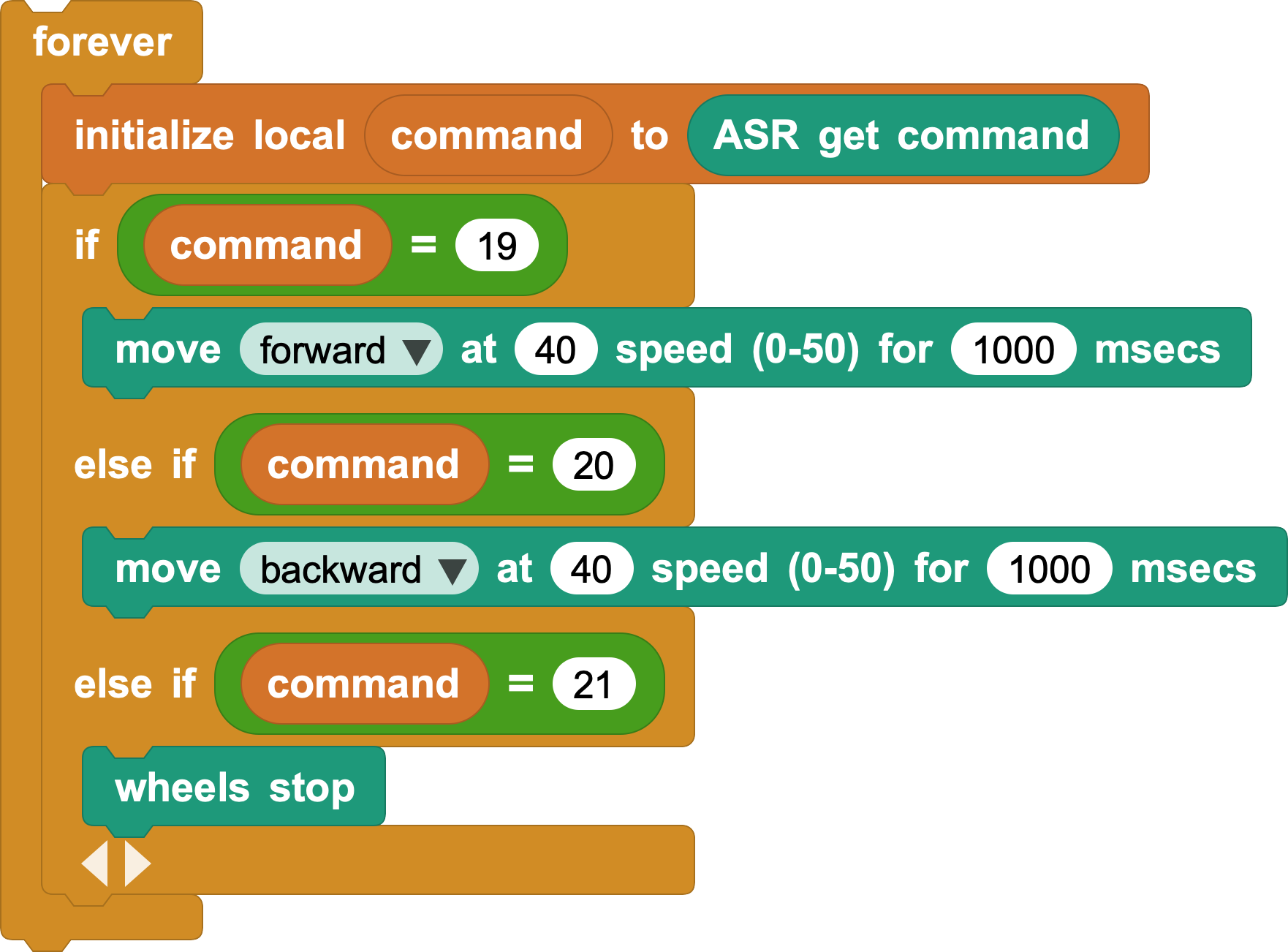
5.2 Voice Navigation Example
Use these IDs as a starting point:
- ID 19: Move forward
- ID 20: Move backward
- ID 21: Stop
Then add turns, speed changes, or custom commands to make a voice-controlled robot car.
Reference blocks: