1. Connecting the CoCube Robot
On the MicroBlocks page, there are two ways to connect the CoCube device. Wireless connection is highly recommended.
1.1 Wireless Connection
Make sure to use Chrome or Edge browser and open the MicroBlocks-CoCube programming interface.
Ensure that the computer's Bluetooth function is turned on.
Long press the power button for 3 seconds (the power button is located at the bottom of the robot) to turn on the CoCube robot. After turning on, three characters will be displayed on the robot's screen, representing the BLE number.
Click the "USB" icon on the MicroBlocks interface and select "Wireless Connection (BLE)."
Under normal circumstances, you should be able to identify "MicroBlocks XXX" or "CoCube XXX," where XXX matches the number displayed on the robot when it is turned on.
On Linux systems, additional steps are required to enable BLE permissions for the web page:
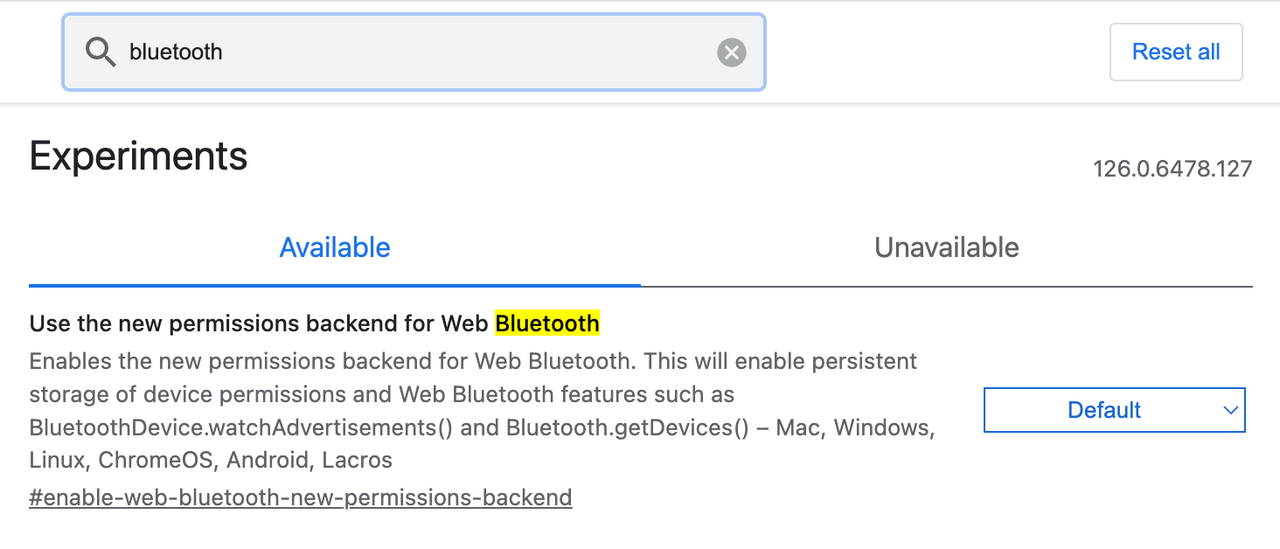
Enter chrome://flags/ in the browser's address bar.
Search for "Bluetooth" and find the option Use the new permissions backend for Web Bluetooth. Set it from Default to Enable.
Restart the browser.
1.2 Wired Connection
It is recommended to use Chrome or Edge browser and open the MicroBlocks-CoCube programming interface.
Connect the computer to the CoCube robot using a USB cable.
Long press the power button for 3 seconds (the power button is located at the bottom of the robot) to turn on the CoCube robot.
Click the "USB" icon on the MicroBlocks interface and select "Wired Connection."
Under normal circumstances, the serial port should be recognized (COM*** on Windows systems, cu.wchusbserial*** on MacOS systems).
If the serial port is not recognized, it may be because the computer has not installed the serial port driver. You need to install the driver for the CH343 serial-to-USB chip.
If you still cannot connect, check whether the USB cable is functioning properly.
2. Updating Firmware for CoCube
When using the device for the first time, please update the firmware for CoCube to ensure the best experience.
Connect the CoCube robot via a wired connection.
Click on the settings in the MicroBlocks IDE, select "Upgrade Mainboard Firmware," choose "CoCube," and select the corresponding port number.
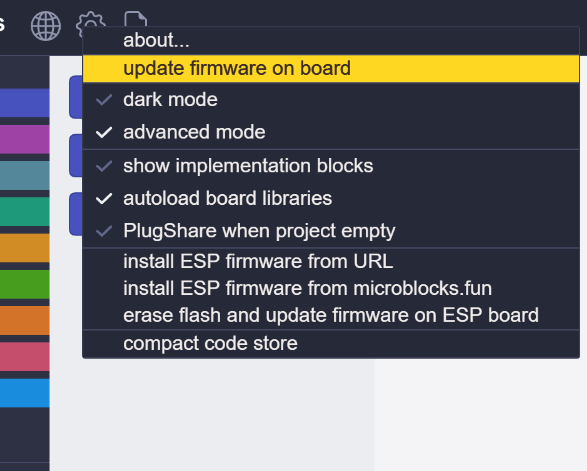
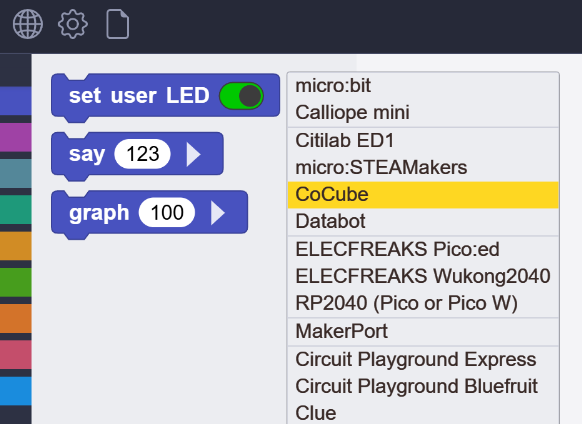
- The upgrade process takes approximately 1 minute. During this time, keep the MicroBlocks IDE on the browser display interface. Avoid any other operations as much as possible. Otherwise, the firmware upgrade may fail. If it fails, please retry the upgrade.
IV. CoCube Mobile App
CoCube offers a mobile application that supports wireless Bluetooth connection. You can use your phone or tablet to remote control the robot and engage in interactive programming.
Scan the QR code below to download and install:
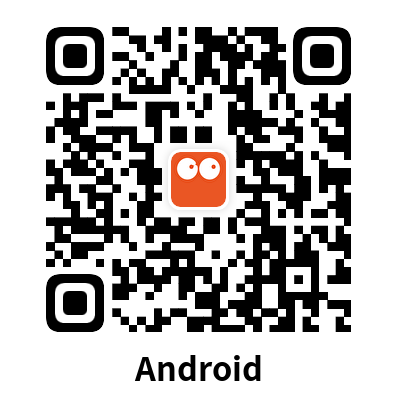
Note: iOS users can also search for "CoCube" in the App Store to download.