1. Let CoCube Play on the Map
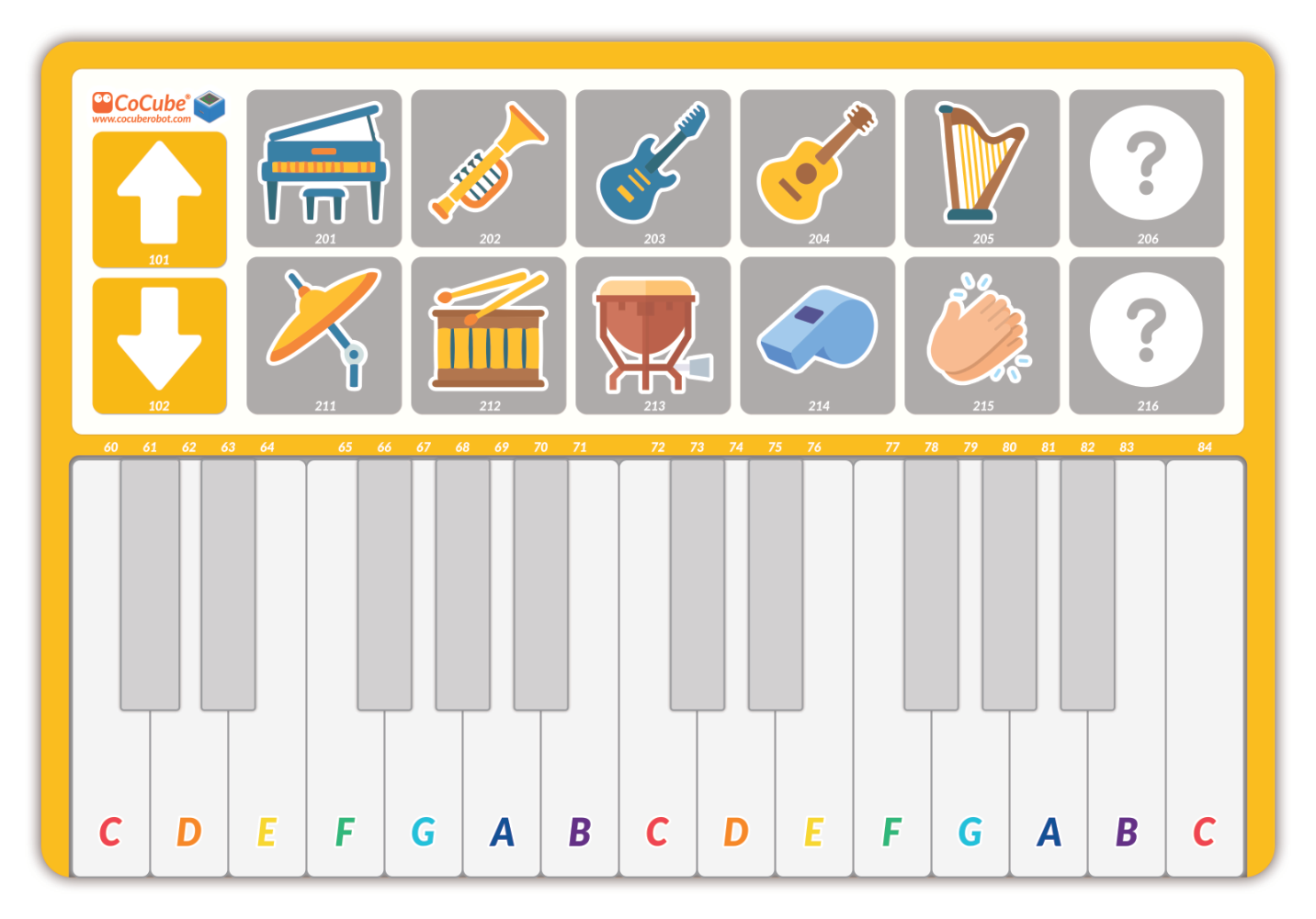
On a maze or soccer-field map, CoCube is a precise mover: it can sense its position and direction. On a music map, CoCube becomes a little musician. By reading the card ID for different areas on the map, CoCube can tell which "key" it is standing on and trigger the matching MIDI note.
2. Get Ready
Step 1: Add the MIDI Synthesizer library
In the MicroBlocks IDE, open Add Library. In the Sound library folder, find and add MIDI Synthesizer.
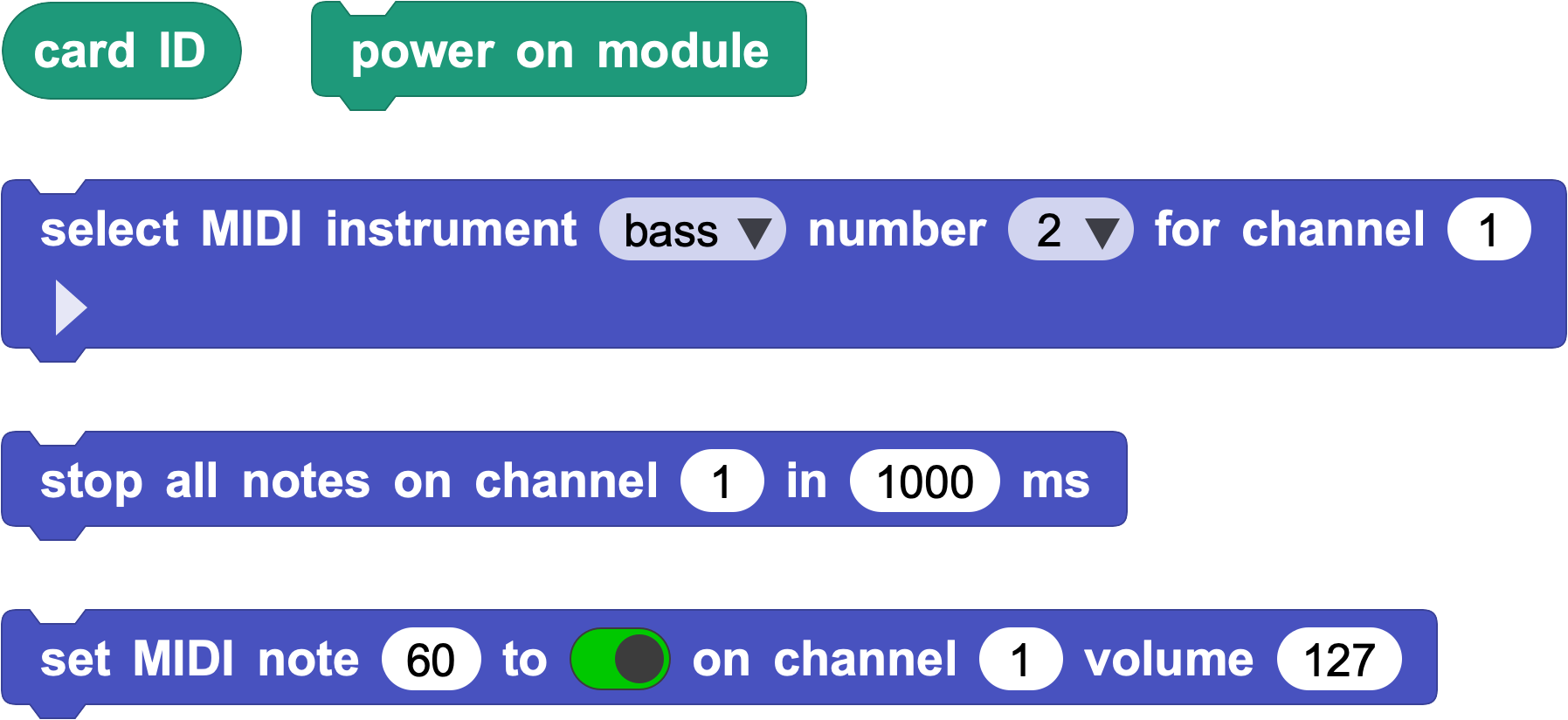
Here are the blocks we will use in this activity.
Step 2: Wake up the MIDI module
Connect the MIDI module firmly to CoCube. Then use code to turn on power for the module.
Make sure your CoCube is connected by USB or BLE.
In the CoCube Module library, find and run the power on module block.
Check the light: when the green LED on the MIDI module stays on, it is ready.
3. Explore the Map
Before we start playing music, let's see how the music map works.
Experiment: Read the card ID
Write a simple loop that makes CoCube say the current card ID.
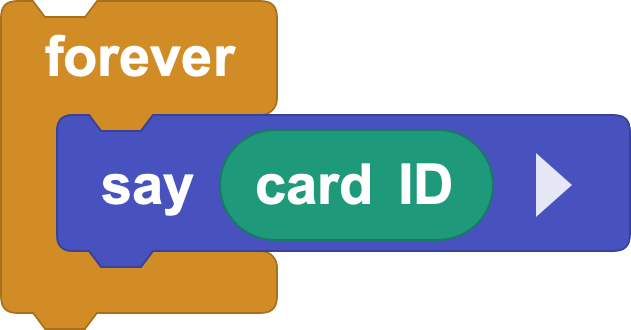
You should notice two important rules:
On a key area, the card ID reports the MIDI note number for that key, such as 60 or 61.
When CoCube leaves the map, the card ID changes back to 0.
4. Build the Program Step by Step
Step 1: Make the first sound
Start with the most direct idea: if CoCube is standing on a key area, from 60 to 84, play a note for 500 ms. If it leaves the key area, stop the sound.
Use a global variable named key to store the card ID read in each loop.
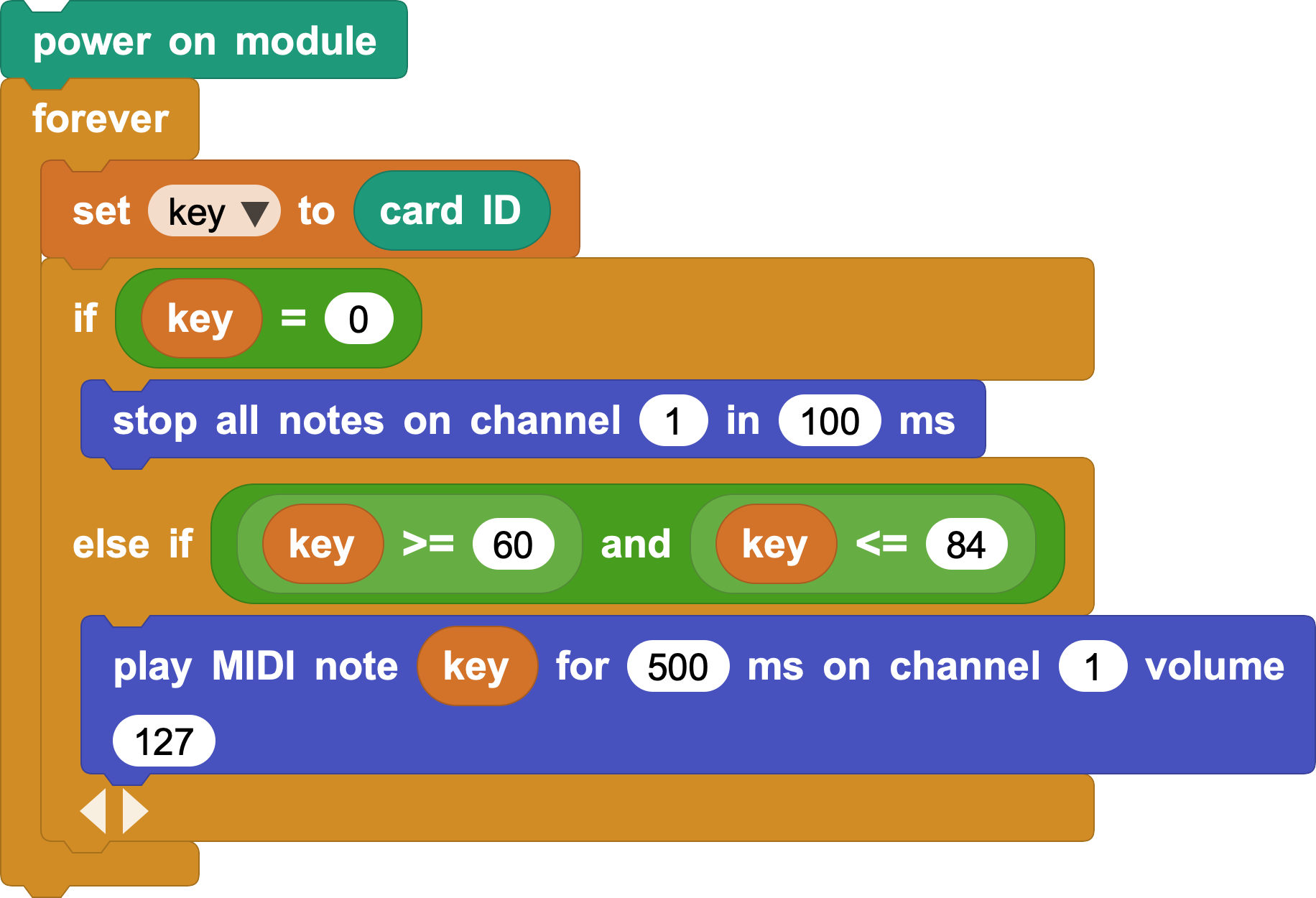
Run the program and try it out.
Step 2: Change the note block
In the first program, every note is forced into 500 ms chunks. Can we make it respond faster, so the sound starts as soon as CoCube reaches a key and stops when CoCube leaves?
First, remove the 500 ms duration and try changing the "play MIDI note" block into a "set MIDI note" block.
Here is the code:
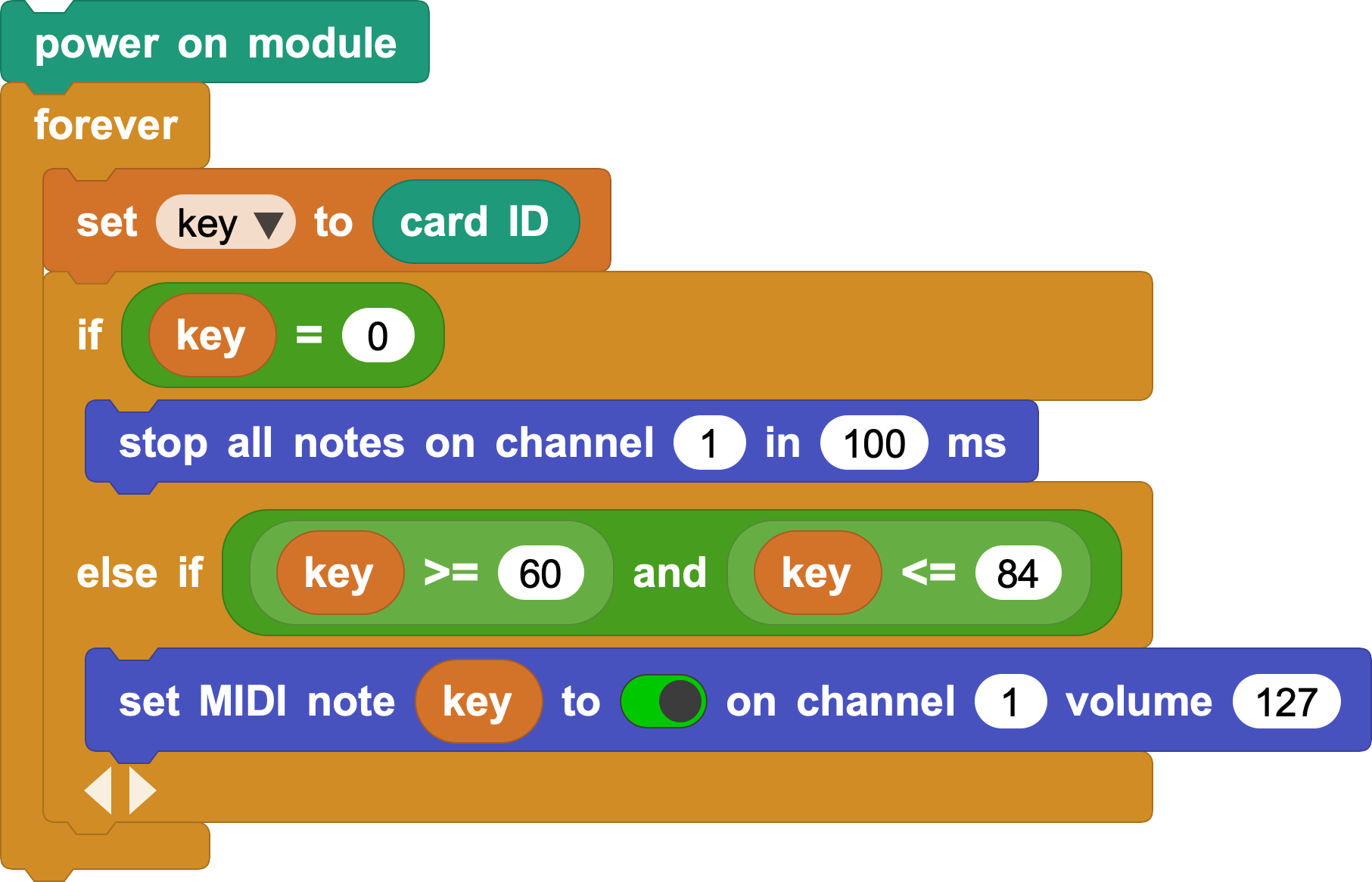
But this may sound strange. For example, if CoCube stays on key 60, the loop keeps triggering "set MIDI note" again and again, so the note cannot play smoothly.
Step 3: Watch for state changes
To fix this, compare the current state with the previous one. Add a global variable named last_key, and update last_key to key at the end of each loop.
Only trigger a new note when the current key, key, is different from the previous key, last_key.
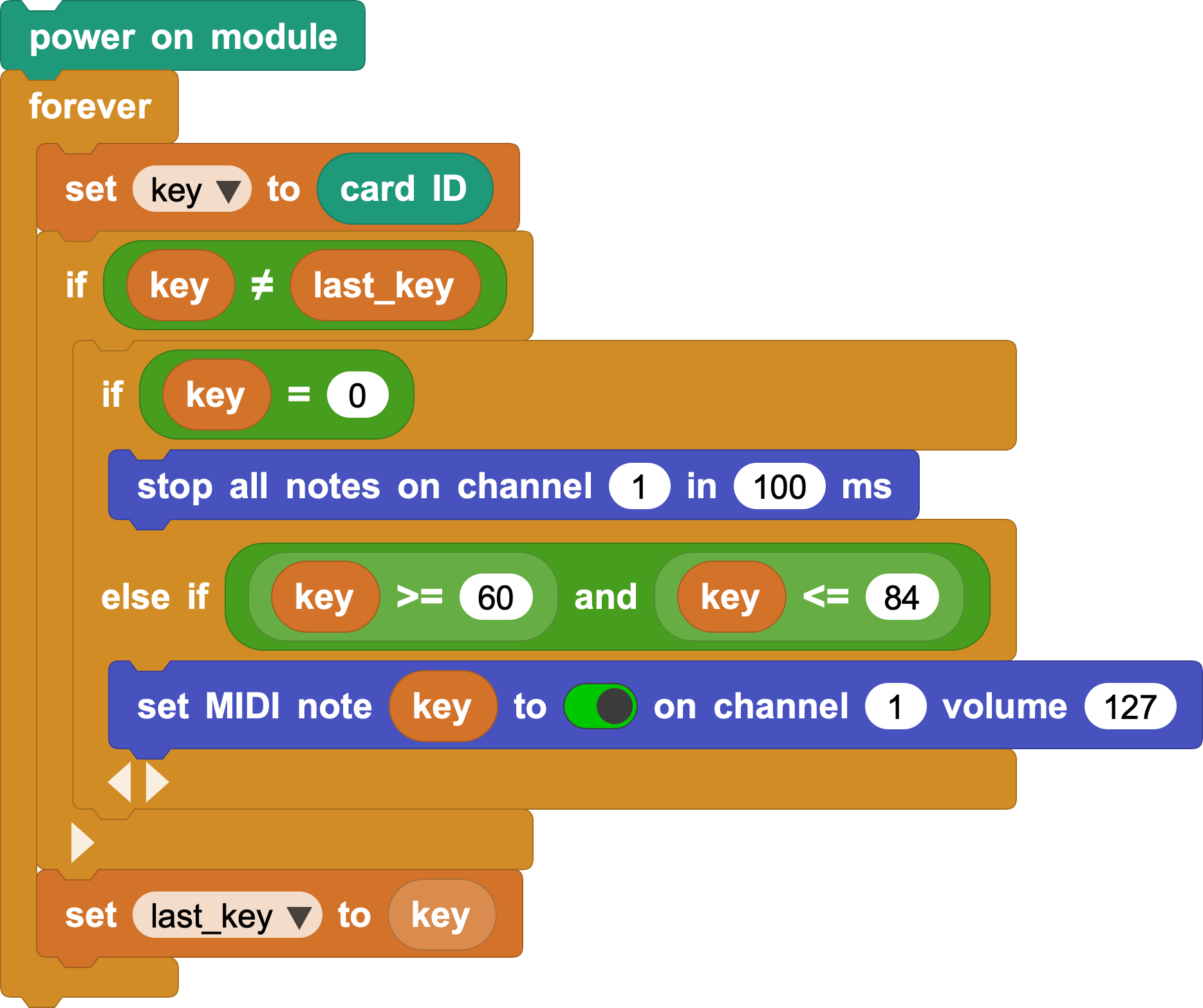
Now the program should feel much smoother.
Step 4: Stop the previous note cleanly
When you move quickly across the keys, several notes may overlap and sound messy. This is especially easy to hear with long instrument sounds, such as strings, ensemble, brass, reed, pipe, or synth sounds.
Here is one way to clean it up:
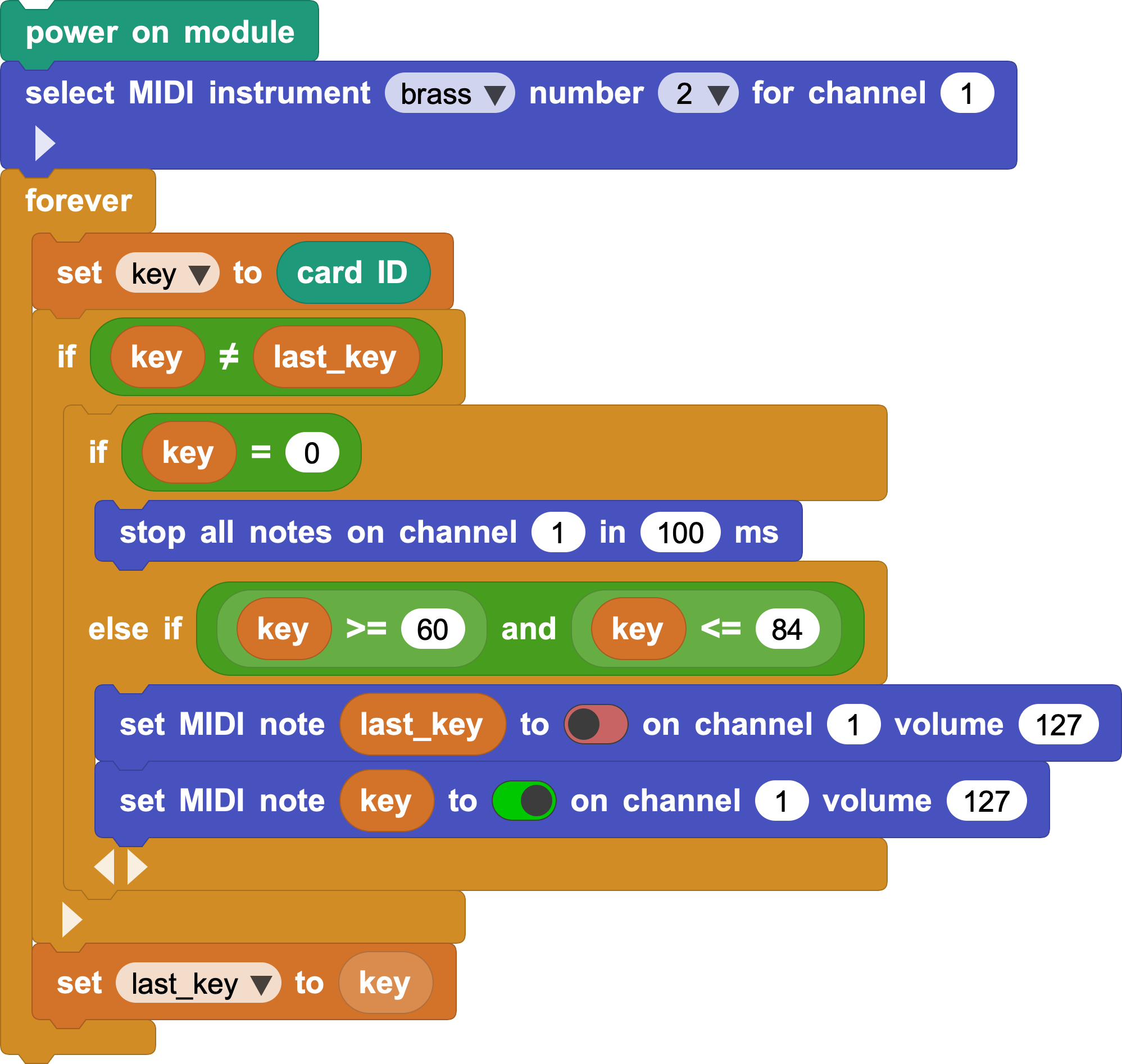
Before starting a new note, force the previous note to turn off.
Now try sliding across the map again. The sound should switch cleanly, even with long instrument sounds such as strings.
5. Challenge and Create
Music can sound good and look good. Add visual feedback to your program: make different pitches show different colors on the screen.
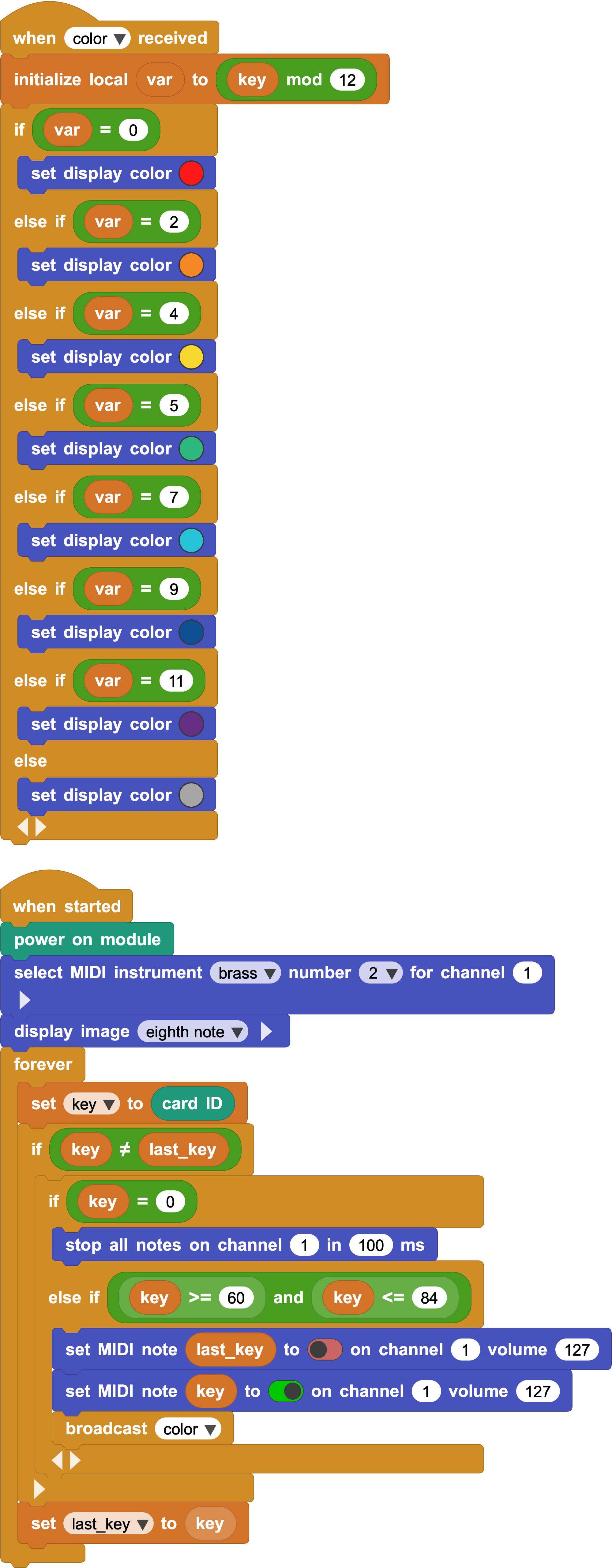
You can keep building from here. For example, when CoCube lands on different instrument areas in the first row of the music map, switch the MIDI module to different instrument sounds and find your favorite combination.