1. Meet MIDI: Music's Digital Language
MIDI, short for Musical Instrument Digital Interface, is a standard way for electronic instruments, computers, and other devices to talk to each other. A MIDI file is not recorded sound. It is more like a set of instructions: when to play, how strongly to play, which note to play, and how long to hold it.
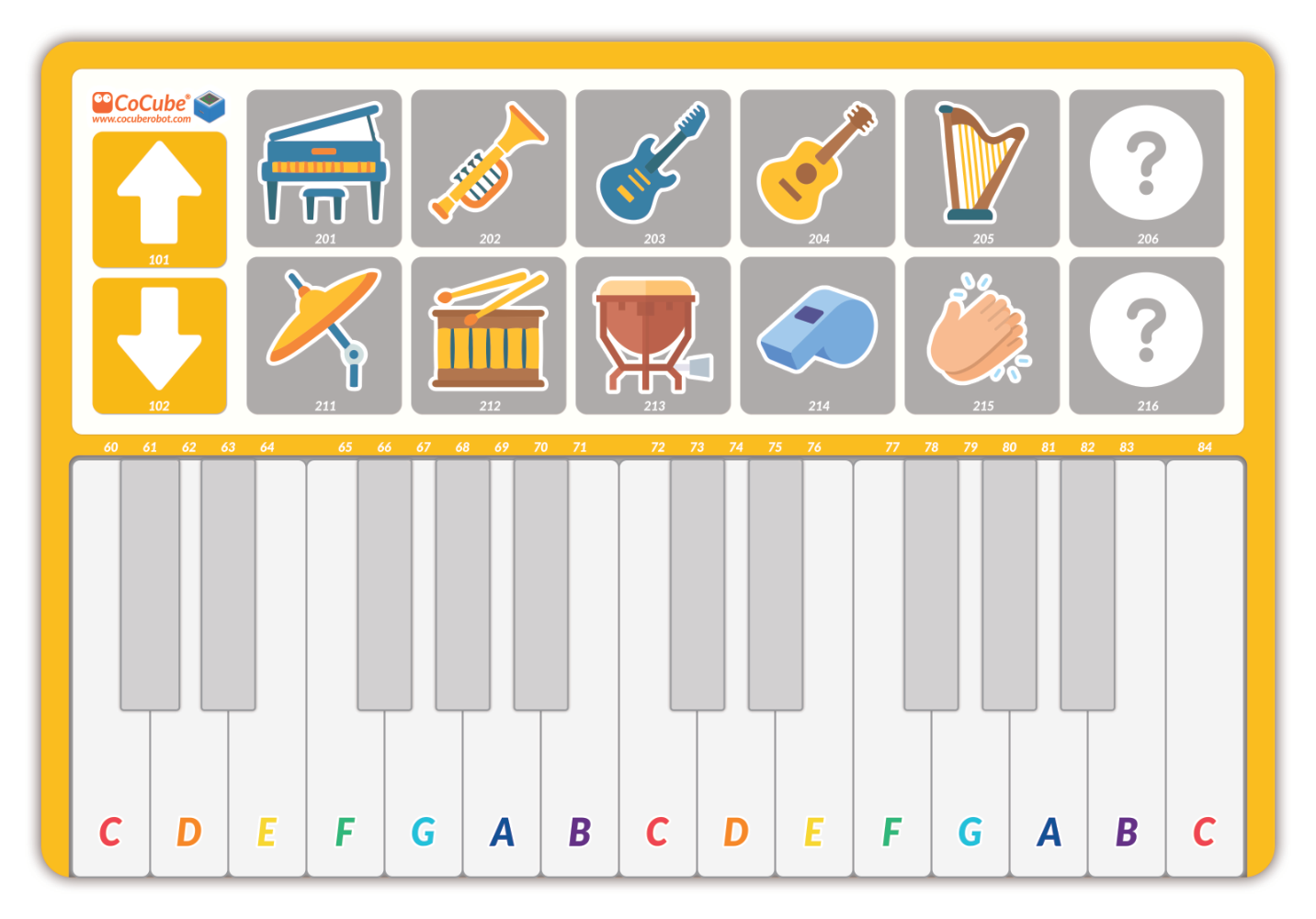
In MIDI, each note in Western music has a number from 0 to 127:
Home base: middle C is MIDI note 60.
Octaves: every time the number goes up by 12, the pitch goes up one octave.
Quick example: the C5 note at the start of "Twinkle, Twinkle, Little Star" is MIDI note 72.
Tip: keep your CoCube music map nearby. It is a handy guide for finding notes quickly.
2. Get Ready
Step 1: Add the MIDI Synthesizer library
In the MicroBlocks IDE, choose Add Library. In the Sound library folder, find and add the MIDI Synthesizer library.
Take a quick look at the two blocks we will use first.


Step 2: Wake up the MIDI module
After the hardware is connected, we need to turn on power for the module in code.
Make sure your CoCube is connected by USB or BLE.
In the CoCube Module library, find and run the power on module block.

- Check the light: when the green LED on the MIDI module stays on, the module is ready to play.
3. Play Your First Notes
Step 1: Play one note
Try putting these three blocks together:
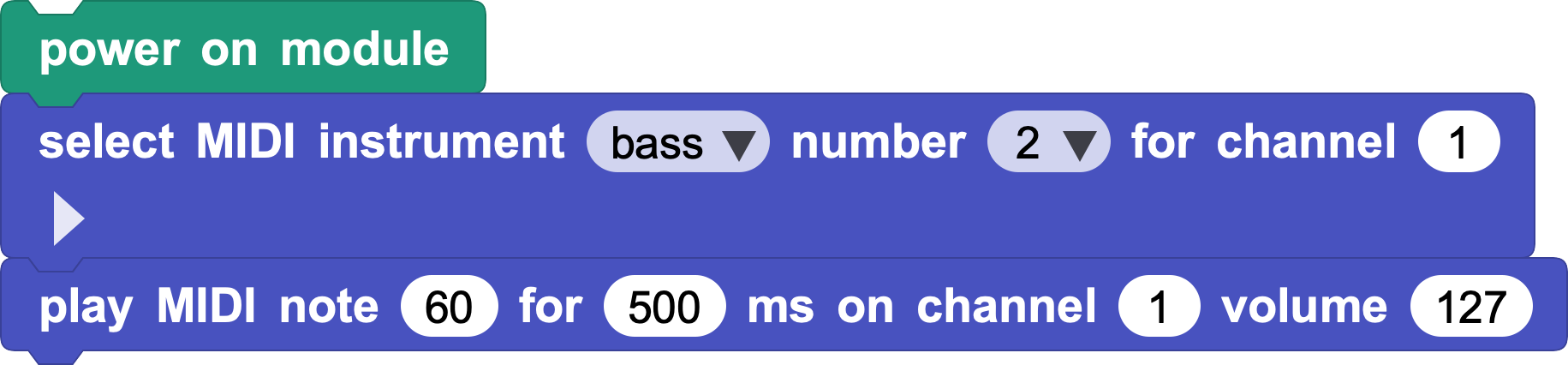
MIDI defines 128 standard instruments. You will find familiar groups such as piano, chromatic percussion, organ, guitar, bass, and strings. Each group also has several different sounds. Try the drop-down menu and explore what each instrument sounds like.
Step 2: Store a tune in a list
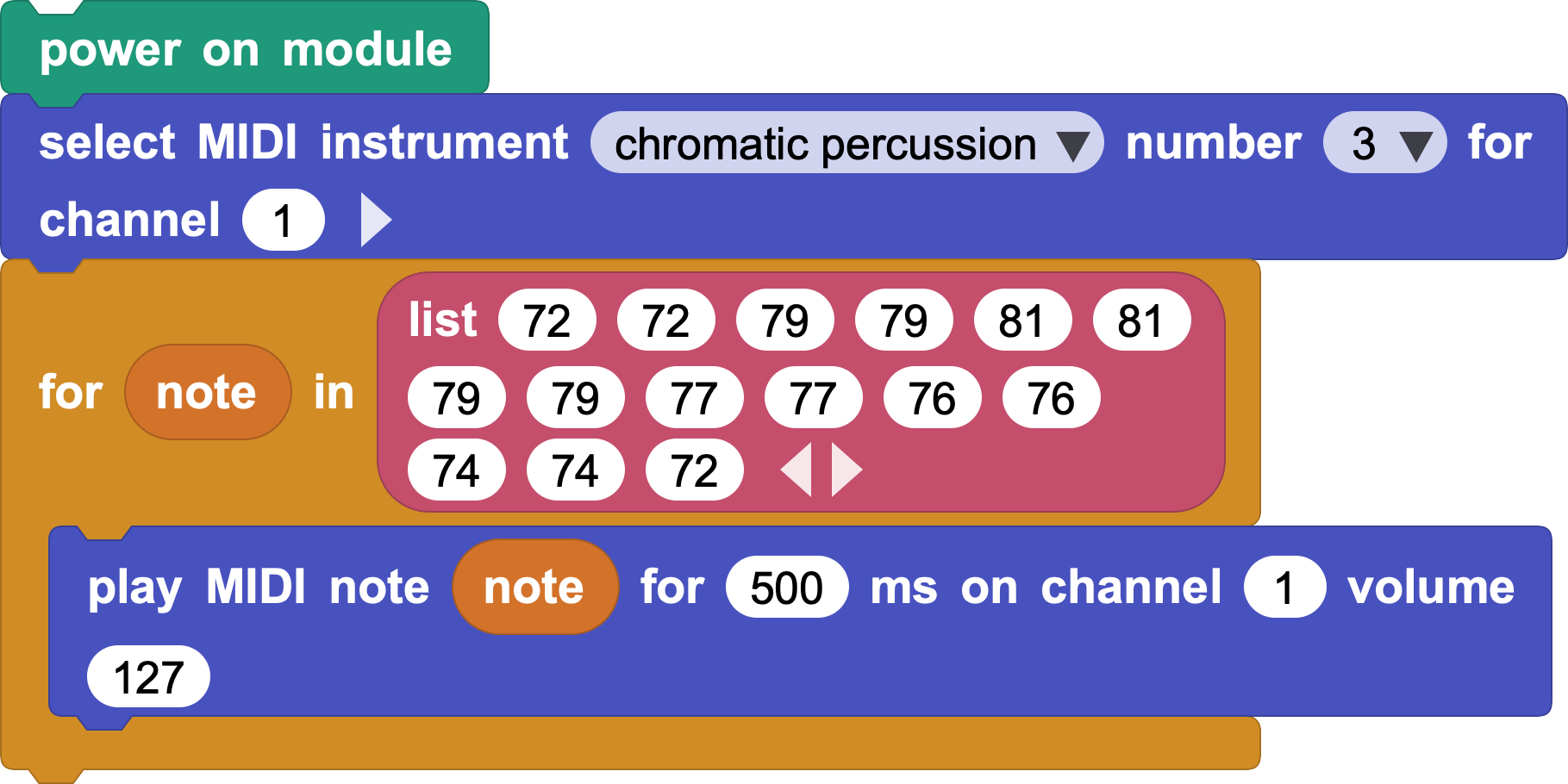
For a full song, we can store notes in a list. Then CoCube can loop through the list and play "Twinkle, Twinkle, Little Star" like a tiny music box.
First, choose an instrument sound for channel 1. In this example, we use chromatic percussion, instrument number 3.

Then loop through the note list to make a simple song:
4. Make the Sound Bigger
If one channel sounds a little thin, try a layering trick often used in music arranging.
Case A: Unison
Unison means that two or more parts play the same pitch with the same rhythm.
In MicroBlocks, set channel 1 to piano and channel 2 to chromatic percussion. Use broadcasts so the two parts start at the same time.
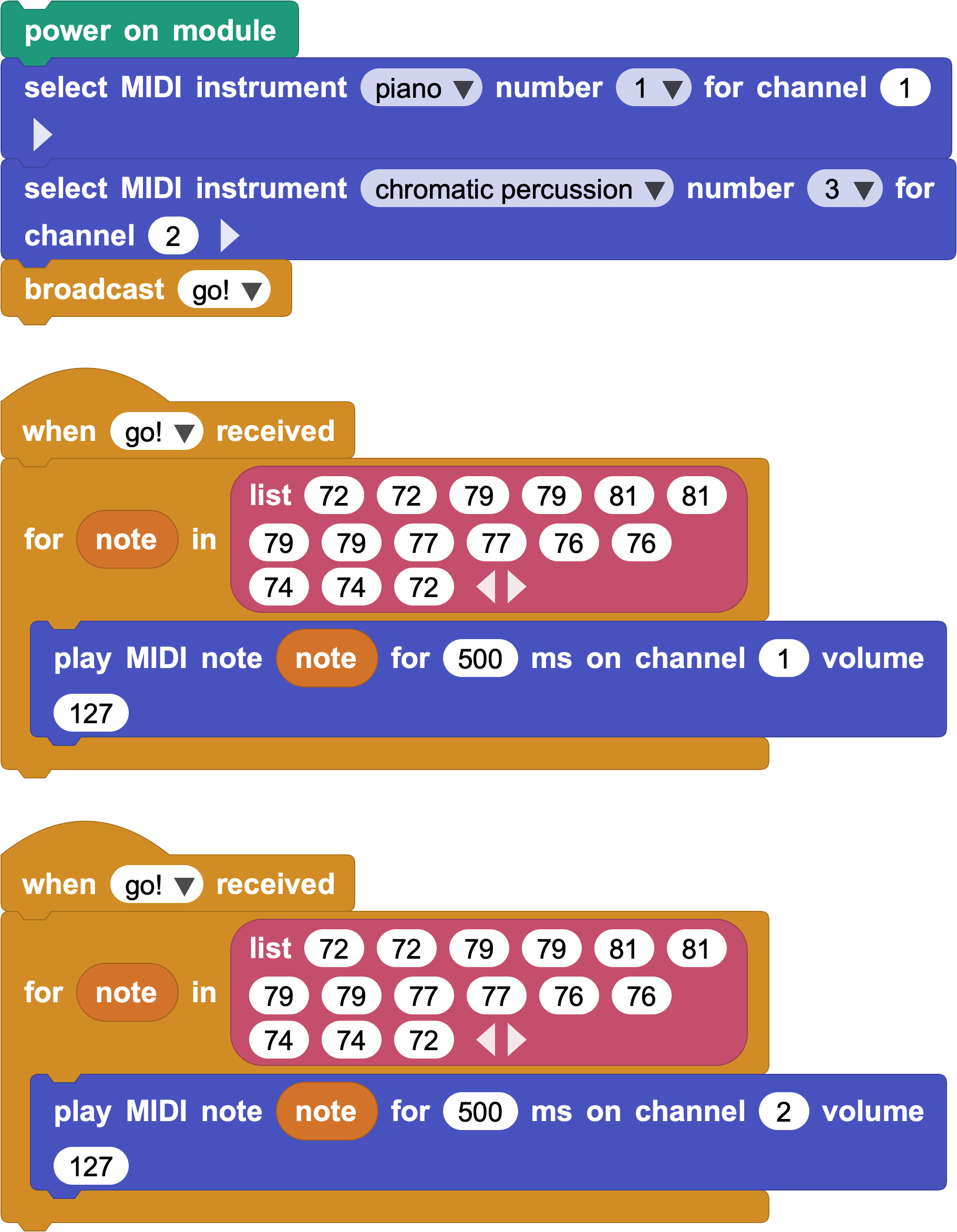
Listen again. Does the melody sound fuller and more colorful?
Case B: Octave Unison
Octave unison means that two parts play the same music, but one part is one octave higher or lower than the other.
Let's try it. In the broadcast receiver script, add 12 to every note value for channel 2.
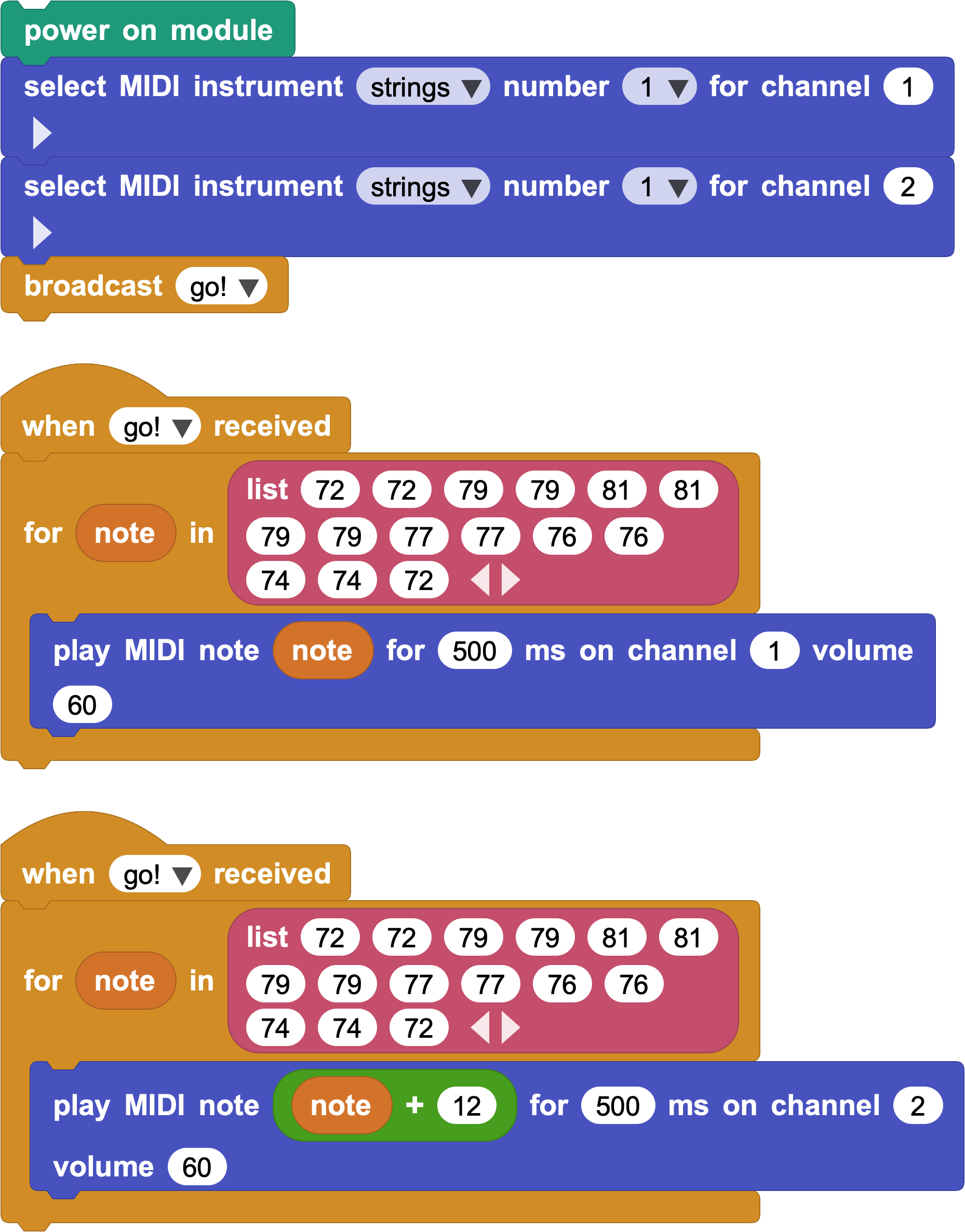
This is a common way to make a melody stand out in orchestral music. It can make the sound feel wider and stronger.
5. Challenge and Create
Here is another short melody you can use as a starting point.
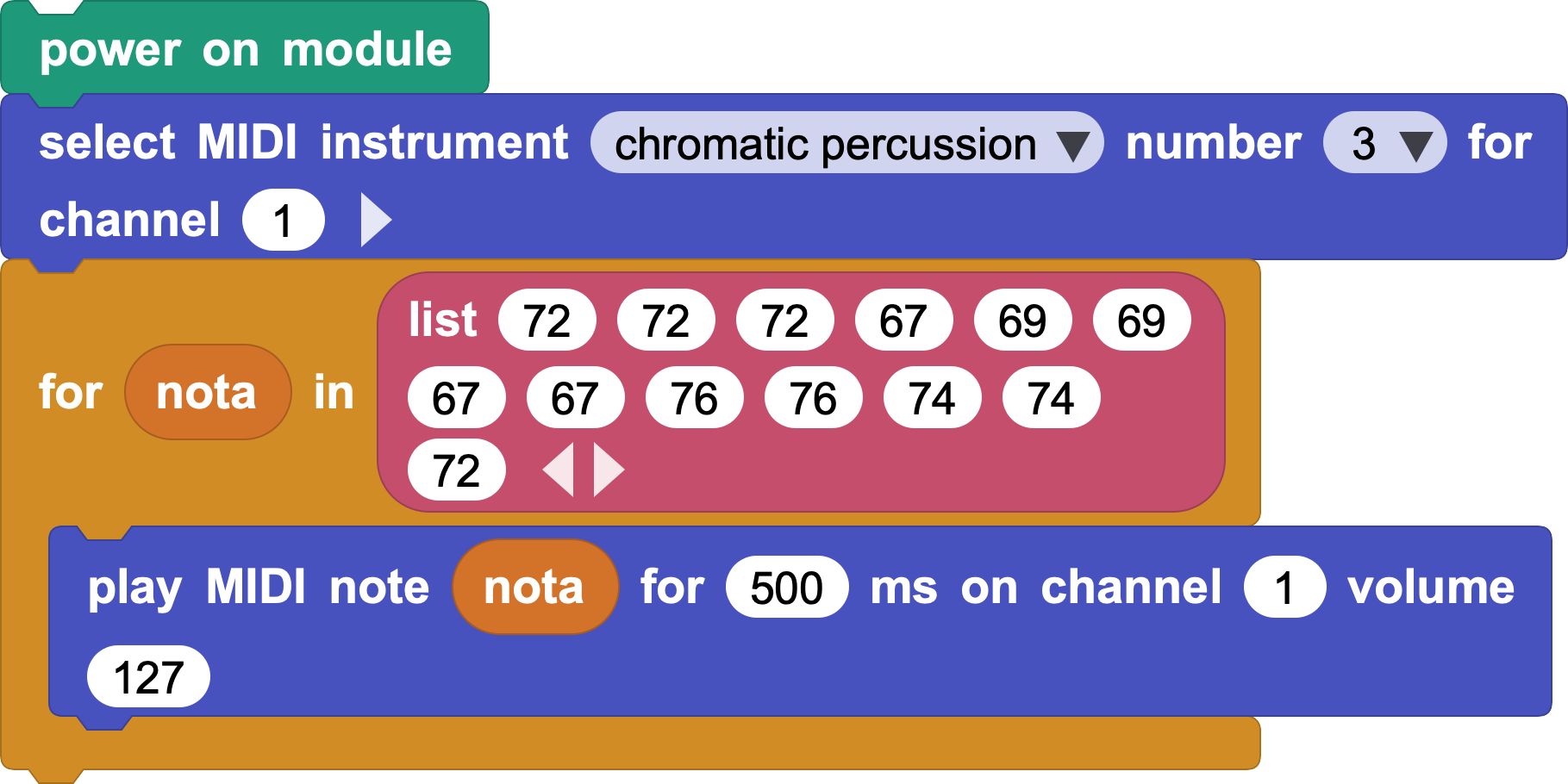
Now experiment with your own choices. Try different instrument pairs for unison, such as flute plus strings, or adjust the volume on each channel until you find a sound you like.