Did you know that CoCube's screen can hide an invisible turtle? Once you learn its language, it can draw all kinds of geometric art on the screen.
1. Preparation: Learn the Turtle's Canvas
CoCube's screen is made of 240 x 240 color pixels.
Screen coordinates: the top-left corner is (0, 0), and the center of the screen, (120, 120), is the turtle's default home.
Before running a drawing program, remember to send the turtle home first.
Open the drawing toolbox
In MicroBlocks, click Add Library, then choose Graphics and Displays -> Turtle to add the library.
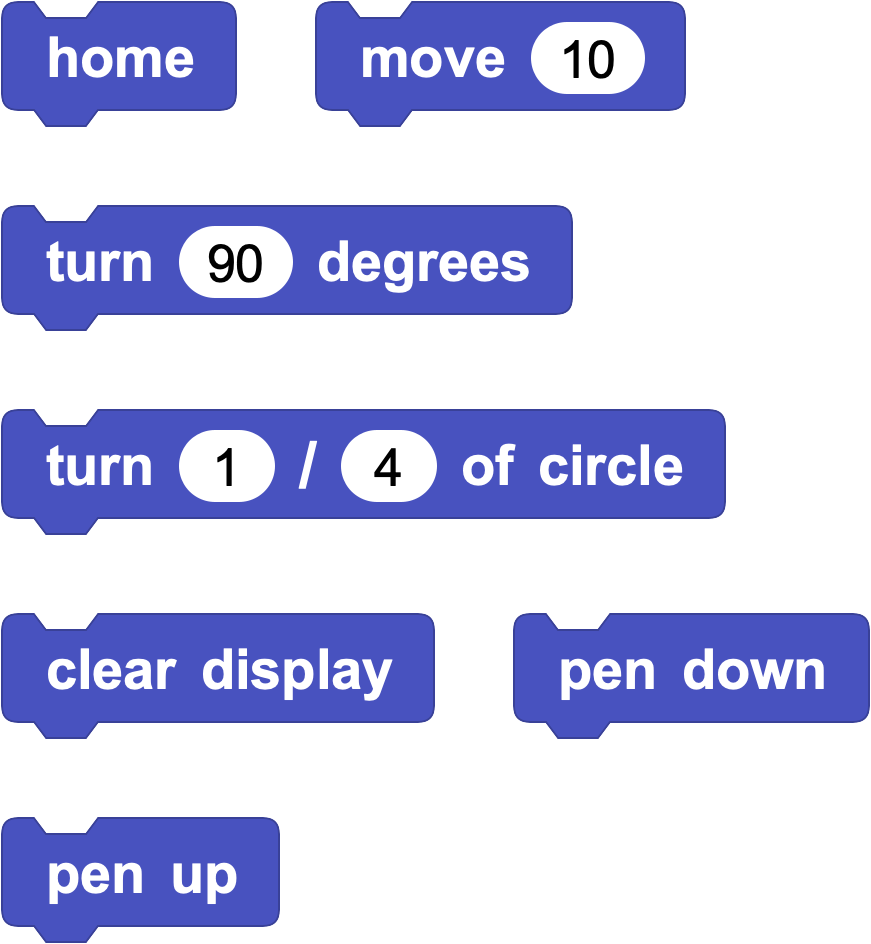
These are the main commands:
- home: move the turtle to the center of the screen and point it to the right.
- move _: move the turtle forward in the direction it is facing.
- turn x degrees: change the turtle's direction. Turning right uses a positive value, and turning left uses a negative value.
- turn _ / _ of circle: this is an easier way to think about rotations, such as half a turn or 1/4 turn.
- clear display: erase the turtle's drawing and get ready for a new one.
- pen down and pen up: the turtle only leaves a trail when the pen is down.
2. Basic Drawing: Start with Simple Shapes
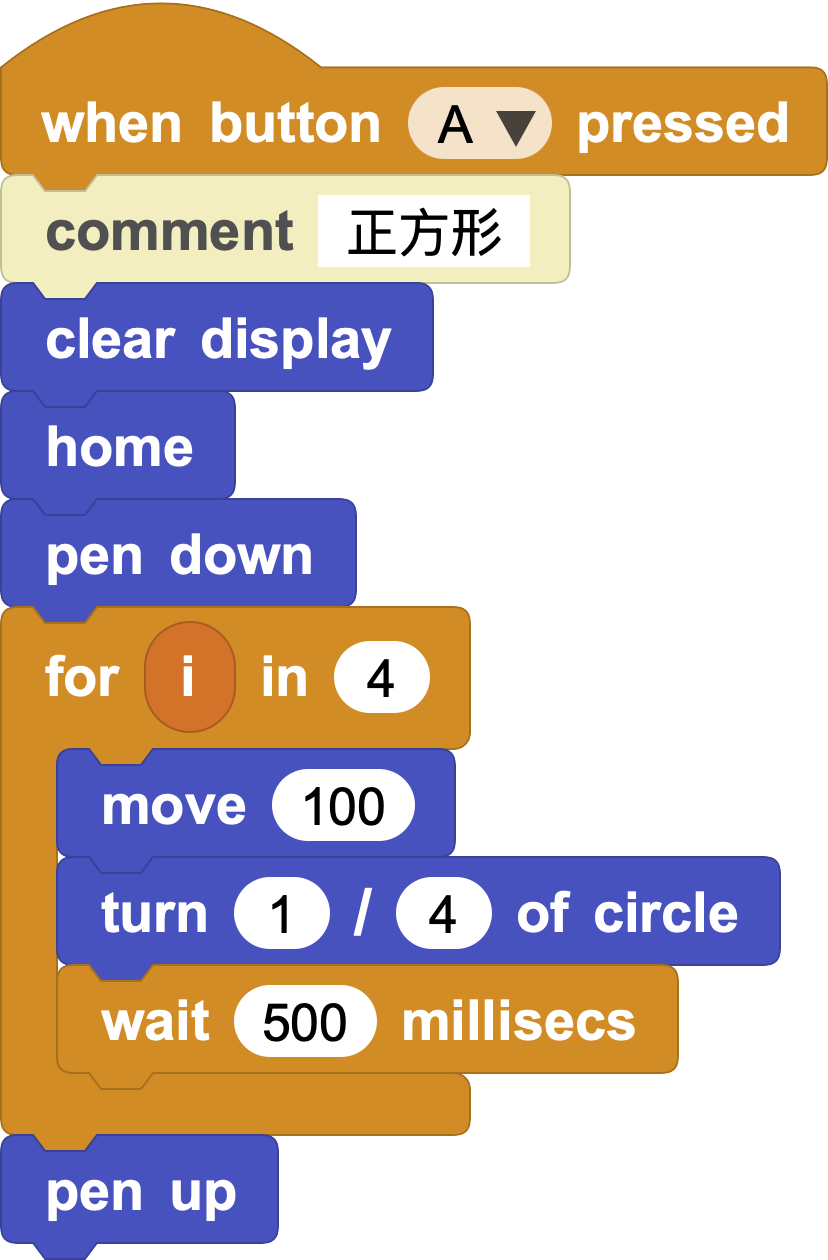
Step 1: Draw a square
A square has 4 sides. After drawing each side, the turtle turns 90 degrees.
Step 2: Draw a regular pentagon and hexagon
To draw a pentagon or hexagon, change the number of loop repeats and the turning angle.
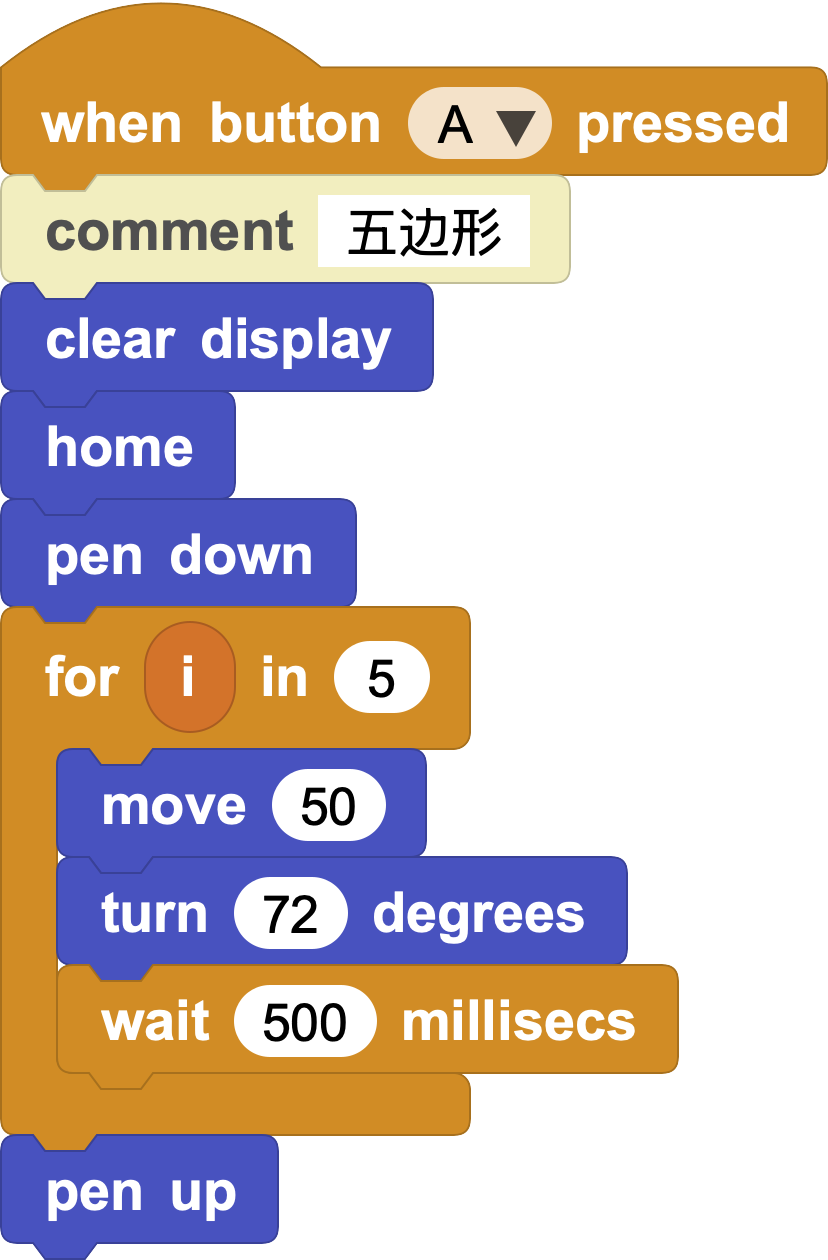
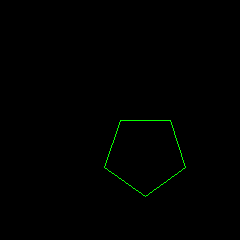
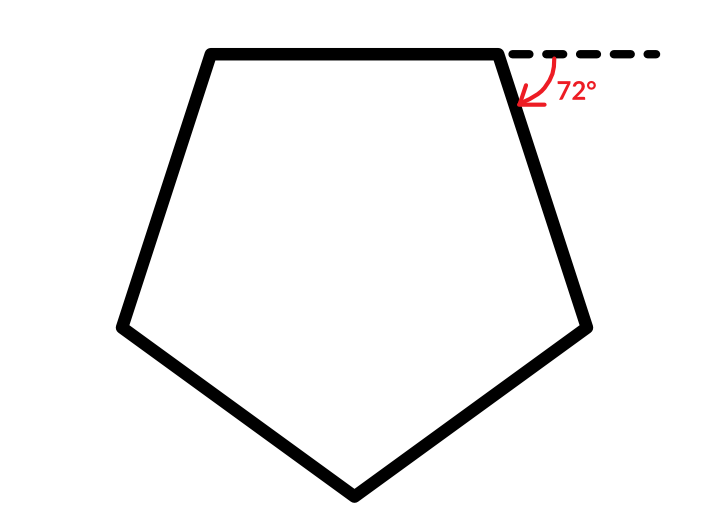
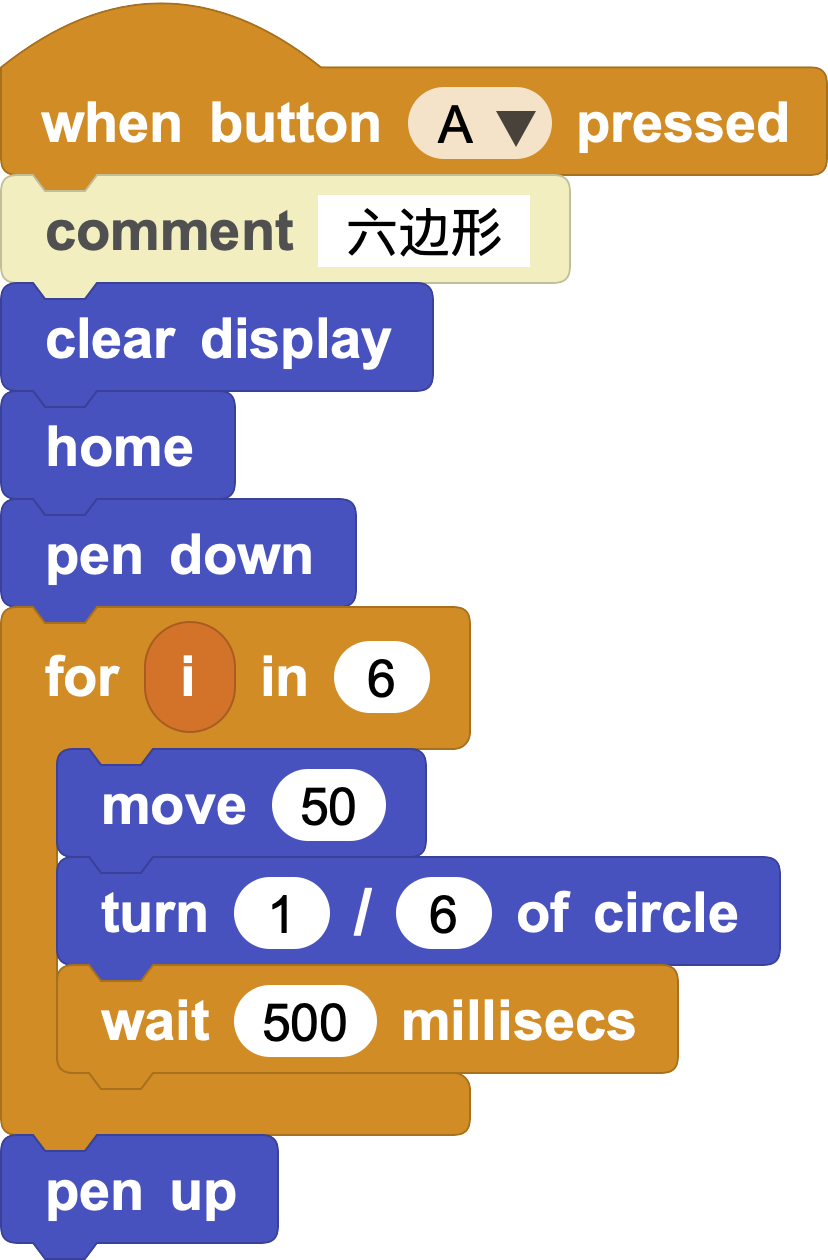
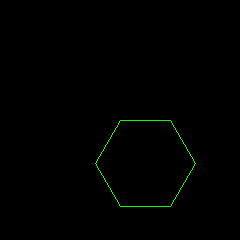
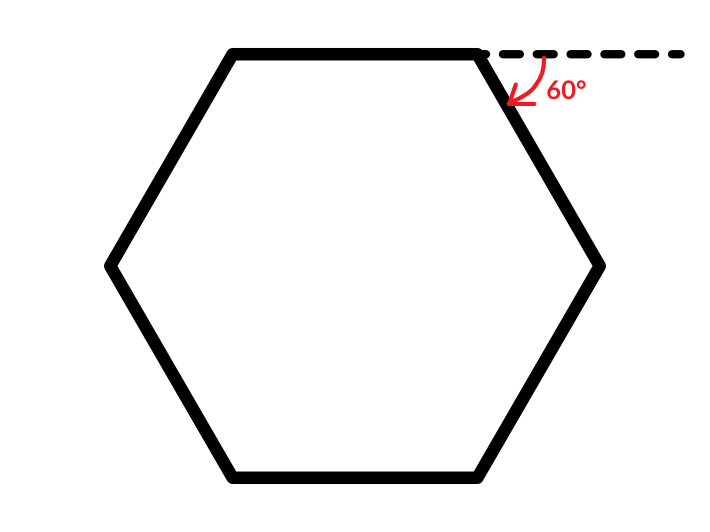
For a regular polygon with n sides, the turtle turns 360 degrees / n each time.
- Regular pentagon: turn 72 degrees, or turn 1/5 of a full turn.
- Regular hexagon: turn 60 degrees, or turn 1/6 of a full turn.
3. More Drawing Ideas
Example A: Rotating squares
What happens if the turtle draws a square, turns a little, and then draws the next square?
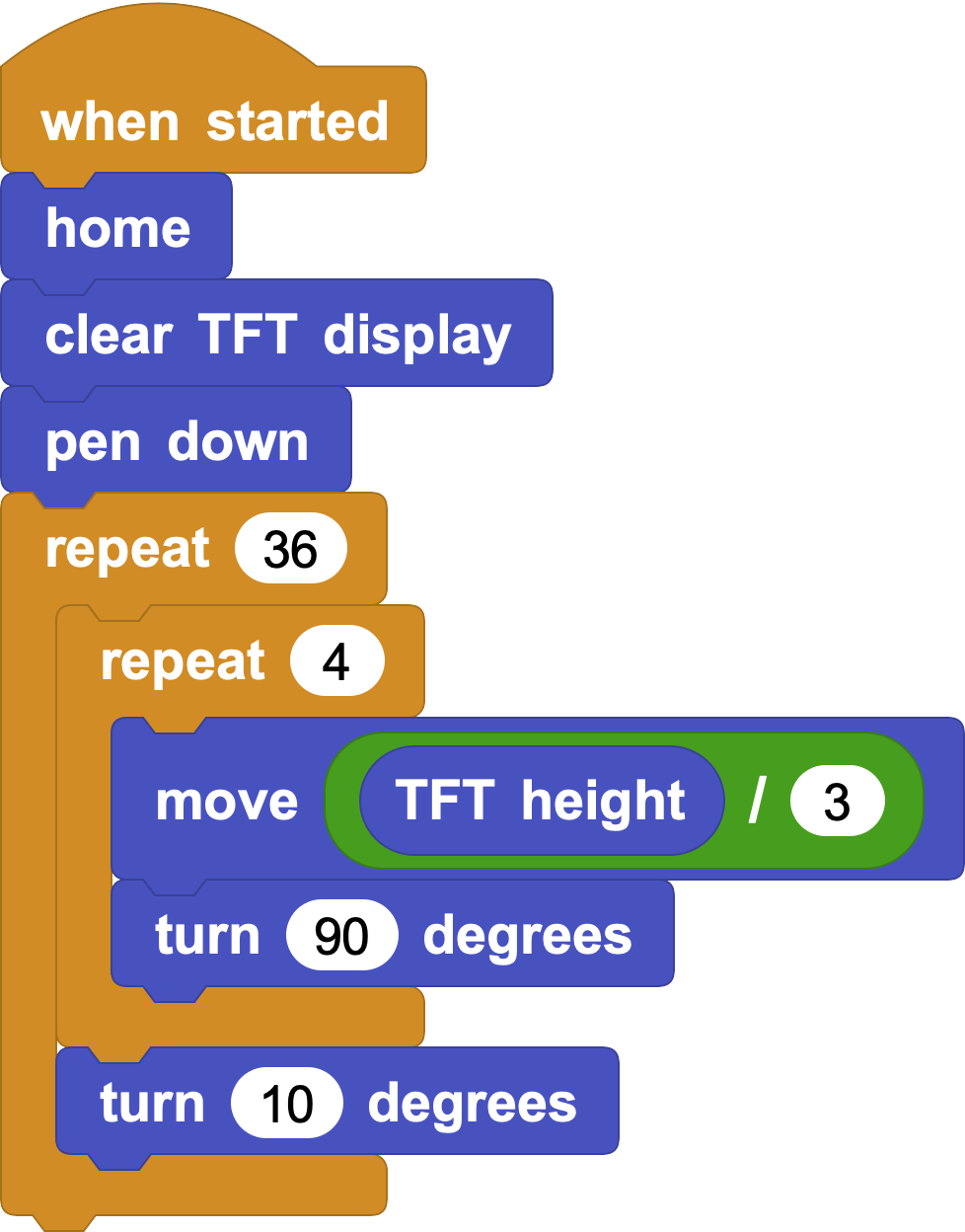
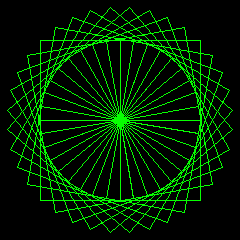
You will get a beautiful layered pattern.
Example B: Right-angle maze
What if the turtle moves like it is walking through a maze, turning 90 degrees each time, while each move gets a little longer?
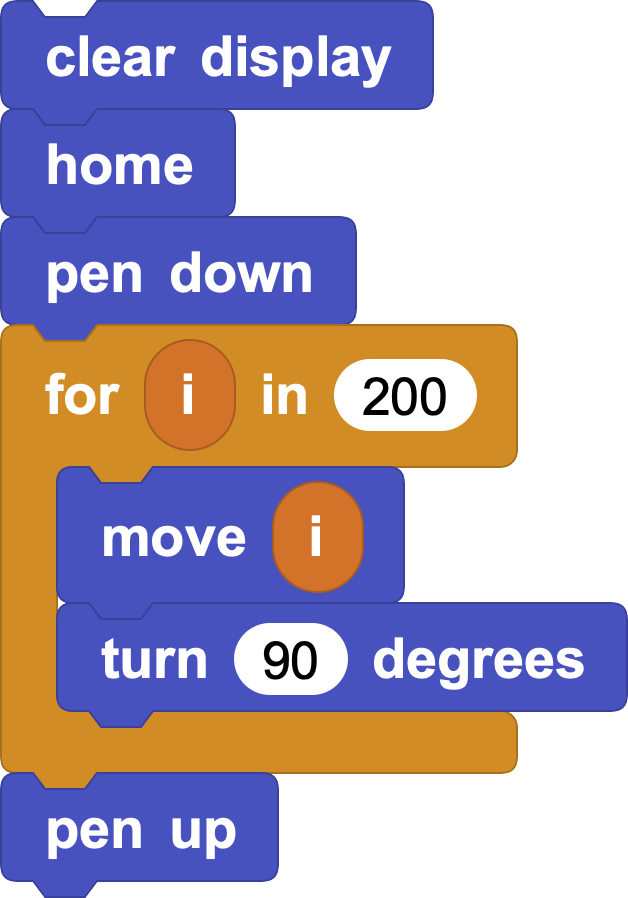
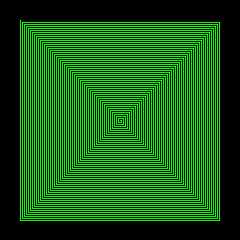
Example C: A 91-degree maze?
What happens if you change 90 degrees to 91 degrees?
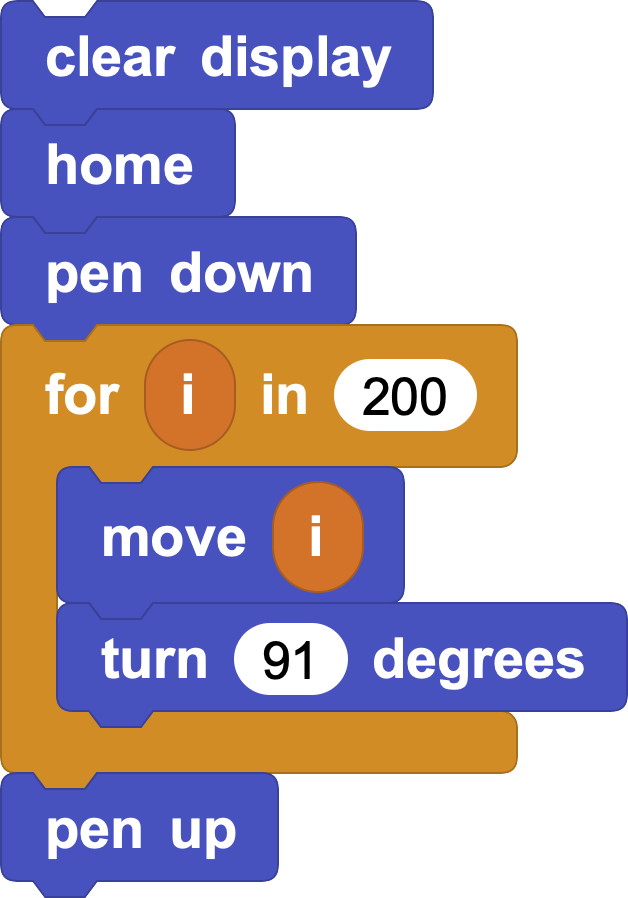
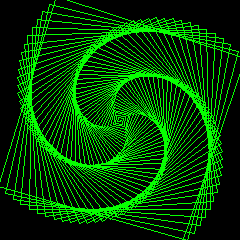
The small change makes the shape slowly rotate and spread out in an interesting way.
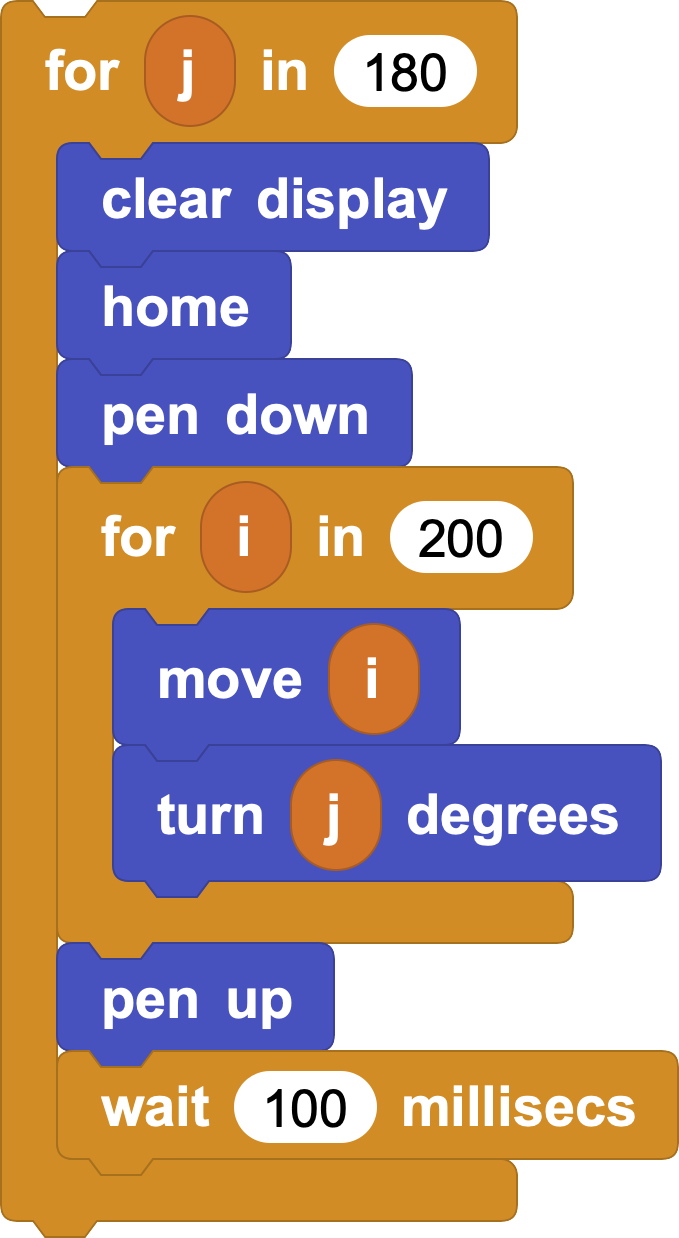
Example D: Make it loop
What happens if the turning angle changes from 0 degrees to 180 degrees?
The lines can fold and twist into a kaleidoscope-like pattern.
4. Challenge and Create
- Color challenge: add a set pen color to block inside the loop and turn your geometry into a rainbow.
- Extreme angles: try unusual angles, such as 144 degrees, 160 degrees, or 170 degrees, and see what patterns appear.