Drawing with Trigonometric Functions in MicroBlocks
Trigonometric functions may sound like formulas from math class, but in programming they are more like tools for drawing circles and waves. Once we know how to use sin, we can draw circular paths, wave curves, kaleidoscope patterns, and even a small planet model on the CoCube TFT screen.
In this activity, we will focus on the fixed sine block in MicroBlocks and use it to create several graphics projects.
Program files:
trigonometric_functions.ubp: sine tests, curve drawing, circle drawing, and kaleidoscope drawing.planet.ubp: the planet model.
1. What are sin and cos?
Start with a circle.
Imagine drawing a line of length r from the center of the circle. The endpoint is P(x, y). The angle between this line and the x-axis is θ.
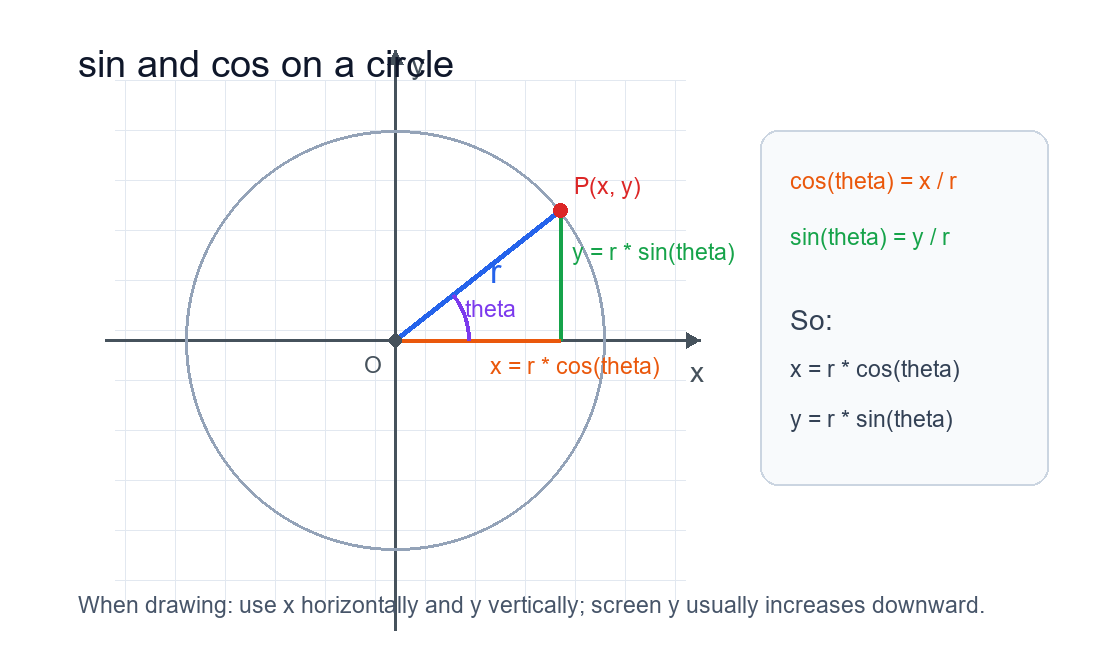
We can understand it like this:
cos(θ) = x / r
sin(θ) = y / r
For programming and drawing, this form is more useful:
x = r × cos(θ)
y = r × sin(θ)
In other words:
costells us how far the point is from the center in the horizontal direction.sintells us how far the point is from the center in the vertical direction.
If θ slowly changes from 0 degrees to 360 degrees, point P will move once around the circle. The circle, kaleidoscope, and planet orbit projects later in this tutorial all come from this idea.
2. Find fixed sine in MicroBlocks
MicroBlocks does not show the trigonometry block by default. First add the system library:
- Click Add Library.
- Choose System.
- Find and add
miscPrims. - Find the fixed sine 9000 block in the block palette.

One detail is easy to miss: in fixed sine 9000, the value 9000 does not mean 9000 degrees. It means 90.00 degrees.
This block uses "angle multiplied by 100":
0 degrees      write as 0
30 degrees     write as 3000
45 degrees     write as 4500
90 degrees     write as 9000
180 degrees    write as 18000
360 degrees    write as 36000
So if the variable t is a normal angle, for example t = 90, we write this inside fixed sine:
t * 100
3. Why divide by 16384 or shift right by 14 bits?
In math:
sin(90°) = 1
sin(30°) = 0.5
But MicroBlocks only uses integer arithmetic. To avoid decimals, fixed sine makes the result 16384 times larger.
For example:
fixed sine 9000 = 16384
fixed sine 3000 ≈ 8192
fixed sine 0 = 0
To bring the value back to the scale we expect, divide it by 16384:

Or shift it right by 14 bits:

Because:
2^14 = 16384
So:
shift right by 14 bits is approximately the same as dividing by 16384
When drawing, we usually do not calculate sin first and then get a decimal. Instead, we multiply by the radius first, then shift right by 14 bits:
100 * fixed sine 9000 >> 14
This means:
100 * sin(90°)
The result is 100.
4. Try a few angles first
Before drawing complex graphics, test a few angles and look at the results.
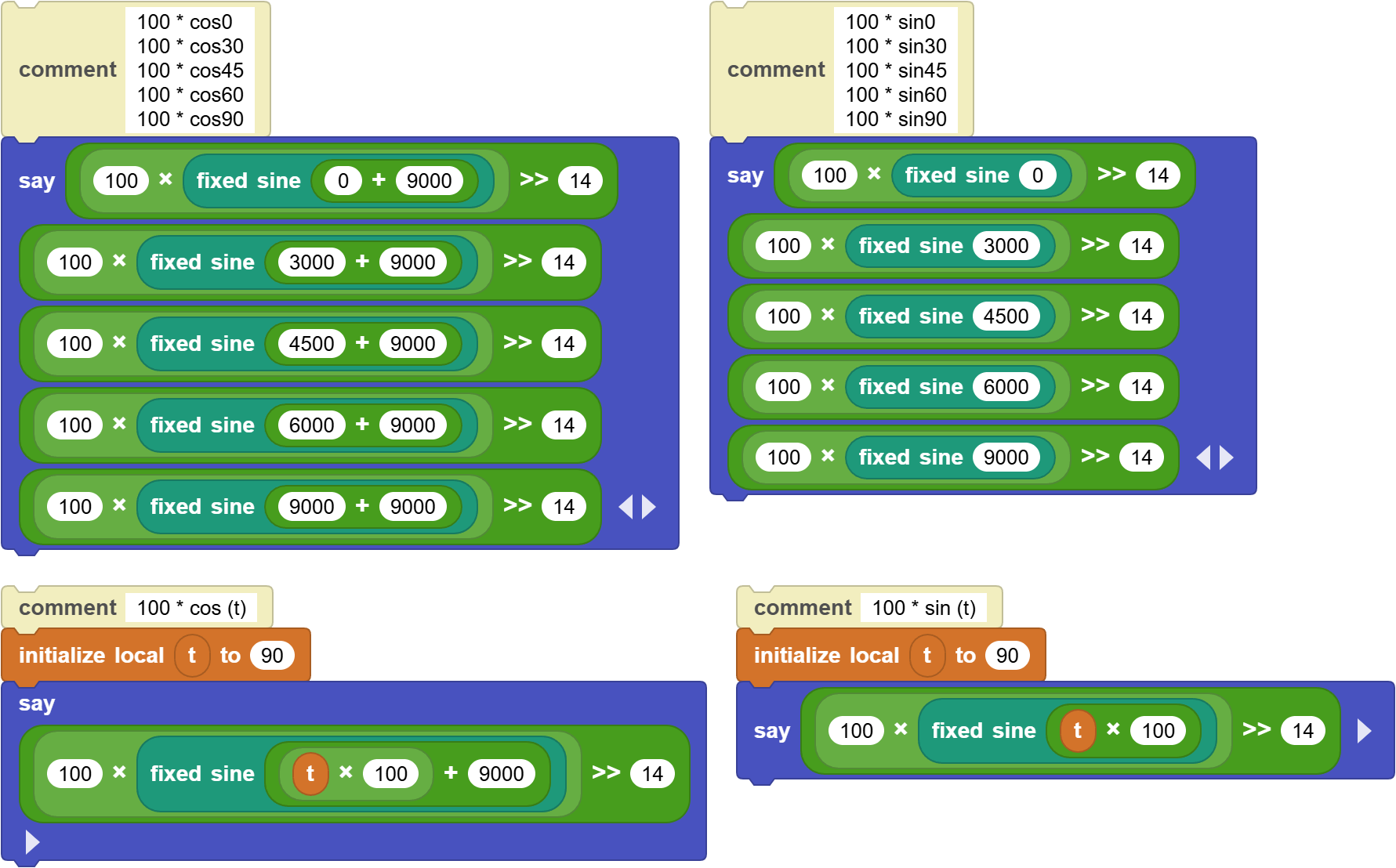
For 100 * sin(angle), try these angles:
100 * sin(0°)   ≈ 0
100 * sin(30°)  ≈ 50
100 * sin(45°)  ≈ 70
100 * sin(60°)  ≈ 86
100 * sin(90°)  ≈ 100
In the program, the corresponding expressions are:
100 * fixed sine 0 >> 14
100 * fixed sine 3000 >> 14
100 * fixed sine 4500 >> 14
100 * fixed sine 6000 >> 14
100 * fixed sine 9000 >> 14
What about cos?
In this program, we use sin to represent cos:
cos(t) = sin(t + 90°)
Because the angle for fixed sine must be multiplied by 100, the program writes it like this:
fixed sine (t * 100 + 9000)
For example:
100 * cos(30°)
= 100 * sin(30° + 90°)
= 100 * fixed sine (3000 + 9000) >> 14
Change the angle t and observe how sin(t) and cos(t) change:
- When
t = 0,sin(t)is close to0, andcos(t)is close to100. - When
t = 90,sin(t)is close to100, andcos(t)is close to0. - When
t = 180,sin(t)is close to0, andcos(t)is close to-100.
5. Draw the curve y = 100 * sin(3x)
Now draw the first curve:
y = 100 * sin(3x)
The main idea is to let i move from left to right and use it as the x coordinate on the screen. For each value of i, calculate the matching y coordinate and draw one pixel.
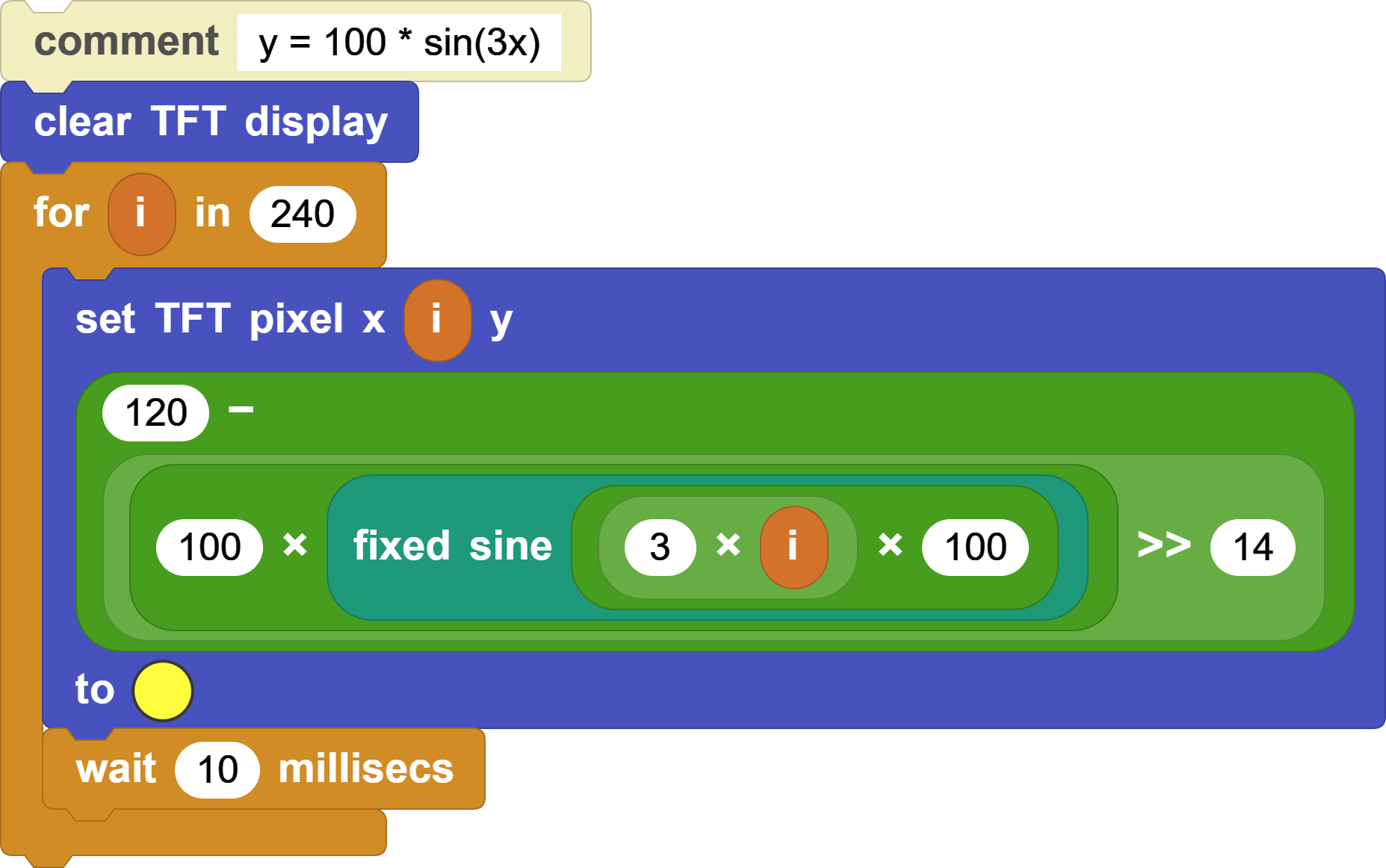
The key expression is:
x = i
y = 120 - (100 * fixed sine (3 * i * 100) >> 14)
There are three important parts:
100is the height of the wave. Change it to50, and the wave becomes shorter; change it to110, and the wave becomes taller.3 * imeans the angle changes faster. Change it to1 * i, and the wave becomes smoother; change it to5 * i, and the wave becomes denser.120 - ...is used because the y-axis on the TFT screen increases downward. In math, larger y values go upward, but on the screen, larger y values go downward.
Try these variations:
y = 50 * sin(3x)
y = 100 * sin(1x)
y = 100 * sin(5x)
y = 80 * sin(2x)
Questions to explore:
- What changes when you change the
100in front? - What changes when you change the
3in3x? - What happens if you change
120 -to120 +?
6. Draw a kaleidoscope
A kaleidoscope pattern can be understood as a circle whose radius also changes.
When drawing a circle, the radius is fixed:
r = 100
When drawing a kaleidoscope, the radius changes with the angle:
r = 10 * sin(n * t)
Then use this changing r to calculate the coordinates:
x = r * 10 * cos(t)
y = r * 10 * sin(t)
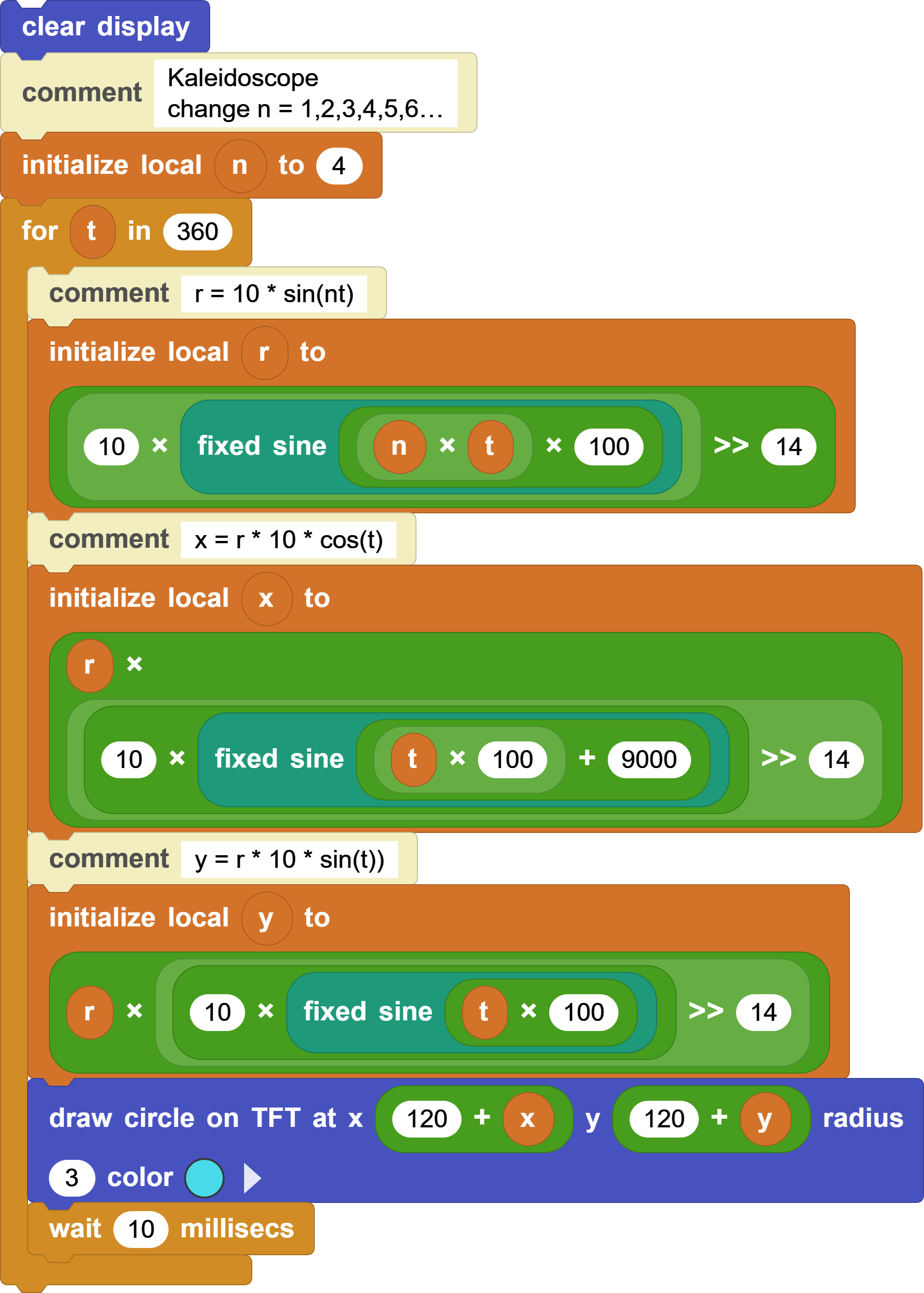
The most interesting parameter to change is n. It affects the number of petals and the symmetry of the pattern.
Here are the results for different values of n:
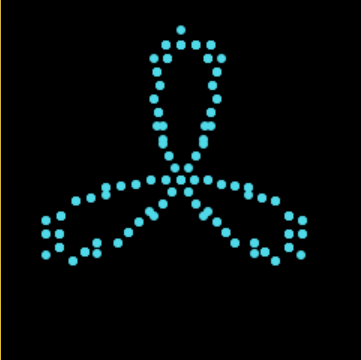
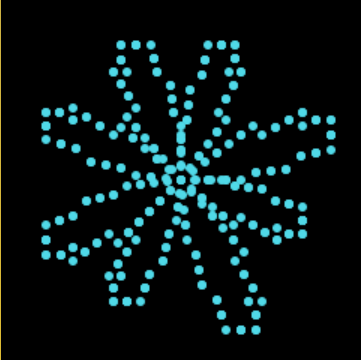
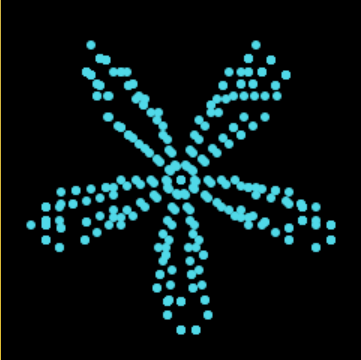
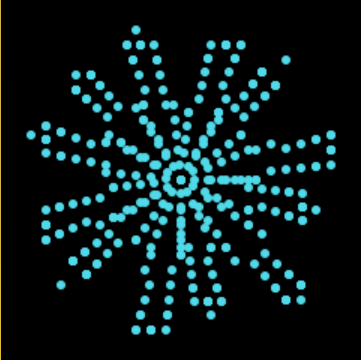
In class, each group can choose a value of n, then change the color and dot size to create its own kaleidoscope.
Try:
n = 2
n = 3
n = 4
n = 5
n = 6
dot radius = 1
dot radius = 3
dot radius = 5
Questions to explore:
- When
ngets larger, does the pattern become simpler or more complex? - What is different between even values of
nand odd values ofn? - What happens if the color becomes random?
7. Draw a circle
To draw a circle, we need both x and y:
x = 100 * cos(t)
y = 100 * sin(t)
On the screen, we place the center of the circle at (120, 120), so the actual point is:
screen x = 120 + x
screen y = 120 - y
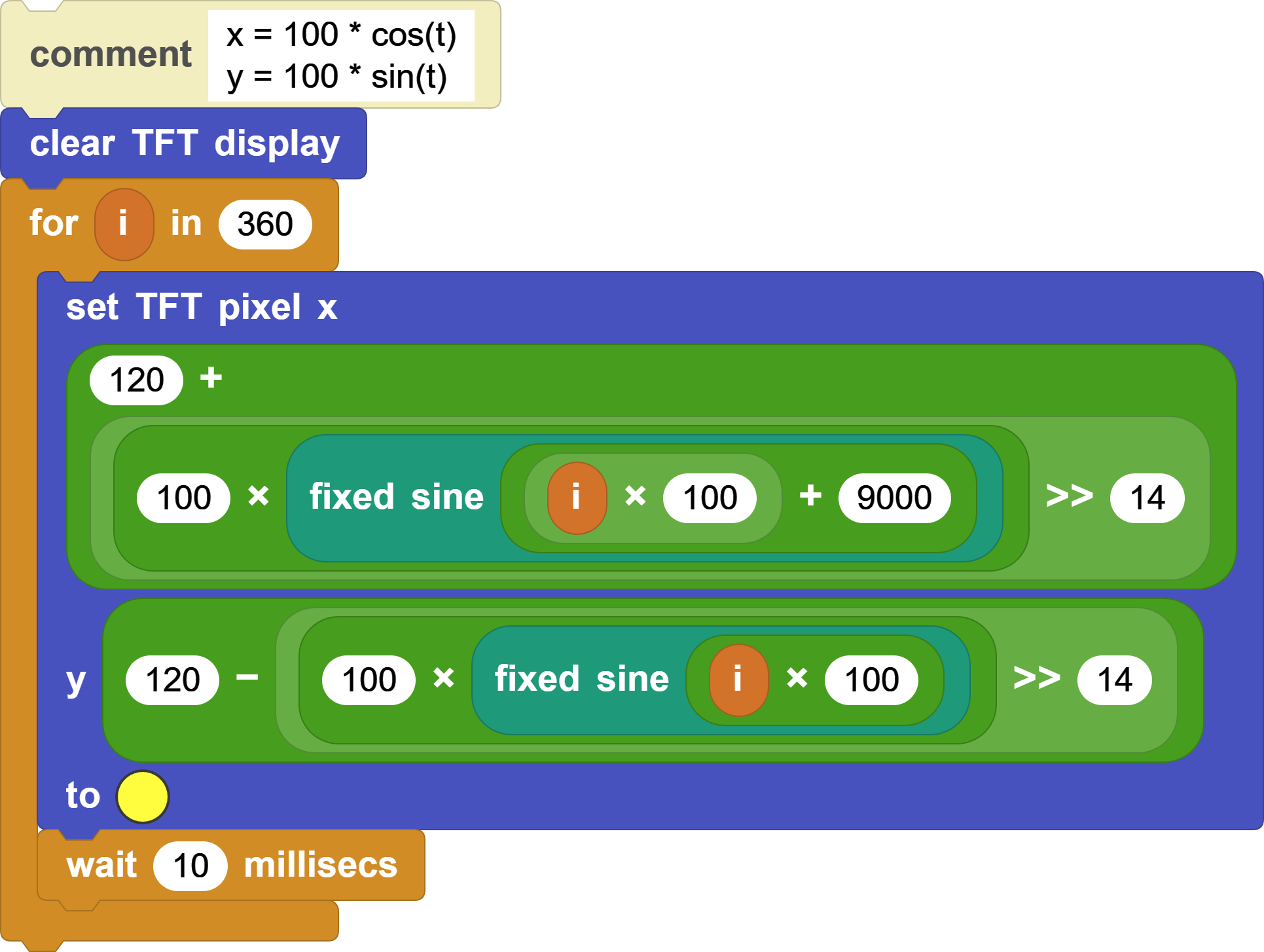
In MicroBlocks, this becomes:
x = 120 + (100 * fixed sine (t * 100 + 9000) >> 14)
y = 120 - (100 * fixed sine (t * 100) >> 14)
Here:
fixed sine (t * 100 + 9000)meanscos(t).fixed sine (t * 100)meanssin(t).100is the radius of the circle.tchanges from0to359, which makes one full circle.
Try:
radius = 30
radius = 60
radius = 100
wait = 1 millisecond
wait = 20 milliseconds
A larger radius makes a larger circle. A shorter wait time draws faster.
8. Planet model
Finally, turn the circular path into a small planet model.
When we drew the circle earlier, we drew one pixel at a time. Now we make each point bigger by drawing a small circle, like a planet moving along its orbit.
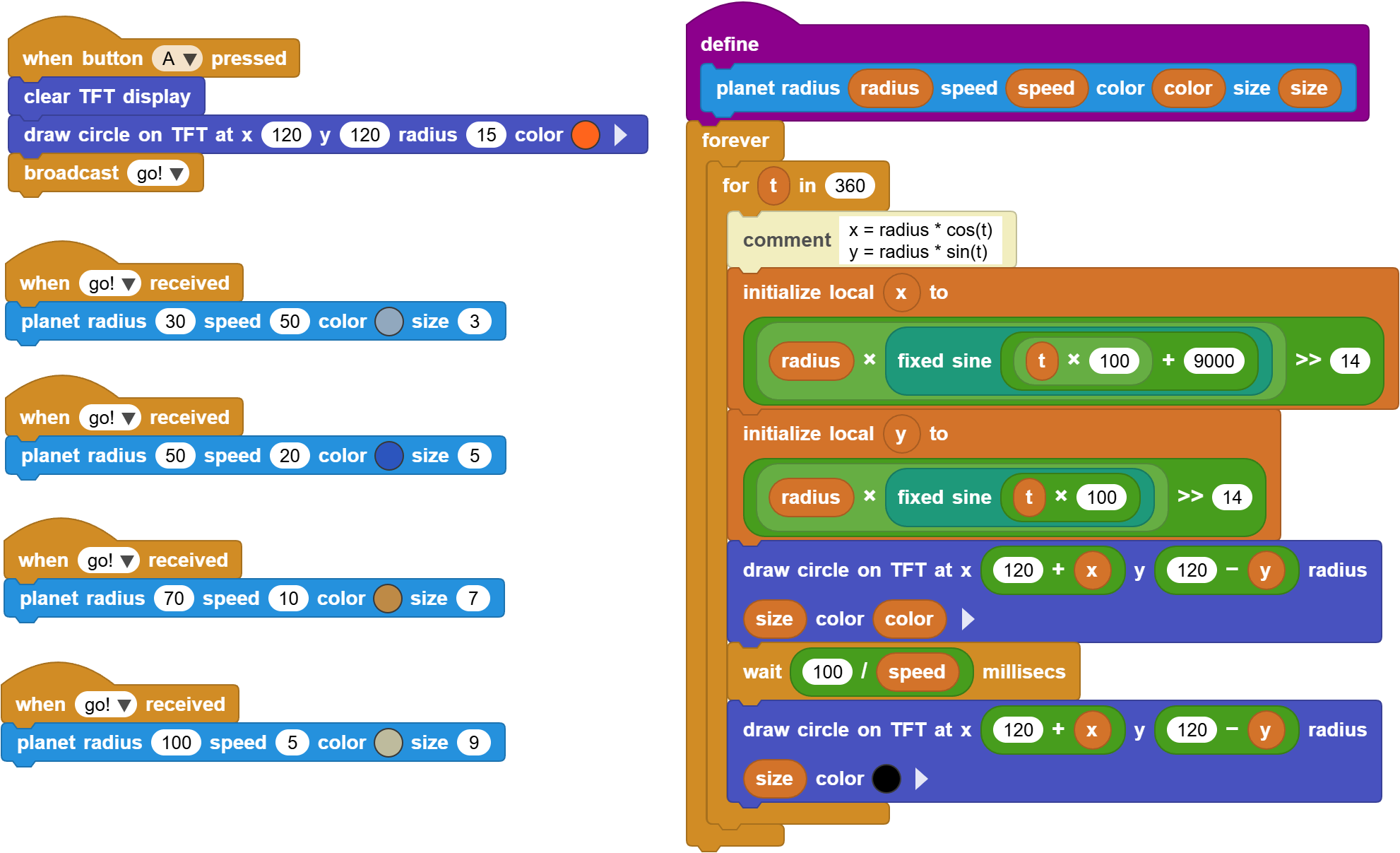
The program defines a custom block:
planet radius _ speed _ color _ size _
It has four parameters:
radius: the orbit radius, which controls how far the planet is from the center.speed: the motion speed, which controls how fast the planet moves.color: the planet color.size: the planet size.
Inside the custom block, we still use the same circle formulas:
x = radius * cos(t)
y = radius * sin(t)
In MicroBlocks:
x = radius * fixed sine (t * 100 + 9000) >> 14
y = radius * fixed sine (t * 100) >> 14
Screen position:
screen x = 120 + x
screen y = 120 - y
When button A is pressed, the program first draws the sun in the center, then broadcasts go! so planets on different orbits start moving at the same time.
For example:
planet radius 30  speed 50  size 3
planet radius 50  speed 20  size 5
planet radius 70  speed 10  size 7
planet radius 100 speed 5   size 9
Think about:
- Does a planet with a larger radius always need to move more slowly?
- What would it look like if the outermost planet moved the fastest?
- If each planet does not erase its previous frame, will it draw its orbit?
- If every planet has a different color, can you turn it into a "solar system clock"?