Play Buzzer Music on the Map
CoCube can do more than move around a positioning map. It can also turn the music map into a keyboard that you play by sliding the robot. In this activity, no external MIDI module is needed: the music is played through CoCube's built-in buzzer.
Online program: Open in MicroBlocks
Program file: Buzzer.ubp
1. Preparation
You will need:
- One CoCube
- A CoCube music map
- A computer or tablet with MicroBlocks
Connect CoCube to MicroBlocks and run the program. Place the robot on the music map and slide it by hand across different keys to hear different pitches.
Optional: 3D-Printed Bracket
When CoCube is pushed directly, friction between its wheels and the map can make it harder to slide. The included chassis bracket lifts the wheels slightly so the robot moves more smoothly across the music map.
Download the CoCube chassis bracket STL
After printing, attach the bracket underneath CoCube and slide the robot by hand to play. The bracket is intended only for manual sliding; remove it before running the motors.
2. How the Music Map Produces Sound
CoCube can read the card ID underneath it. The keys on the music map use IDs from 60 to 84, which are also MIDI note numbers.
For example:
60: middle C61: C sharp62: D- Each increase of 1 raises the pitch by one semitone
The start MIDI key block in the Tone library converts these numbers directly into buzzer pitches, so no separate note table is required.
3. Complete Program
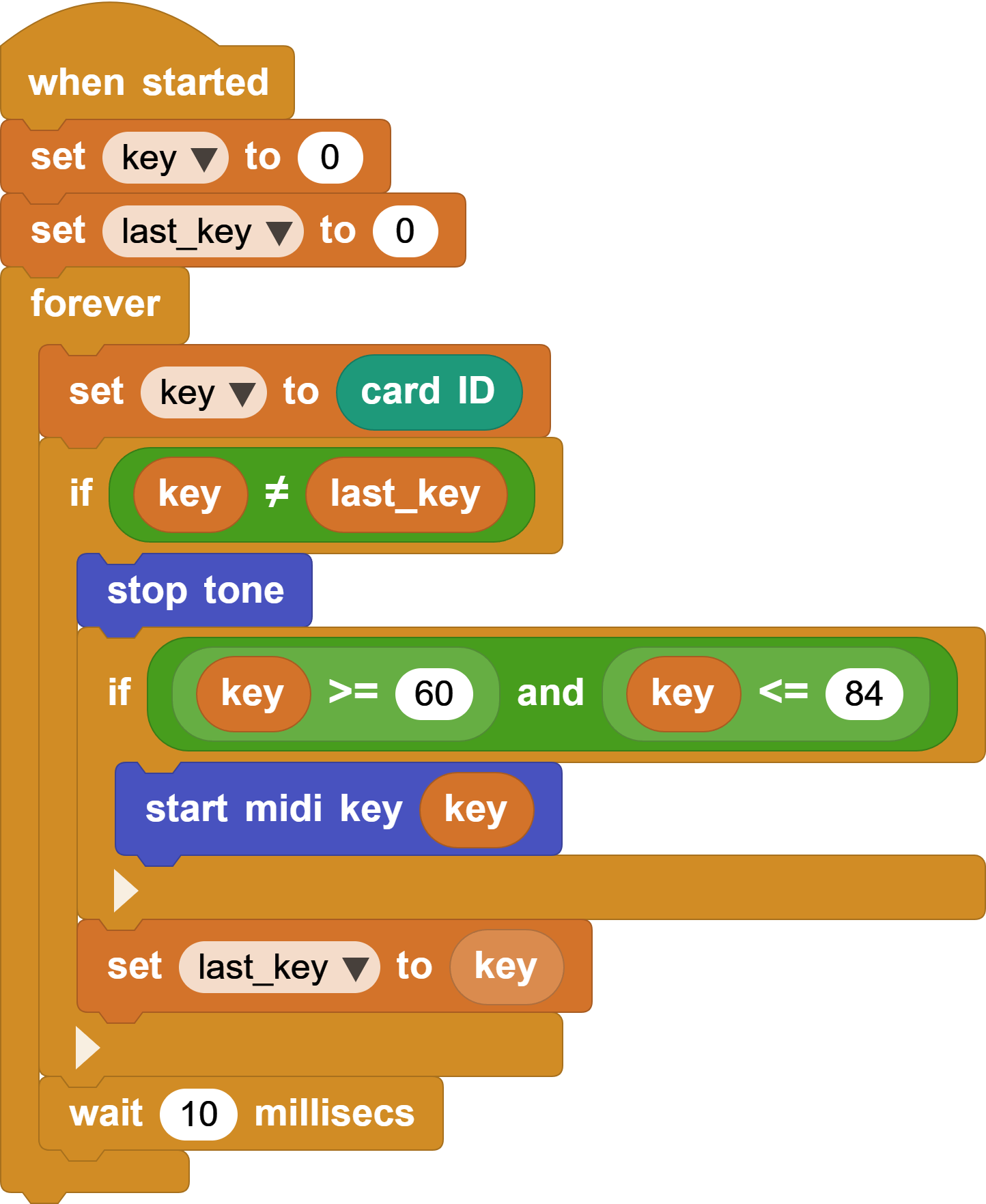
The program uses only two variables:
key: the current card ID.last_key: the previous card ID.
Read the Current Key
The program continuously reads CoCube's card ID and stores it in key.
key = CoCube card ID
Switch Sound Only When the Key Changes
When key is different from last_key, CoCube has entered a new area. The program changes the sound only at this moment, preventing it from repeatedly restarting the same note while the robot remains on one key.
Start and Stop Notes
When the key changes, the program first stops the previous note. If the new card ID is between 60 and 84, it starts the corresponding MIDI note.
When CoCube leaves the keyboard area, the card ID is outside this range, so the program only stops the sound. Finally, last_key = key remembers the current state.
The 10 millisecond delay keeps the response quick without running the loop unnecessarily fast.
4. Try It
- Display the current
keyon the screen and observe the number assigned to each key. - Record the keys CoCube passes over and make it replay the melody automatically.