In the previous MQTT activities, the computer and CoCube exchanged messages through an MQTT broker. This time, we will use UDP so that a computer and CoCube on the same local network can communicate directly.
This tutorial covers three tasks:
- Send text from the computer to CoCube.
- Make CoCube reply to the computer.
- Call CoCube functions remotely through UDP messages.
Open the complete program in MicroBlocks
1. Preparation
You will need:
- One CoCube
- A Windows, macOS, or Linux computer
- A 2.4 GHz Wi-Fi network
- Packet Sender
Packet Sender is a free, open-source network testing tool that can send and receive UDP packets.
The computer and CoCube must be connected to the same Wi-Fi network. UDP communication does not require an account or a public server.
Add these block libraries in MicroBlocks:
- Add Library → Network → UDP
- CoCube
- Add Library → Other → Function Calls
2. Start the UDP service on CoCube
Build the following program and enter the Wi-Fi name and password:
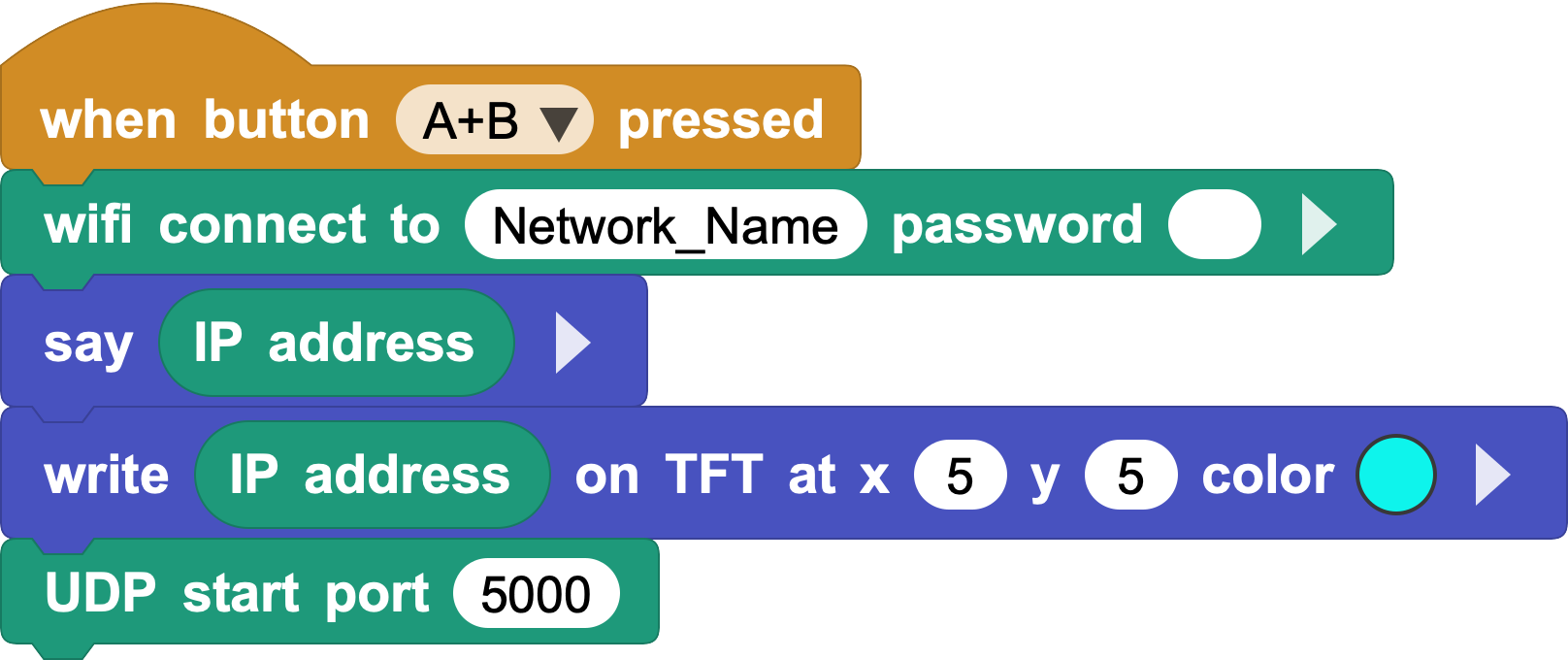
After you press buttons A and B at the same time, CoCube will:
- Connect to Wi-Fi.
- Report its IP address in MicroBlocks.
- Start the UDP service and listen on port
5000.
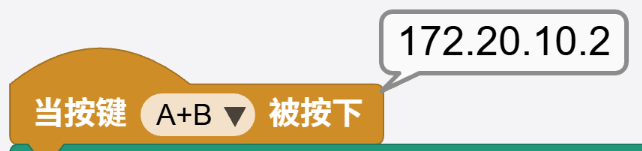
The 172.20.10.2 shown in the image is only an example. Your CoCube will receive a different IP address. Record the address that MicroBlocks reports.
You can think of the IP address and port as a delivery address:
- The IP address identifies CoCube on the local network.
- Port
5000delivers the message to the UDP program on CoCube.
The Wi-Fi name and password are stored in the program. Remove your password before sharing the program or screenshots.
3. Send a message from the computer to CoCube
3.1 Build the receiving program
Build the following program:
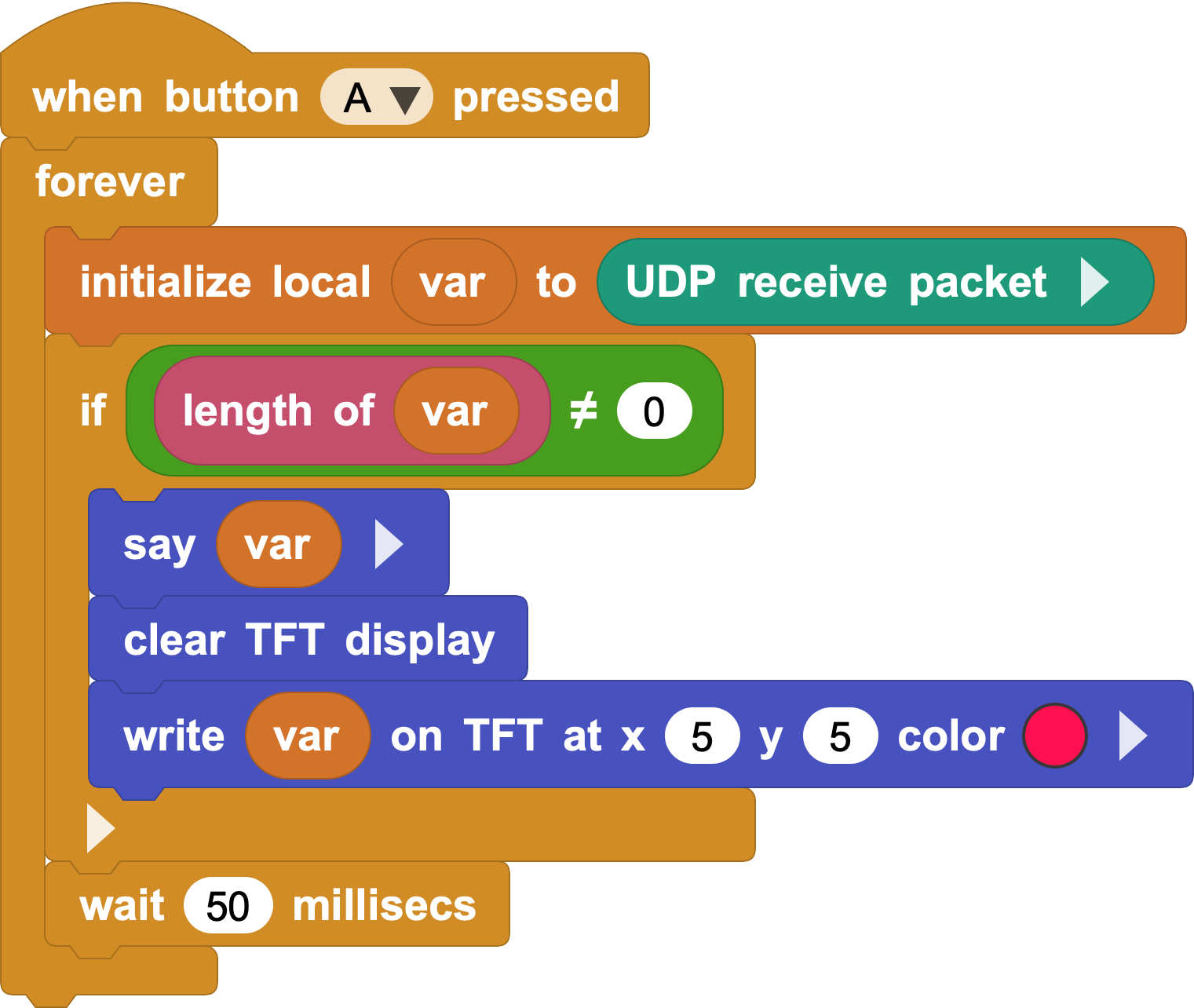
After you press button A, the program continuously checks for a UDP packet:
- When there is no new message, the received content has a length of
0. - When a message arrives, the program reports it and displays it on the TFT screen.
The 50 millisecond wait at the end of the loop prevents the program from checking too frequently.
3.2 Send with Packet Sender
Open Packet Sender and enter these values in the sending area:
| Setting | Value |
|---|---|
| ASCII | Hello CoCube! |
| Address | The actual IP address of CoCube |
| Port | 5000 |
| Protocol | UDP |
Make sure button A has been pressed on CoCube so that it is ready to receive, then click Send.
If communication succeeds, the TFT screen on CoCube displays:
Hello CoCube!
4. Send a message from CoCube to the computer
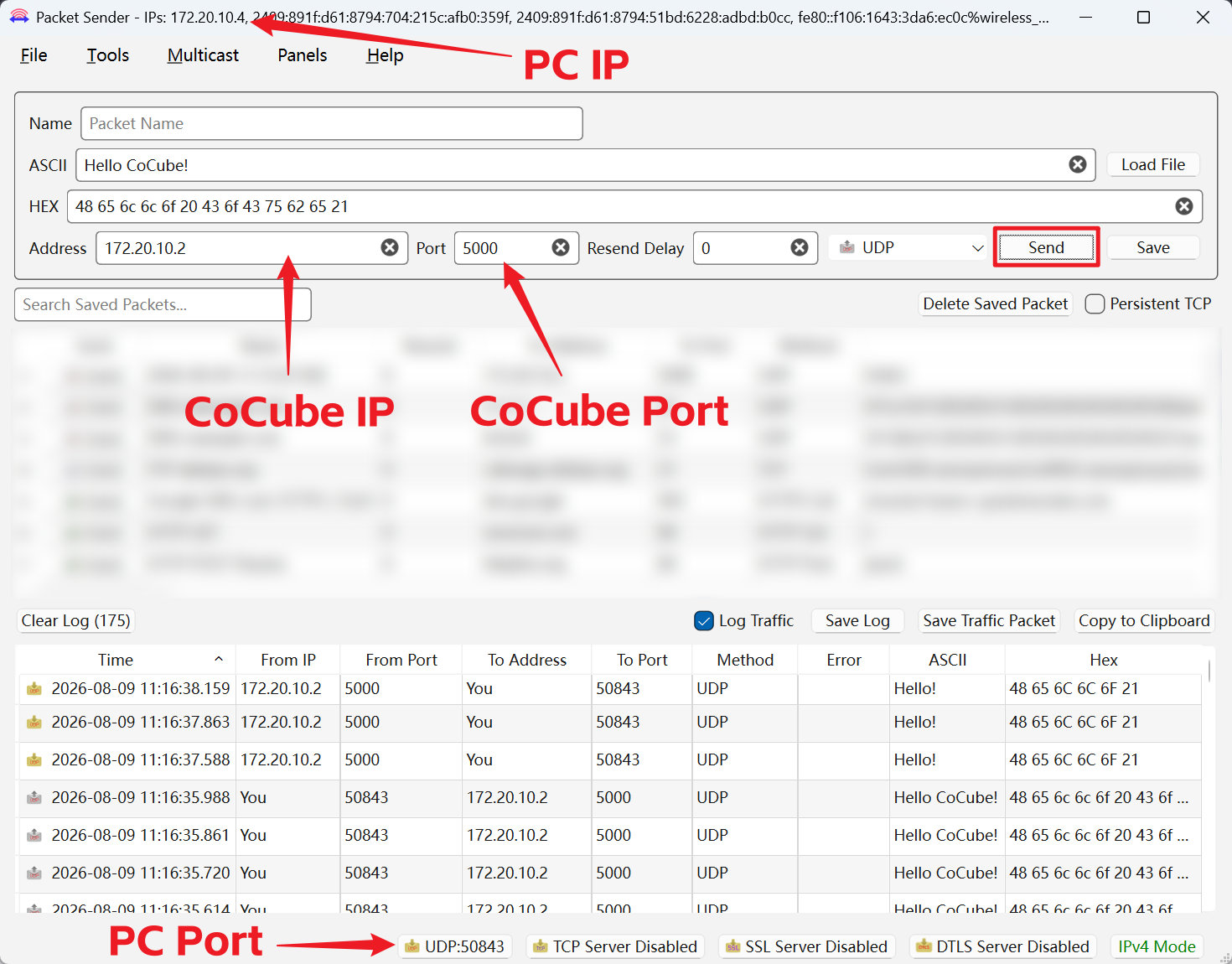
Packet Sender displays the computer's IP address at the top of the window and the UDP port it is listening on at the bottom. Record both values.
The example image uses:
| Item | Example value |
|---|---|
| Computer IP | 172.20.10.4 |
| Computer UDP port | 50843 |
Replace the IP address and port in the program with the actual values shown in Packet Sender:

After you press button B, CoCube sends Hello! to the computer. The received packet appears in the log at the bottom of Packet Sender.
172.20.10.4and50843are examples. These values may change when the computer reconnects to the network or Packet Sender is reopened, so check them again and update the program.
You have now completed two-way communication:
- Packet Sender sends
Hello CoCube!toCoCube:5000. - CoCube replies to Packet Sender with
Hello!.
5. Control CoCube with UDP messages
The received data does not have to be displayed as text. It can also be treated as a control command.
Replace the receiving program from Section 3 with this program:
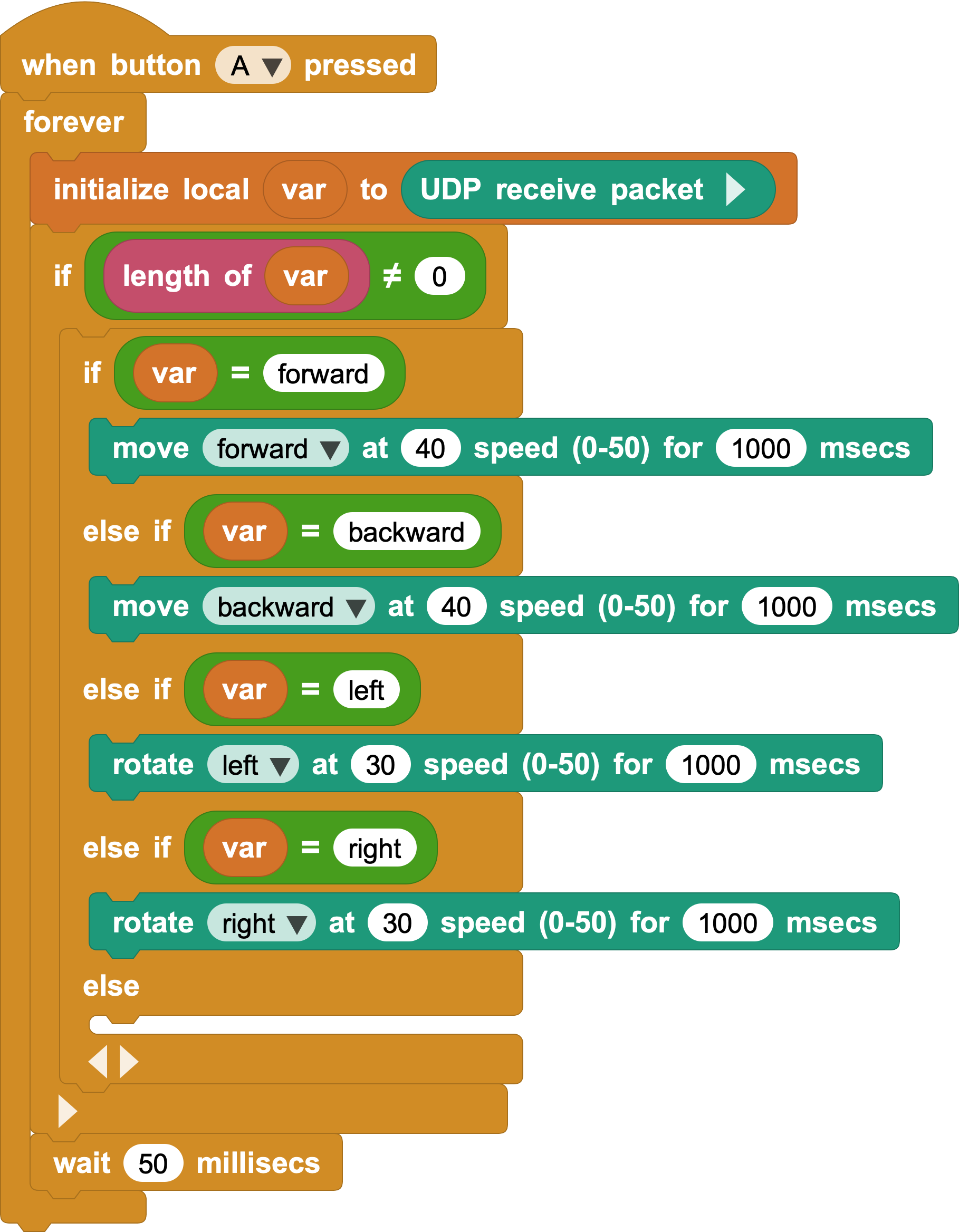
In Packet Sender, keep the CoCube IP address, port 5000, and UDP protocol unchanged. Send these messages one at a time:
| Message | CoCube action |
|---|---|
forward |
Move forward |
backward |
Move backward |
left |
Turn left |
right |
Turn right |
This approach is easy to understand: each received word triggers a matching action. However, every new command requires another condition.
6. Call functions through UDP
To call more blocks, put the function name and parameters in the UDP message:
call,function_name,parameter1,parameter2...
Replace the fixed-command program from Section 5 with this general receiving program:
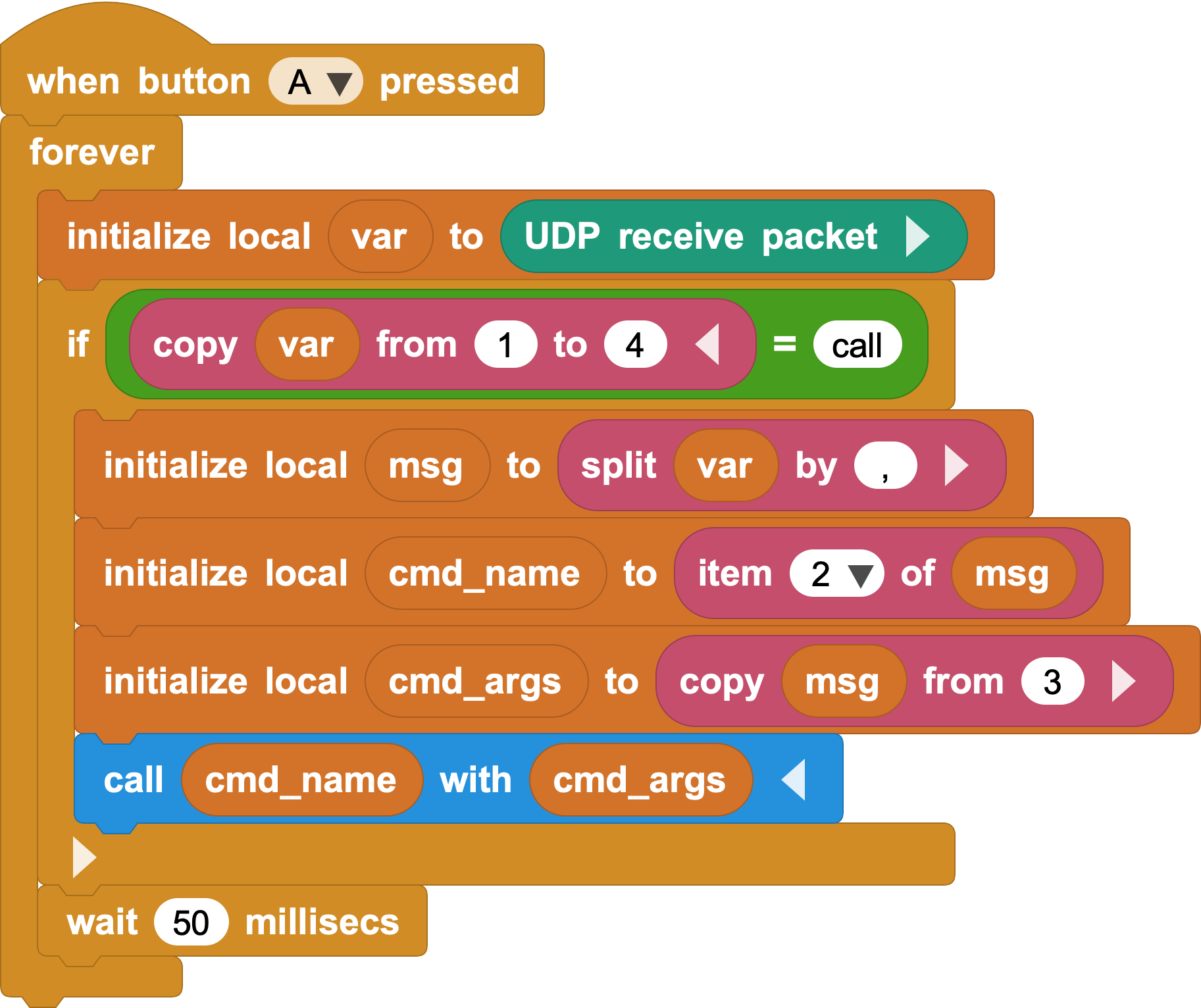
The program will:
- Receive a UDP packet.
- Check whether the message begins with
call. - Split the message at each comma.
- Use the second item as the function name.
- Use the third and later items as the parameter list.
- Use the call block to run the function.
Send this message in Packet Sender:
call,CoCube move for msecs,cocube;forward,40,1000
This message makes CoCube move forward at speed 40 for 1000 milliseconds.
You can also try:
call,CoCube move for msecs,cocube;backward,40,1000
call,CoCube rotate for msecs,cocube;left,30,1000
call,CoCube rotate for msecs,cocube;right,30,1000
scriptImage04_control.png and scriptImage05_function_call.png are two versions of the receiving program. After completing the fixed-command experiment, replace it with the general function-call program. Do not run both versions at the same time.
7. Find the function name of a block
The function name and parameters in the UDP message must exactly match those used by the block.
Right-click the block in MicroBlocks, select Copy to clipboard, and paste the content into a comment to view its GP Script.
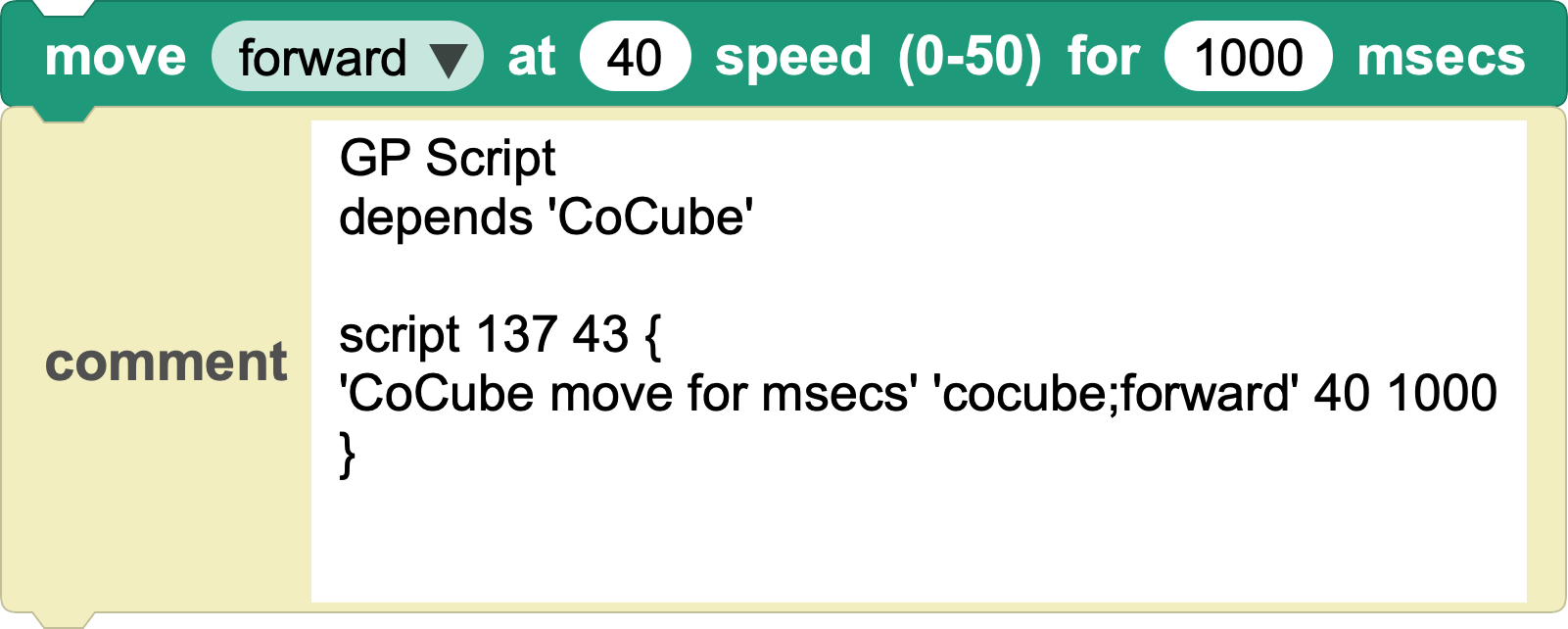
The block in the image produces:
'CoCube move for msecs' 'cocube;forward' 40 1000
Therefore:
- The function name is
CoCube move for msecs. - The parameters are
cocube;forward,40, and1000.
Join them with commas and add call at the beginning to create a complete UDP control message.
For a detailed explanation of function calls, see Advanced Program Calls.
8. Characteristics of UDP communication
Compared with MQTT, UDP communication is more direct:
- It does not require an MQTT broker.
- It does not require accounts or topics.
- It is useful for quickly exchanging data on the same local network.
- The sender must know the receiver's IP address and port.
UDP does not confirm that a message arrived, and it does not guarantee that messages arrive in order. It is suitable for real-time information such as remote-control commands and position data, where an occasional lost message is acceptable. It is not suitable for directly transferring important files that must arrive intact.
9. Troubleshooting
Packet Sender sends a message, but CoCube does not receive it
- Confirm that the computer and CoCube are connected to the same Wi-Fi network.
- Confirm that the address is the current IP address displayed by CoCube.
- Confirm that the destination port is
5000and the protocol is UDP. - Confirm that button A has been pressed to run the receiving program.
- Check whether the computer or router has device isolation enabled.
CoCube sends a message, but Packet Sender does not receive it
- Check the computer IP address and the UDP port shown at the bottom of Packet Sender.
- If the Packet Sender port changes, update the MicroBlocks program.
- The first time Packet Sender runs, allow it through the system firewall.
A function call does not work
- Confirm that the Function Calls library has been added.
- Use standard commas in the message.
- Make sure the message begins with lowercase
call. - Check the function name, parameter count, and parameter order.