1. Goal
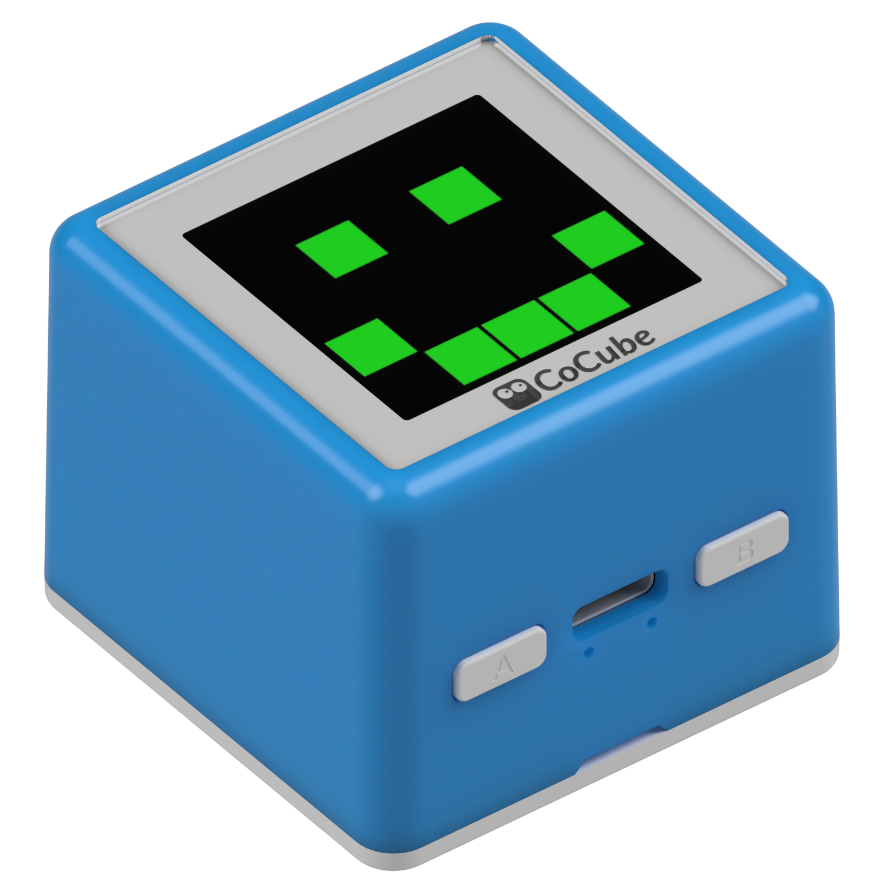
Want your robot to learn how to remember a route and walk it again by itself? You may have played a game where you follow footprints back to where you started. It sounds simple, but it tests the robot's memory. In this activity, you will program the CoCube robot to remember each position it has visited and then replay the full path.
2. Materials
3. Software
4. Background
Blocks You Will Use
- List block: In the Data category, there is a block called list. When you first drag it out, it may contain the default item cat. Click the small gray triangle on the left to turn it into an empty list, like a clean table waiting for data.


- Storing data in a list: Once we have a list warehouse, we can store pieces of data neatly and read them later.
But a warehouse is not enough. We also need a block that puts things into the warehouse. This block adds the new item to the end of the list, just like a new person joining the back of a line.
It has two inputs:
The first input: the item you want to store, such as a number or a letter.
The second input: the list where you want to store it.

PS: Try putting a list block into this block. Do you get the result you expected?
- Reading a list: After we store data in the warehouse, the next key question is how to get an item back from a certain position.
It is like putting a book on a library shelf and then finding it again by its shelf number.
This is where the item of list block comes in. It can use a position number, or index, to read exactly the item you need.

- Initializing variables: Want the robot to remember a number or a name so it can use it later? Give it a small box. In programming, that box is called a variable.
How do you find this box?
Find the orange Variables category.
At the top-left of the category, click Add a variable.
Create the variable.


Before using a variable, we usually give it a clear starting value. Later, when the value changes, we update it.

Local variable initialization
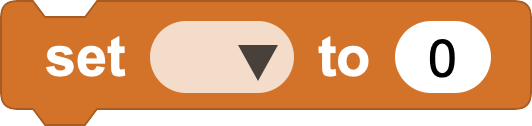
Setting a variable
PS: A local variable only works inside the block or script where it is created.
- Naming a warehouse: If we use plain lists as warehouses, we run into a problem: they have no labels. If there are two identical list warehouses, how can we tell which data is in which one? We can use variables to name our warehouses. In the image below, the target warehouse is named list_x.

5. Give the Robot a Memory
- Create variables and warehouses: How can we give the robot memory?
First, we need a place to store that memory. We create named warehouses, or lists, to store the robot's coordinate data. We also introduce an index variable as a counter, so we always know how many positions have been stored.
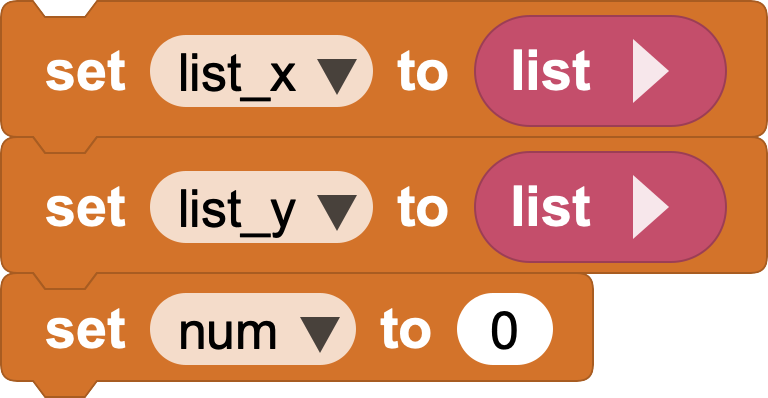
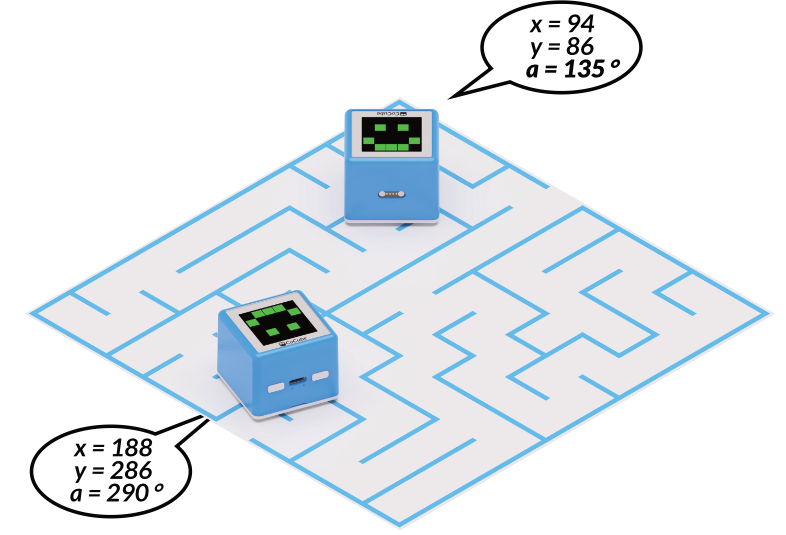
- Store positions: Next, we store the robot's footprints, which are the X and Y coordinates on the map, into two matching lists. There is one important rule:
The 1st X coordinate must be stored with the 1st Y coordinate, the 2nd with the 2nd, and so on. Items at the same position in the two lists must stay paired. Otherwise, X and Y values may get mixed up when we read them later.
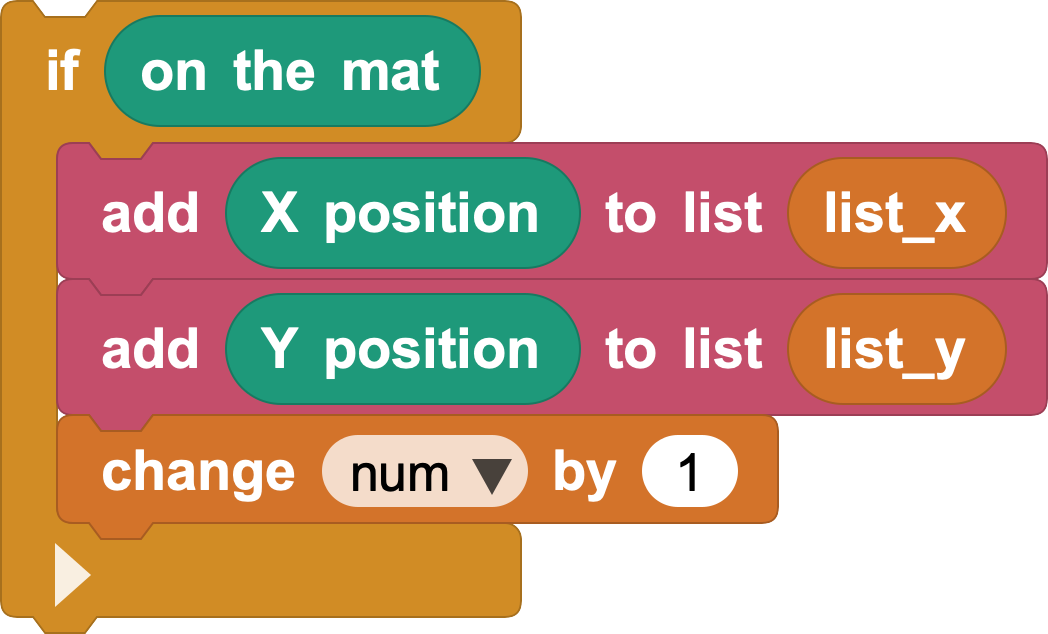
The two coordinates of the same point appear together, so we bundle them together in memory. This makes the robot's memory easier to manage.
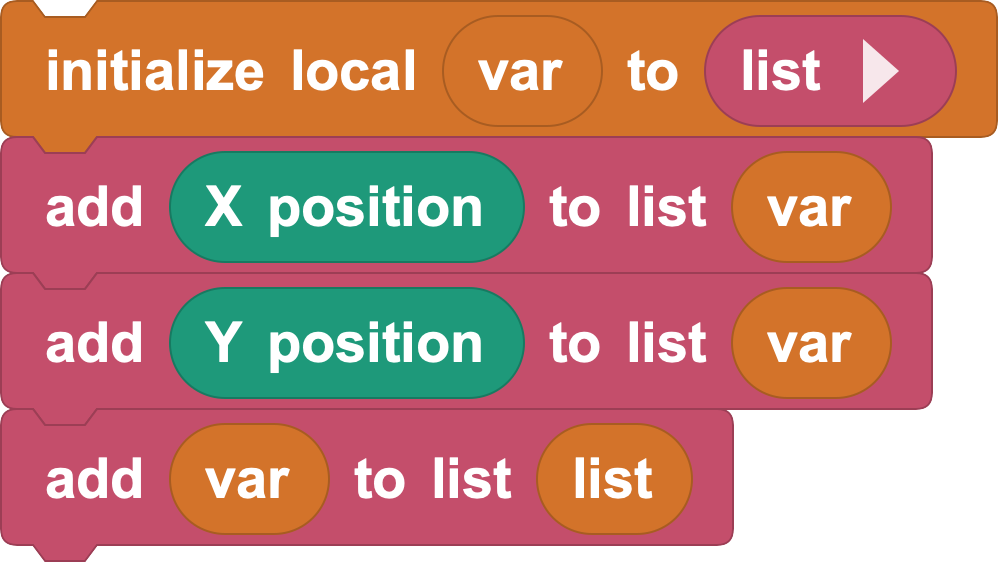
We can go one step further: join the X and Y coordinates together as one point and store that whole point in a single list. Then one list can store all positions, which is simpler and easier to manage.
6. Move Along the Remembered Path
- Path replay: Remember what you learned before: if you give CoCube a target coordinate, it can move there quickly and accurately.
To replay a route, we read the stored coordinates from the warehouse one by one, then use the CoCube move to block to guide the robot through them in order.
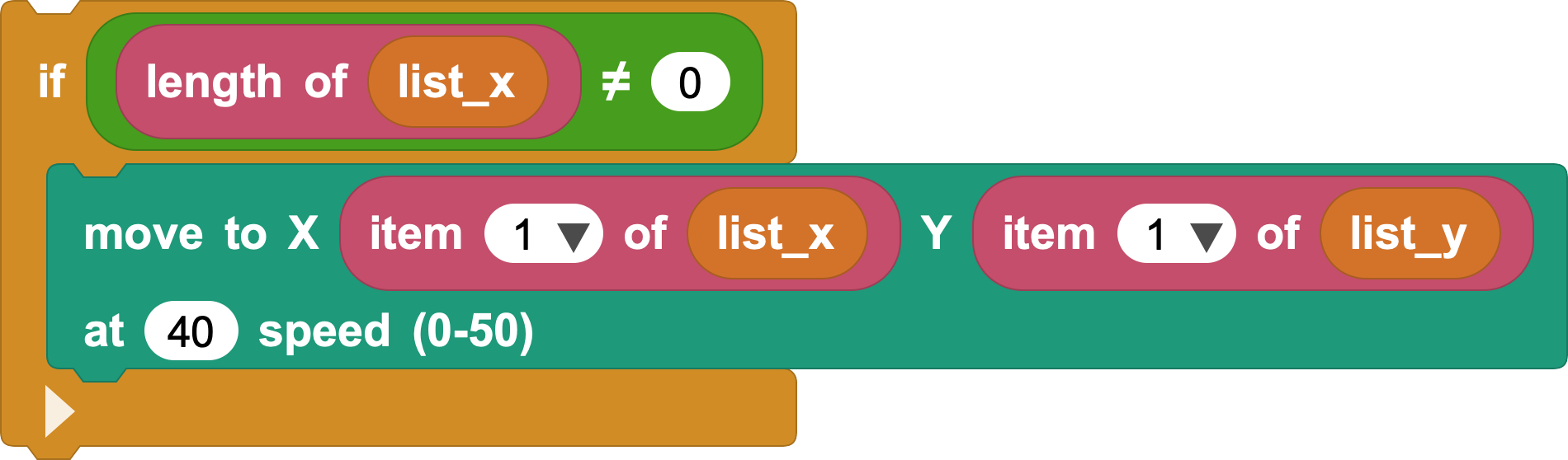
Here we read the 1st coordinate from each warehouse. This matches the idea of coordinate pairs: the 1st X value and the 1st Y value belong together.
Why the 1st item?
Because we stored the coordinates in order. The first place the robot remembered is at the front of the list.
- How can we replay more coordinates?
If you are familiar with the for block with an index variable, you may quickly think of reading the length of the warehouse and then reading each coordinate pair in order. That works.
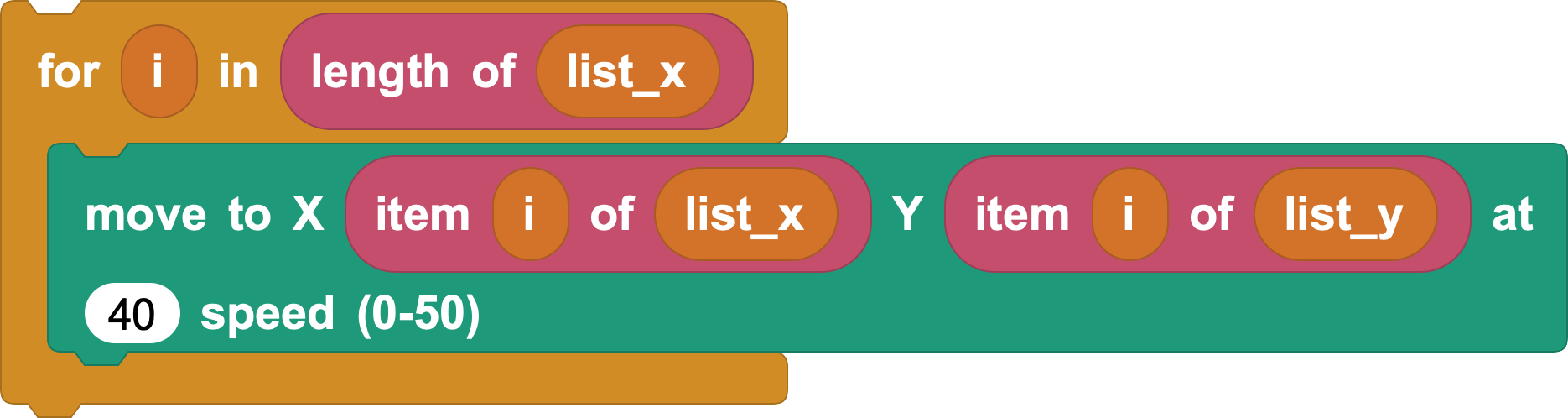
Today we will use a new method called "read and delete." After we read the 1st coordinate, that item has been used and is no longer needed, so we delete it.
After deletion, the old 2nd item moves forward and becomes the new 1st item. That means we only need to read item 1 every time. With this method, our list behaves like a queue: the item stored first is used and removed first.
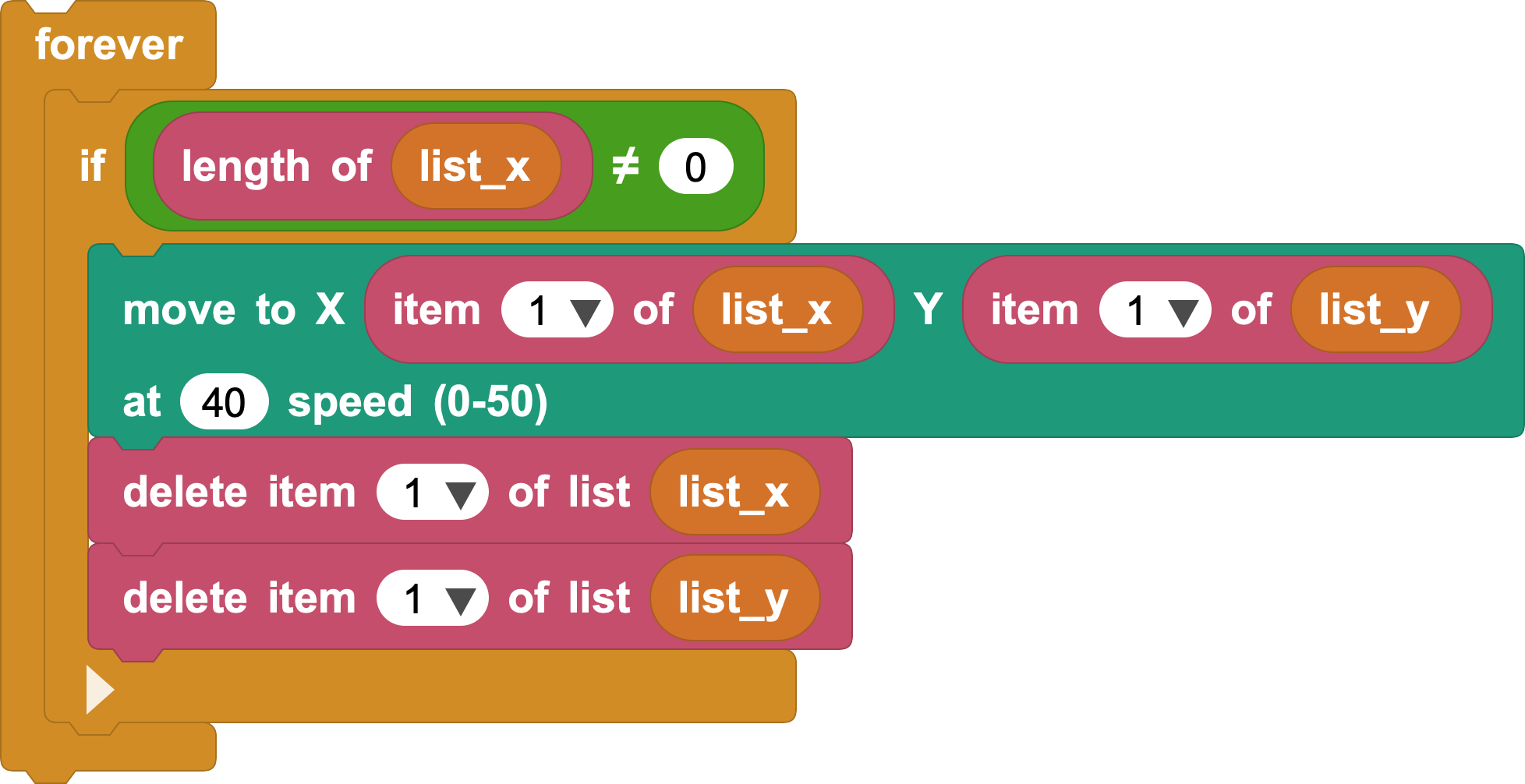
If we keep "read and delete" running forever, the outer forever loop will never stop. We need to break out at the right time. Use the exit loop block. To find it, first turn on advanced mode, then look at the bottom of the Control category.
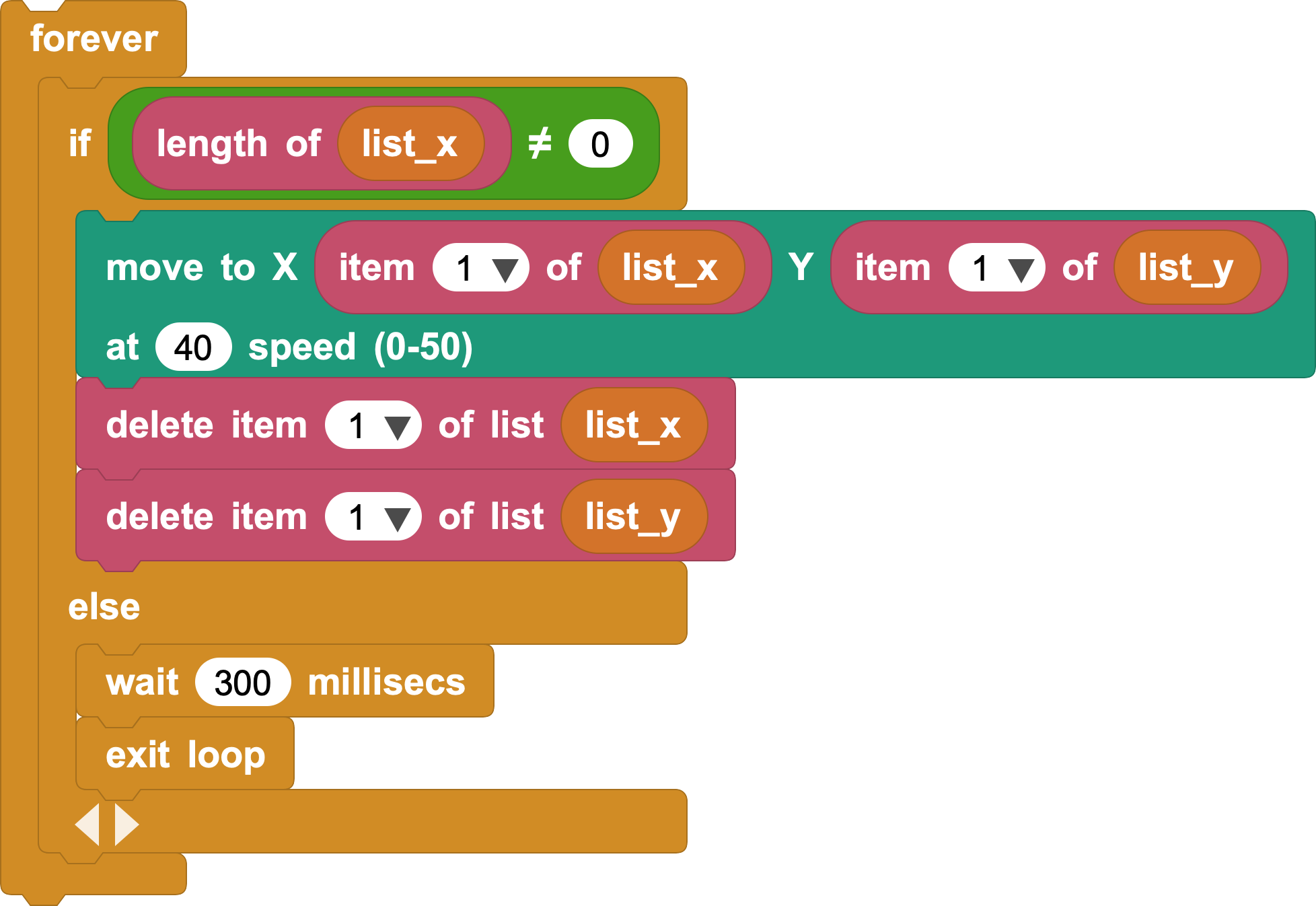
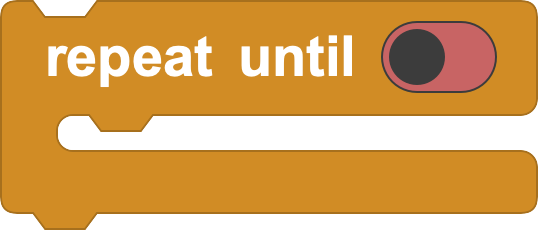
We can also use the repeat until block to replace the combination of if plus forever:
7. Instructions
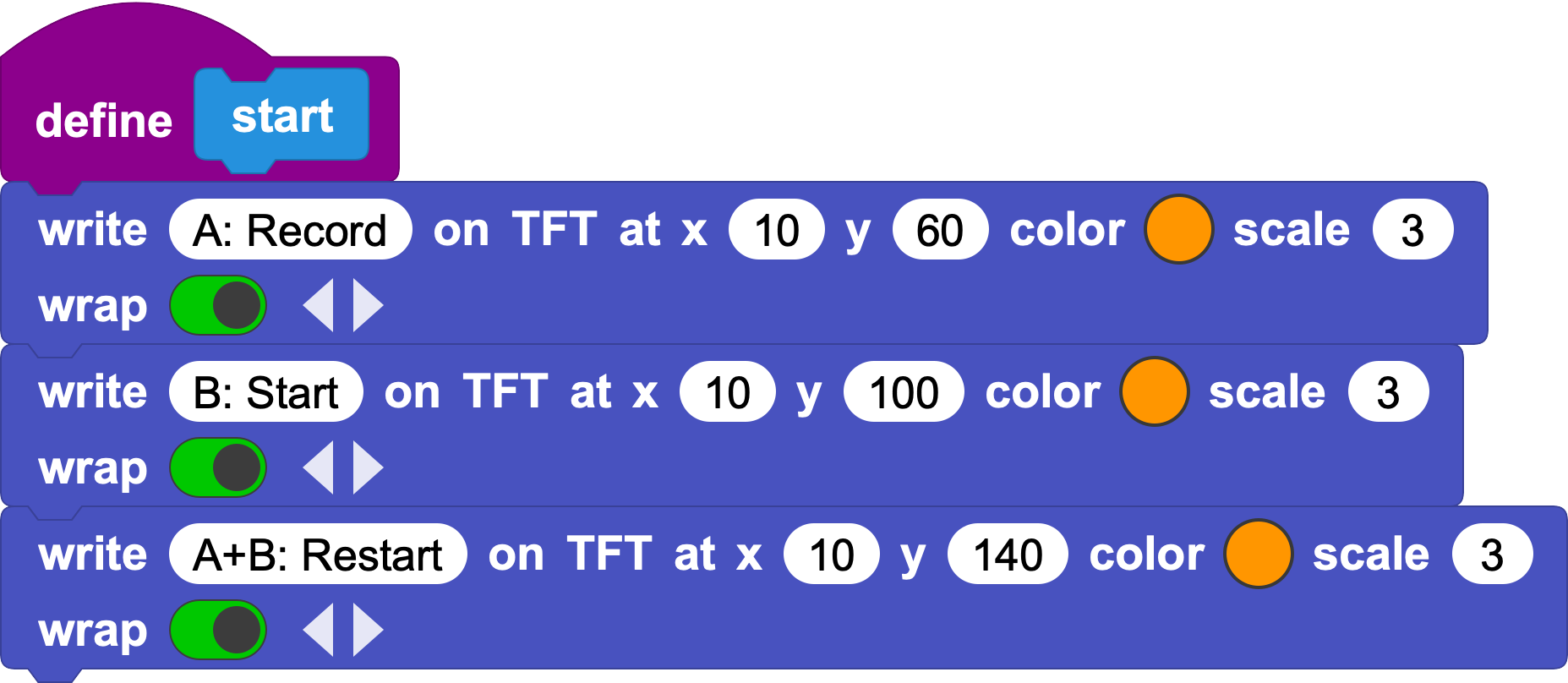
- Create a menu: To make the controls clear, we can use the CoCube TFT screen to show a simple menu. The custom block start draws this menu. Then we use the physical A and B buttons on the CoCube robot:
Press A: start Record, so the robot records its positions.
Press B: start Start, so the robot replays the stored path.
Press A + B together: Restart, which clears all stored coordinates and starts over.
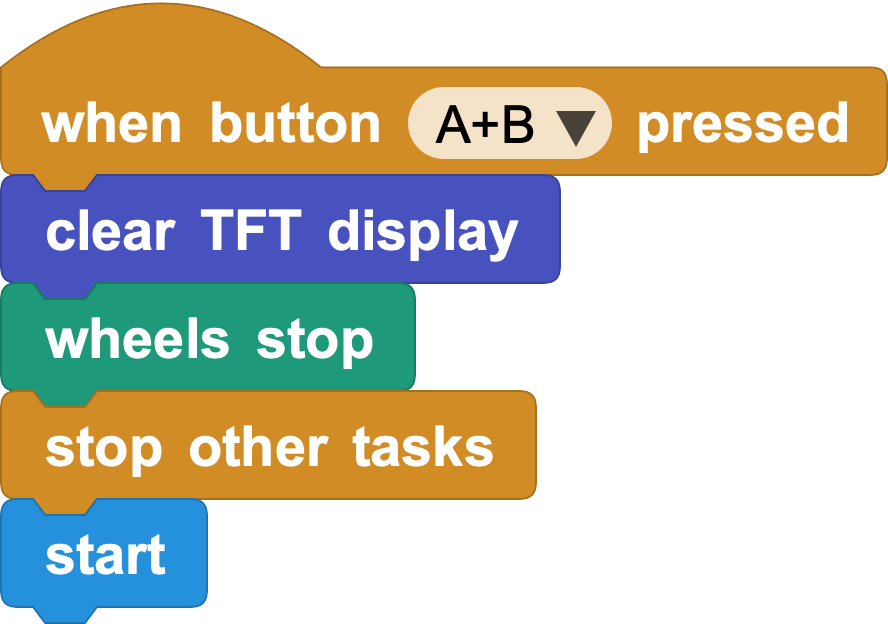
- Restart: If you used the "read and delete" method, Restart can be simple: stop all tasks and return to the menu.
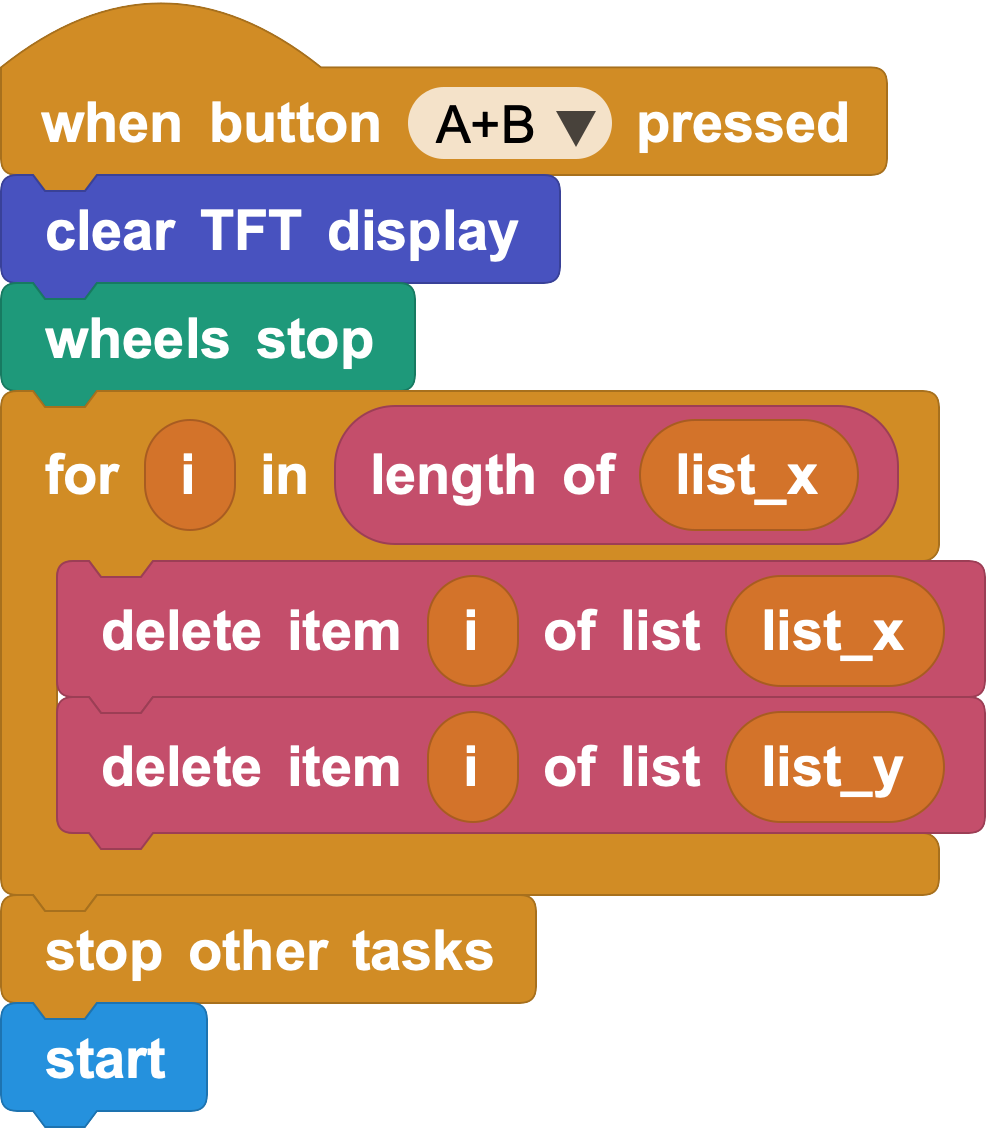
If you use the for block with an index variable, you can place the memory deletion here:
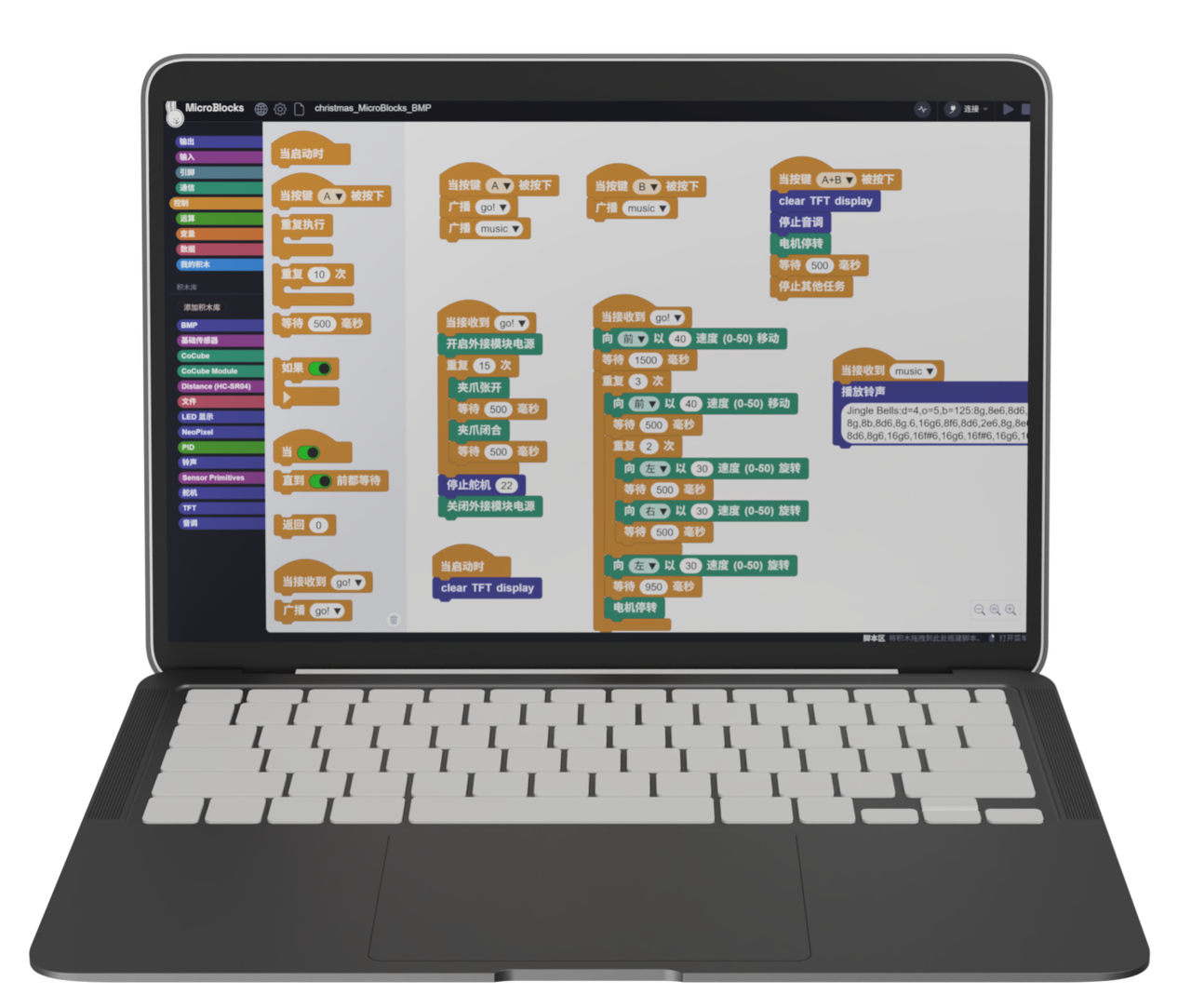
Use the blocks described above to store and replay the robot's positions. Add TFT display and music to make the activity more interesting.