Getting Started with CoCube ICON
CoCube ICON represents actions with picture blocks. Children can join the pictures in order to make a robot move, turn, play notes, and display patterns.
1. Connect CoCube
On a computer
Use Chrome or Edge on a computer that supports Bluetooth.
- Turn on CoCube and your computer's Bluetooth.
- Open ICON, click the blue connection button at the top right, and choose Bluetooth.
- Select your CoCube in the browser's device list, then pair or connect.
- Wait until the page shows that it is connected before testing blocks.
You can also use a USB data cable and choose USB in the connection menu. If the robot is missing, check its power, Bluetooth, or cable, then scan again.
On a phone or tablet
Install the CoCube App. It opens in MicroBlocks by default. Use the programming mode button in the toolbar to switch to ICON, then connect using the top-right button. iOS uses Bluetooth; Android supports Bluetooth or USB.
2. Explore the interface
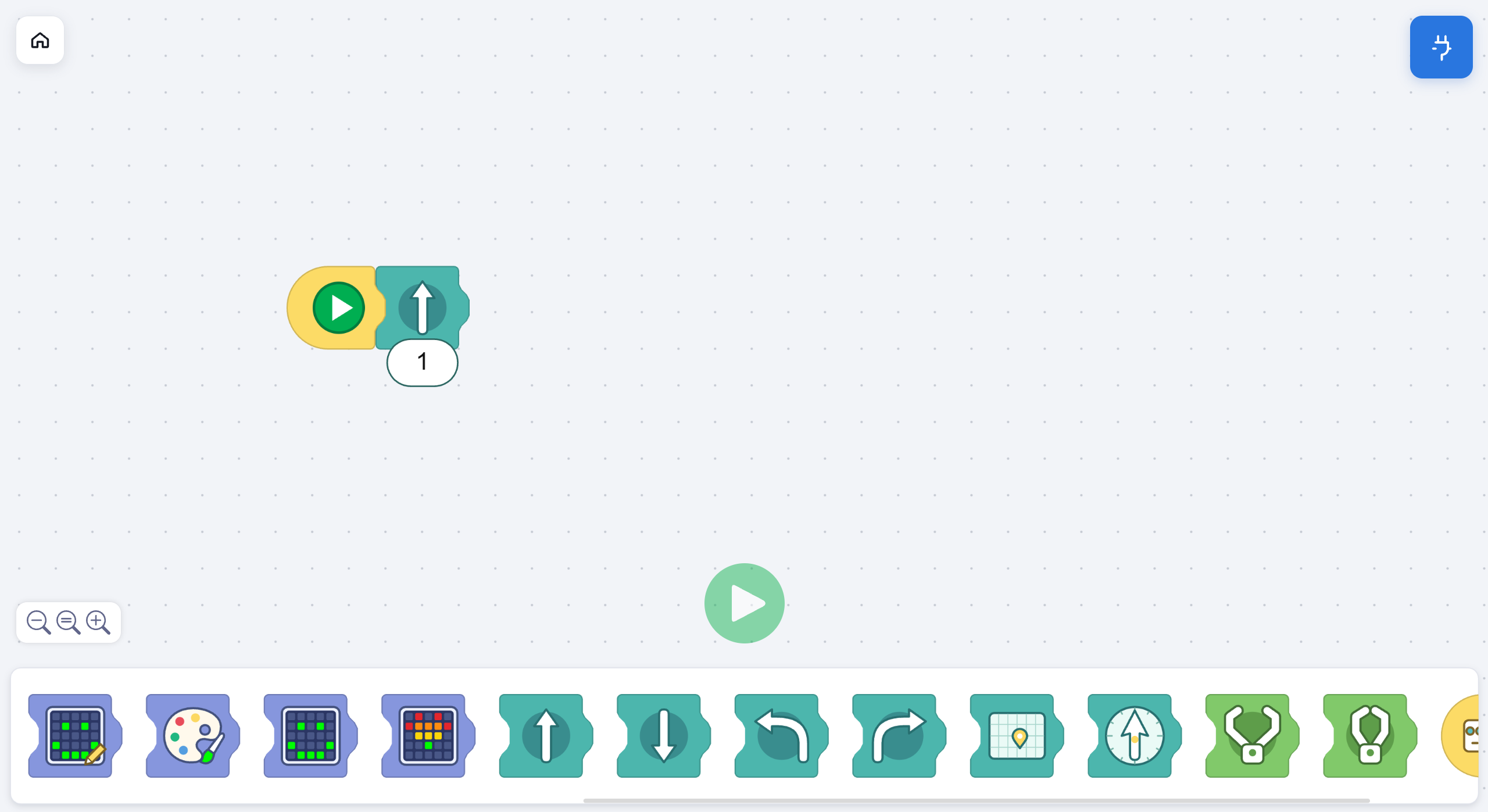
- Home, at the top left: open the project menu to create, open, save, undo, or change language.
- Connection button, at the top right: connect CoCube and check its connection status.
- Canvas, in the center: join blocks from left to right.
- Green Run button: run programs that begin with a Start block.
- Block palette, at the bottom: swipe sideways to find more blocks and drag them onto the canvas.
- Zoom buttons, at the bottom left: resize blocks on both the canvas and the palette.
3. Your first program: move forward one cell
Before using movement blocks, put CoCube at the center of a cell on the positioning mat, with one free cell in front of it.
- Find the yellow Start block on the canvas.
- Drag the upward-arrow Forward block from the palette and attach it to the right of Start.
- Click the number field below Forward and choose 1.
- Click the green Run button and watch the robot move one cell forward.
The picture above shows this “Start → Forward 1” program. Forward and Backward use a number picker, so no keyboard is needed.
4. Add actions and test
Add turns, waits, repeats, sounds, or display blocks. Click a block's parameter field to change its number, color, note, or other setting.
Once connected and ready, click an action block in the palette to try it, or click a block sequence on the canvas to run it. Use the green Run button for a complete task.
Event blocks can start several programs at the same time. For example, one program can control movement while another plays a sound when ToF detects an object. ToF and DLight events need the matching sensor module.
5. Block reference
Events and program control
| Icon | Block | What it does |
|---|---|---|
 | Start | Run the program attached to this block. |
 | Button event | Run the attached program when the selected CoCube button is pressed. |
 | Receive message | Run the attached program when a message of the selected color arrives. |
 | Send message | Broadcast a colored message to trigger other programs. |
 | Wait | Pause for the selected time, then continue. |
 | Forever | Repeat the blocks inside until the program is stopped. |
 | Repeat | Repeat the blocks inside a selected number of times. |
 | Stop | Stop the running programs. |
Sound and screen
| Icon | Block | What it does |
|---|---|---|
 | Play note | Choose a note and octave, then play it. |
 | Draw pattern | Edit and display a single-color pixel pattern. |
 | Display color | Choose the color used for single-color patterns. |
 | Built-in image | Choose and display an image stored on the robot. |
 | Color matrix | Choose a color for each cell to create a multicolor pattern. |
Movement and positioning
| Icon | Block | What it does |
|---|---|---|
 | Forward | Move forward by the selected number of grid cells. |
 | Backward | Move backward by the selected number of grid cells. |
 | Turn left | Turn left in 90° steps. |
 | Turn right | Turn right in 90° steps. |
 | Go to position | Use the positioning mat to move to the selected X and Y coordinates. |
 | Heading | In ICON: up is 0°, right 90°, down 180°, and left 270°. |
Gripper and sensors
| Icon | Block | What it does |
|---|---|---|
 | Open gripper | Open the servo gripper module. |
 | Close gripper | Close the servo gripper module. |
 | Distance event | Connect a ToF module; run the program when distance meets the selected condition. |
 | Light event | Connect a DLight module; run the program when light level meets the selected condition. |
6. Run and debug
Check that blocks are joined, parameters are correct, and the page shows a connection. Movement tasks need a positioning mat and should start at a cell center. Add only one or two actions at a time so that changes are easy to check.
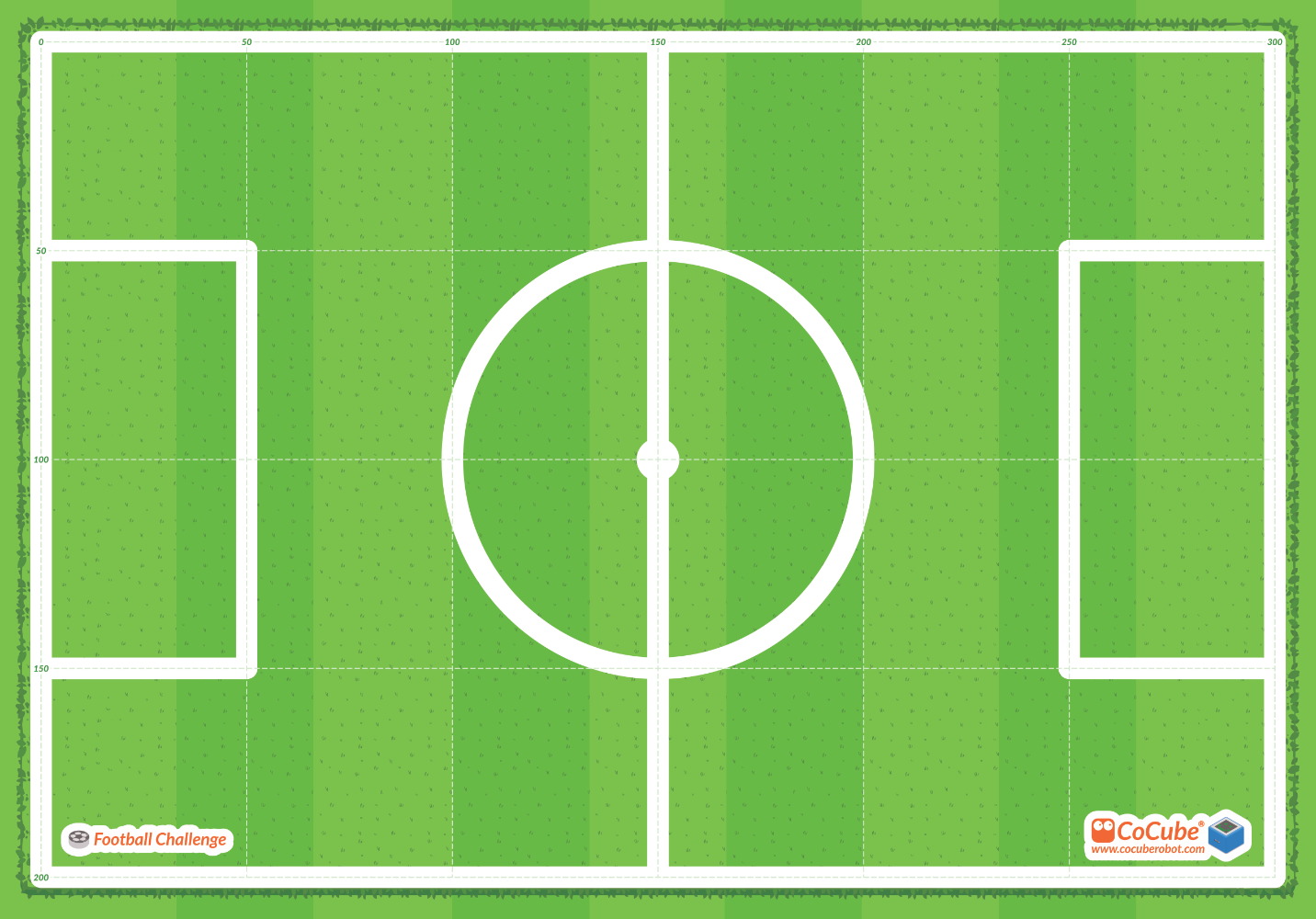
Forward and Backward move between cell centers. Adjust the route near the edge to keep the robot inside the positioning area. For football activities, place both the robot and the ball at the centers of their cells.
7. Manage projects
Open Home at the top left:
- New, Open, and Save: manage projects stored on your device.
- Undo: undo several steps, including deleted blocks or clearing the canvas.
- Clear canvas: remove the program from the canvas.
- Language: change the interface language.
- Blocks programming: return to MicroBlocks.
The Web version also lets you return to the CoCube entry page. After changing programming mode, reconnect the robot in the editor you switch to.
8. Try map challenges
Use the standard maze and racing maps to plan routes, or create your own themed map with Map Builder.
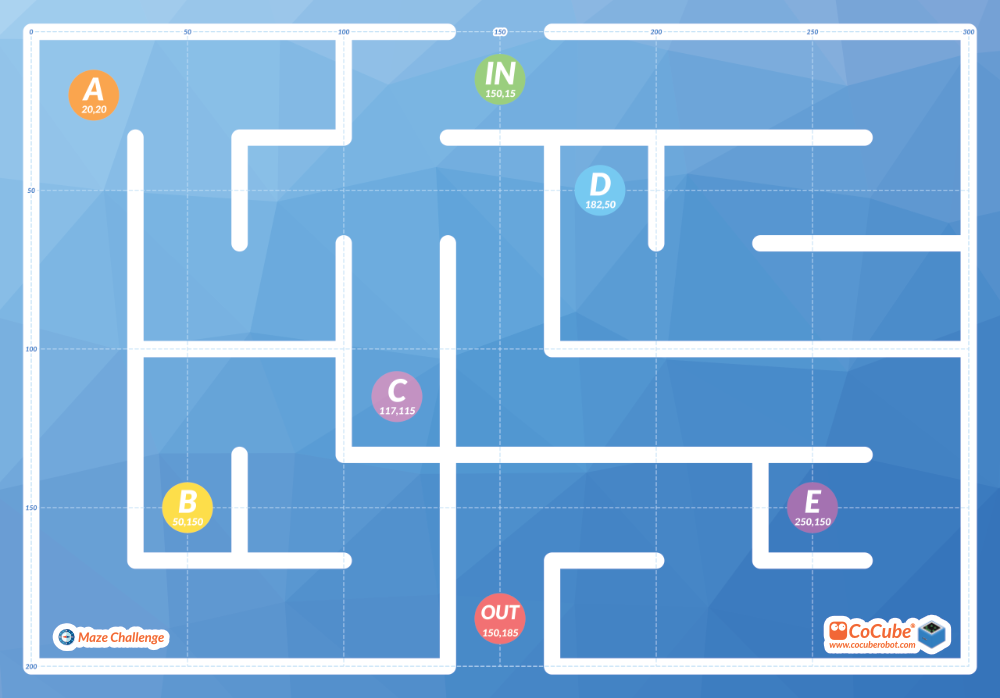
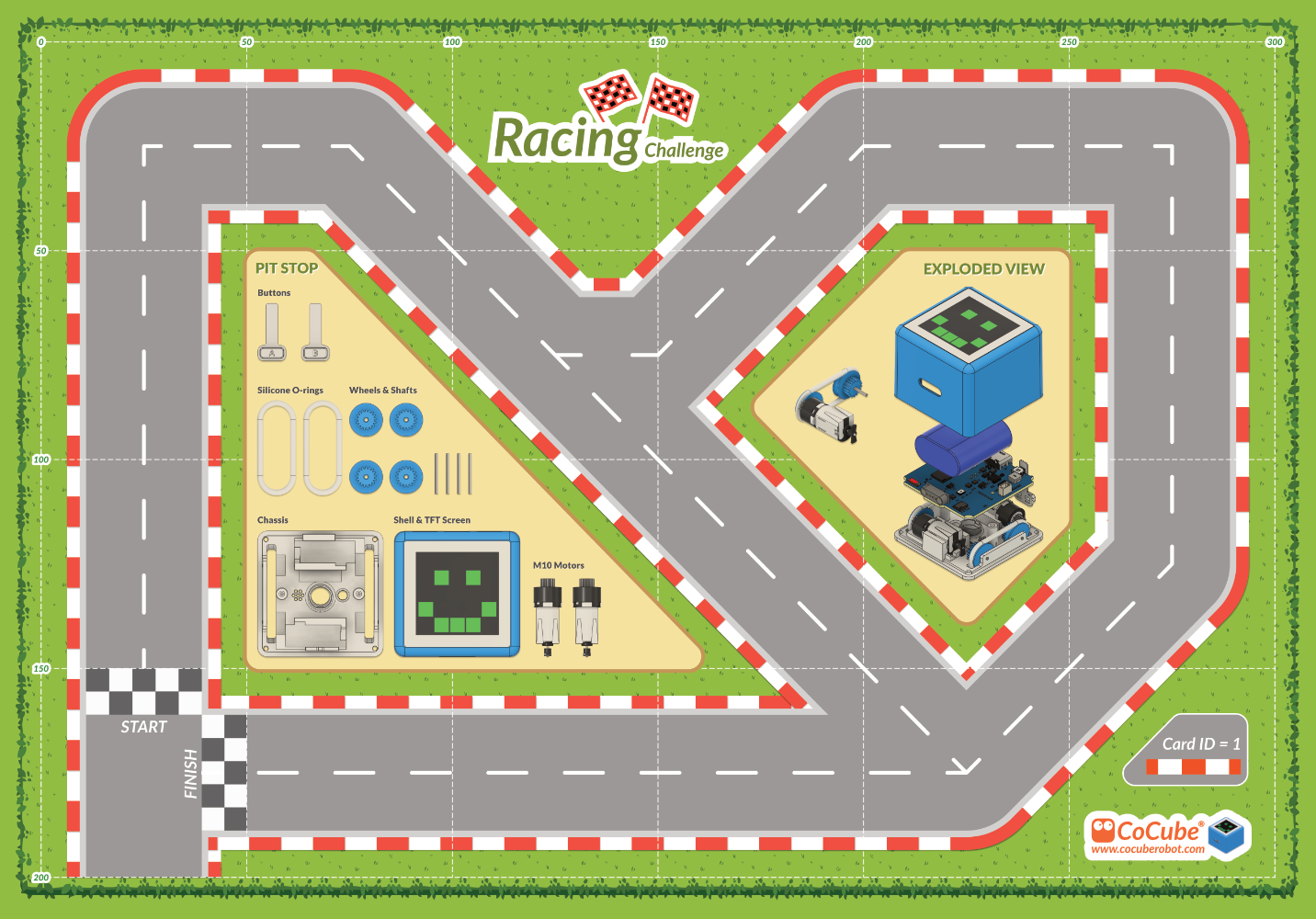
Read the Map Builder guide to learn how to choose a theme, draw a route, export, and print.
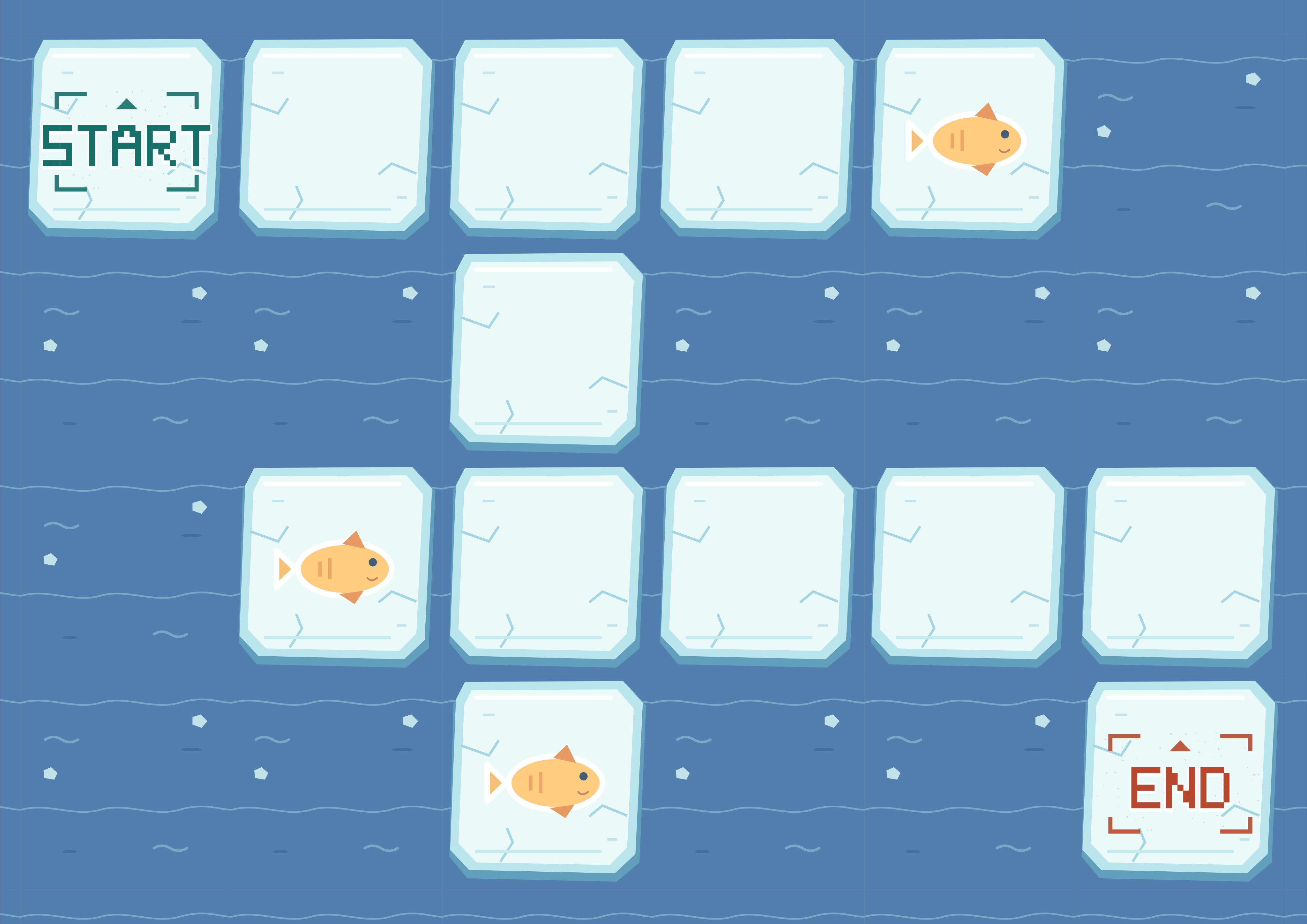
Download this A3 polar map as SVG
Start with a route from Start to End. Then try collecting rewards, avoiding obstacles, or using fewer blocks. Add loops, lights, and sounds as children become more confident.